Amazon Connect application data source settings
Settings applicable for the application data source depend on the integration type.
Recorder Settings
|
Setting |
Description |
|---|---|
|
Seating Arrangement |
For Application data sources, the Seating Arrangement is Free and cannot be changed. Free Seating indicates that employees do not have permanently assigned workstations. They are assigned an Employee ID and can log in from any location in the call center. |
|
Minimum Session Length (seconds) |
To prevent the retention of calls that are so short they are unlikely to contain usable data, specify a Minimum Session Length (seconds). Calls that are shorter than this length are deleted automatically. If set to 0 (zero), no calls are deleted based on this setting. The maximum value is 3600 (or one hour). This setting applies to active CTI Sessions or VOX Sessions. Inactive CTI Sessions can be retained using the Session Auditing Policy. |
|
Long Call Duration (minutes) |
This setting allows you to specify the length of a call, in minutes, after which the system will trigger an alarm. The system will also stop tracking the call from a CTI perspective, so in CTI-controlled application or performance mode environments this may cause loss of recording. Enter any number between 1 and 1440 (24 hours)—an alarm is raised in the cases where calls exceed this number of minutes. The default is 120. The Integration Service runs maintenance checks every five minutes to close calls that last for more than the length of time specified as the Long Call Duration. An alarm will indicate that a call was closed because it was too long. These maintenance checks are not run more frequently to avoid imposing an additional load on the system. Therefore it may take up to five minutes to close a long call after it has passed the defined Long Call Duration threshold. |
|
Long Hold Duration (minutes |
This setting allows you to specify the maximum duration of a single hold in minutes. Any holds over this duration will raise an alarm. Enter any number between 1 and 3000, representing the number of minutes. The default is 30. |
|
Session Auditing Policy |
Defines the type of session/interaction that should be marked and kept in the system. “Disabled” (the default) only marks sessions/interactions with some kind of content. Two additional options will create a basic entry in the database for calls that occurred but were not recorded: “Missed Recordings” will mark calls that should have been recorded, but were not, while “Full Switch” will mark all sessions/interactions for which we receive CTI without recording (for example, calls that were blocked, or interception calls that were met with a busy tone or unanswered ringtone). You may then search for these types of interactions in the Portal. Recorded employee segments marked by auditing will appear in playback once all Interactions in the related Contact are closed, after a delay of up to five minutes. |
|
Default Text Language |
Specify the default language assigned to text interactions if the language is not provided by the text source. |
Default employee for interaction capture
In some situations, recordings do not have an employee associated to them. Examples include:
-
IVR recordings, where no employee or phone device is involved.
-
Back-office environments, where phones are shared and not assigned to a specific employee.
To ensure that these recordings can be replayed, associate a Default Employee for interaction capture to the data source.
How the Default Employee works
Assigning a default employee to a data source allows recordings without an explicitly associated employee to be replayed. When this option is configured:
-
Any recordings from the data source that do not have a specific user associated with them are automatically associated with the Default Employee.
-
This association provides access to otherwise unassigned recordings.
Important Behavior and Warnings
After an employee is selected as the Default Employee, an error message appears on the data source screen if that employee has been:
-
Deleted
-
Terminated
-
Moved to a different organization
This error appears the next time the data source is viewed or saved.
|
Setting |
Description |
|---|---|
|
Organization |
Displays the organization to which the Default Employee for interactions belongs. The list of available employees is filtered based on the selected organization. |
|
Find |
Filters the Available Employees list by the entered search criteria to help locate a specific employee. |
|
Go |
Applies the search criteria entered in the Find field and refreshes the Available Employees list. |
|
Available Employees |
Lists employees in the selected organization who are eligible to be assigned as the Default Employee for Interactions. Employees with a configured end date are not displayed. |
|
Add (>>) |
Moves the selected employee from Available Employees to Default Employee. Only one employee can be assigned as the Default Employee. Avoid choosing an employee who will soon move or transfer to a different organization. Employees with a configured end date cannot be selected. |
|
Remove (<<) |
Removes the employee from Default Employee and returns the employee to the Available Employees list. |
|
Default Employee |
Displays the employee currently assigned as the Default Employee. |
|
Pagination Controls |
Navigates through multiple pages of employees in the Available Employees list when the list spans more than one page. |
Amazon Connect Settings
|
Setting |
Description |
|---|---|
|
Contact Trace Records Stream Name |
This field is required only when the data source is associated to an Interaction Capture Service server role. In this field, specify the Kinesis data stream name that the Interaction Capture Service connects to for post-call recording retrieval. This field is blank by default. The field can have a minimum of 1 character and a maximum of 1024 characters. |
|
Agent Events Stream Name |
This field is required only when the data source is associated to a Recorder Integration Service server role. In this field, specify the Kinesis data stream name that the Recorder Integration Service connects to for real-time agent and call events. This field is required for real-time audio and screen recording. This field is blank by default. The field can have a minimum of 1 character and a maximum of 1024 characters. |
|
Region |
You must select a region from the Region drop-down list. In this drop-down list, select the Amazon Web Service (AWS) region hosting the Amazon Connect call center. This field is blank by default. If you select the Custom Region option, you must specify the custom region in the Custom Region field below. |
|
Custom Region |
Complete this field only when you have selected the Custom Region option from the Region drop-down list. You must enter only the region code for custom region, not the entire display name. An example of a Custom Region value is “ap-south-1” for the region "Asia Pacific (Mumbai) ap-south-1". This field is blank by default. |
|
Specify Application Credentials |
Select this check box to enable the use of specific application credentials. If you select this check box, you must provide the specific application credentials in the Access Key ID and Access Key Secret fields. |
|
Access Key ID |
This field is enabled only when the Specify Application Credentials check box is selected. When this field is enabled, enter the user-specified application access key ID. This field is blank by default. The field can have a minimum of 1 character and a maximum of 1024 characters. |
|
Access Key Secret |
This field is enabled only when the Specify Application Credentials check box is selected. When this field is enabled, enter the user-specified application access key secret. This field is blank by default. The field can have a minimum of 1 character and a maximum of 1024 characters. |
|
Specify IAM Role |
Select this check box to use a specific application IAM Role. If you select this check box, you must provide the specific IAM Role information in the Role ARN (Amazon Resource Name) and External ID fields. If this check box is not selected, no role is assumed. |
|
Role ARN |
This field is enabled only when the Specify IAM Role check box is selected. When this field is enabled, enter the user-specified application IAM Role ARN. This field is blank by default. The field can have a minimum of 1 character and a maximum of 1024 characters. |
|
External ID |
This field is enabled only when the Specify IAM Role check box is selected. When this field is enabled, enter the user-specified application IAM Role External ID. This field is blank by default. The field can have a minimum of 1 character and a maximum of 1024 characters. |
|
Role Session Name |
When authenticating using an IAM role, you can explicitly configure the role session name. If this name is not configured, then the adapter generates a role session name. |
|
Pause/Resume Recording |
For a post-call recording deployment where Amazon Connect is handling the audio recording, enable this setting to pass pause and resume recording commands through to Amazon Connect. The commands are passed through such that screen and audio recordings will both be masked during the same time periods. This setting must be enabled for call recovery. This can also be configured in a real-time recording solution where Amazon recording is being used as a fallback mechanism. In these environments, pause and resume should also be enabled such that the backup copies recorded in Amazon can also be paused/resumed at the appropriate time periods. The pause and resume commands must be sent to the Interaction Capture Control API (formerly RIS API), which passes the commands to Amazon Connect. |
|
Amazon Connect Instance ID |
This is the instance ID of the Amazon Connect instance. The instance ID is required to send pause and resume recording commands. |
|
Amazon Connect Multi-party Call Mode |
Amazon Connect Multi-party Call Mode - Enable this option if your Amazon Connect instance supports multi-party calls and enhanced monitoring for voice. This setting must match your Amazon Connect configuration for recordings to work correctly. |
|
Proxy Settings |
When the customer has a proxy host for their Amazon Connect, Ring Central RingEx, Zoom Meetings, or Zoom Phone systems, in the Proxy Settings section, configure the following:
|
Post-call Cloud Settings
Internal. The Post‑Call Cloud settings are for the External Cloud Recording Configuration service, and apply to supported Application data sources (currently Amazon Connect). Configuration is performed by Verint Services.
The Post‑Call Cloud Settings include the following fields:
-
Application Name: Specifies the DynamoDB table name provided by Verint Services for this deployment. The post‑call capture service uses this value for checkpointing and post‑call event tracking.
This value must exactly match the value supplied by Verint Services.
-
Record Unknown Agents: Determines whether the system processes post‑call interactions when the agent identified in the interaction record cannot be matched to a configured Verint agent.
-
When enabled, the system captures post‑call audio and metadata for unmapped or unrecognized agents.
-
When disabled, these interactions are discarded.
-
-
Block Fallback Audio: Controls whether post‑call audio is stored when the real‑time recording is missing.
-
When enabled, the system blocks ingestion of fallback audio and saves only post‑call metadata and tags.
-
When disabled, the system stores fallback audio when required.
-
Associated Installations
Associated Integration Service Installations: Select the server role that will provide the Recorder Integration Service for this data source. The integration service captures media in real-time, such as agent screen activity.
Associated Interaction Capture Installations: Select the server role that will provide the Interaction Capture services for this data source. The Interaction Capture Service retrieves the media recorded by the external system, which can include post-call audio, video, chat, or email, depending on the capabilities of the external system.
Advanced Settings - Key Value pairs
The following Key and Value pairs are optional settings.
|
Key |
Value |
|---|---|
|
EnableAwsRegionalEndpoints |
False (default): The option is disabled. When disabled, the data source uses the AWS global service for AWS Security Token Service (AWS STS), DynamoDB, Kinesis, and S3. Global requests for STS go to the endpoint
True: The option is enabled. When enabled, the data source uses standard regional endpoints for AWS Security Token Service (AWS STS), DynamoDB, Kinesis, and S3. AWS recommends using Regional AWS STS endpoints instead of the global endpoint. |
|
AwsStsRegionalEndpoint |
Important: This setting overrides the Enter a specific regional endpoint for AWS Security Token Service (AWS STS). Example: |
|
Amazon.KinesisStreamsEnhancedFanOut |
False (default): Disables the use of Amazon Kinesis Data Stream Enhanced Fan Out. True: The Amazon Kinesis Data Streams are configured to use the Enhanced Fan Out feature. Next, enable the required permission, as listed in the row "Kinesis data streams using Enhanced Fan Out" in IAM User Permissions. For more info, see Amazon Kinesis Data Streams Adds Enhanced Fan-Out and HTTP/2 for Faster Streaming (AWS News Blog). |
|
SwapAudioChannels |
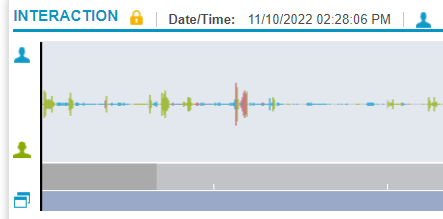
By default, when you playback a voice conversation, the agent's voice is on the Blue channel (top) and the customer's voice is on the Green channel (bottom). This is known as speaker separation.
If your Amazon Connect contact center is configured to swap these streams, add the SwapAudioChannels key and set it to True. Wait a few minutes for WFO to update all the active jobs on the Recorder. Then check that new calls have the agent and customer on the correct channels. |
|
BlockFallbackRecording |
The purpose of BlockFallbackRecording is to manage how call recordings are processed during fallback scenarios. When this setting is set to True:
This setup focuses on retaining metadata while making sure no audio recordings are ingested after the call. It is designed for situations where privacy or compliance rules require excluding audio data. |