Add a domain login in SQL Server
In order for a domain user to connect to the SQL Server database, you must create a login in SQL Management Studio. Once the login is created, you must assign roles and access to the RKM database.
Procedure
Log on to Microsoft SQL Server
-
Log on to Microsoft SQL Server Management Studio.
Add a login for the domain account
-
Under Object Explorer, right-click the Security folder.
-
Click New > Login.
-
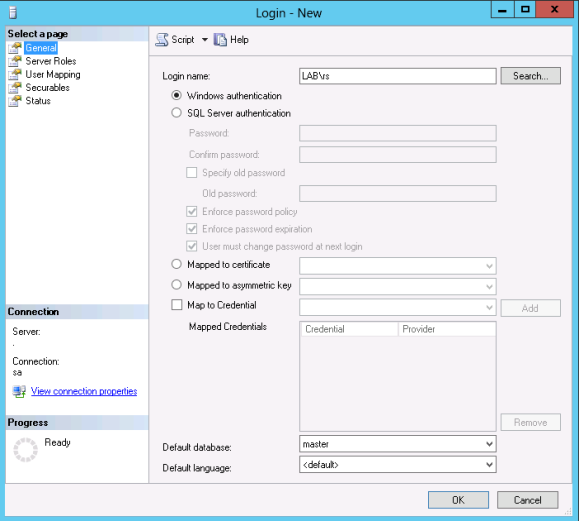
In the Login - New window, on the General tab, enter the Login name in <domain>\<account> format.
-
Click OK.
Run alter authorization query
-
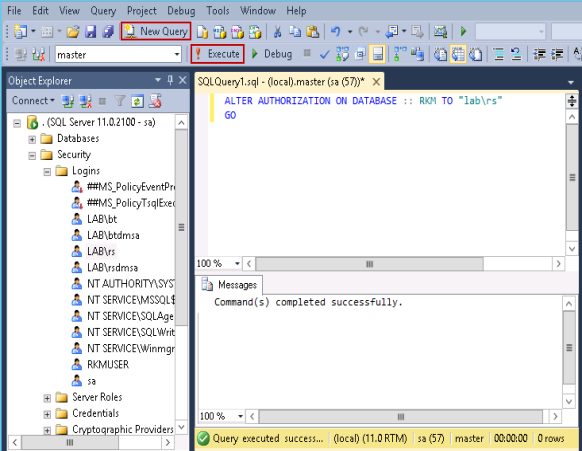
Click the New Query button.
-
Enter the following query against the RKM database to alter authorization from the RKMUSER account to the domain account.
ALTER AUTHORIZATION ON DATABASE : : RKM TO “<domain>\<account>”
ALTER AUTHORIZATION ON DATABASE : : RKM TO “lab\rs”
-
Click the !Execute button.
Assign server roles
-
Expand Security > Logins.
-
Right-click the account you just added, and then click Properties.
-
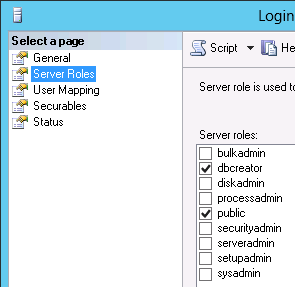
Under Select a page, click Server Roles.
-
Select the dbcreator and public server roles.
Verify the alter authorization query ran successfully
-
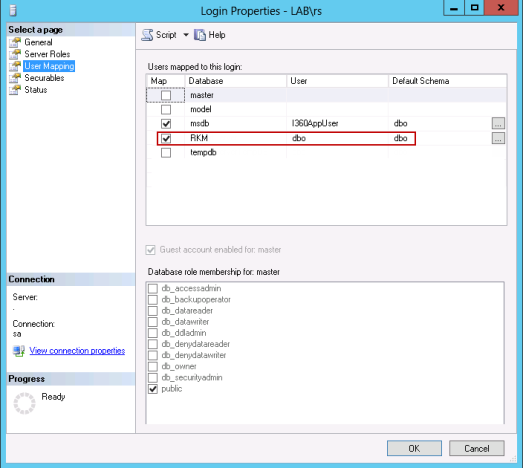
Under Select a page, click User Mapping.
-
Under Users mapped to this login, verify the Map check box is selected for the RKM database. If selected, it verifies the ALTER AUTHORIZATION query ran successfully.
-
Click OK.
-
Exit SQL Server Management Studio.