Change the RSA KMS database user password
After you have successfully installed, configured, and verified the entire installation, you might want to change the default password for the account created during the RSA KMS installation.
The RKMUSER user ID or domain user account is used to access the Data Protection Manager Server database. When you change the RKMUSER or domain user account password, you must make the change in SQL Server Management Studio, and the RSA KMS Data Protection Manager Administration Console. The two passwords must always match.
Procedure
-
On the primary RSA KMS database, log on to SQL Server Management Studio using the RKMUSER or domain user account.
-
On the Microsoft SQL Server Management Studio window, in the left pane, expand Security > Logins.
-
Double-click RKMUSER or the domain user.
-
On the Login Properties window, in the Password and Confirm Password text boxes, specify the new SQL Server password.
-
Select the Specify old password check box.
-
In the Old password field, specify the old SQL Server password, and then click OK.
-
Close SQL Server Management Studio.
-
Log on to the Data Protection Manager Administration Console.
- Click Settings > Change Database Credentials.
- Enter the user name and password for the domain account.
- Click Update.
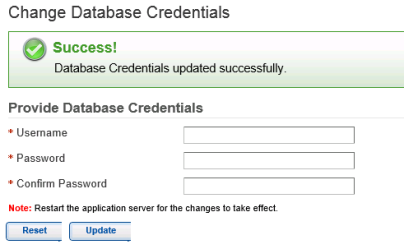
- Restart the RSA KMS.
-
If applicable, repeat the steps in this section for the secondary RSA KMS database.