Restore a differential database backup using SSMS
A differential backup is based on the most recent, previous full data backup.
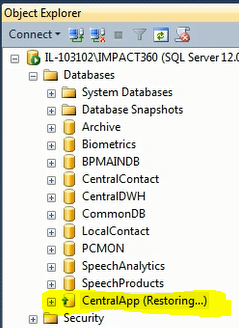
Restoring a differential backup restores only the data that has changed since that full backup. After restoring a full database backup WITH RECOVERY, the database is in Restoring state. At this point you restore the differential database backup.
Procedure
-
Open the SQL Server Management Studio (SSMS), and click Object Explorer.
-
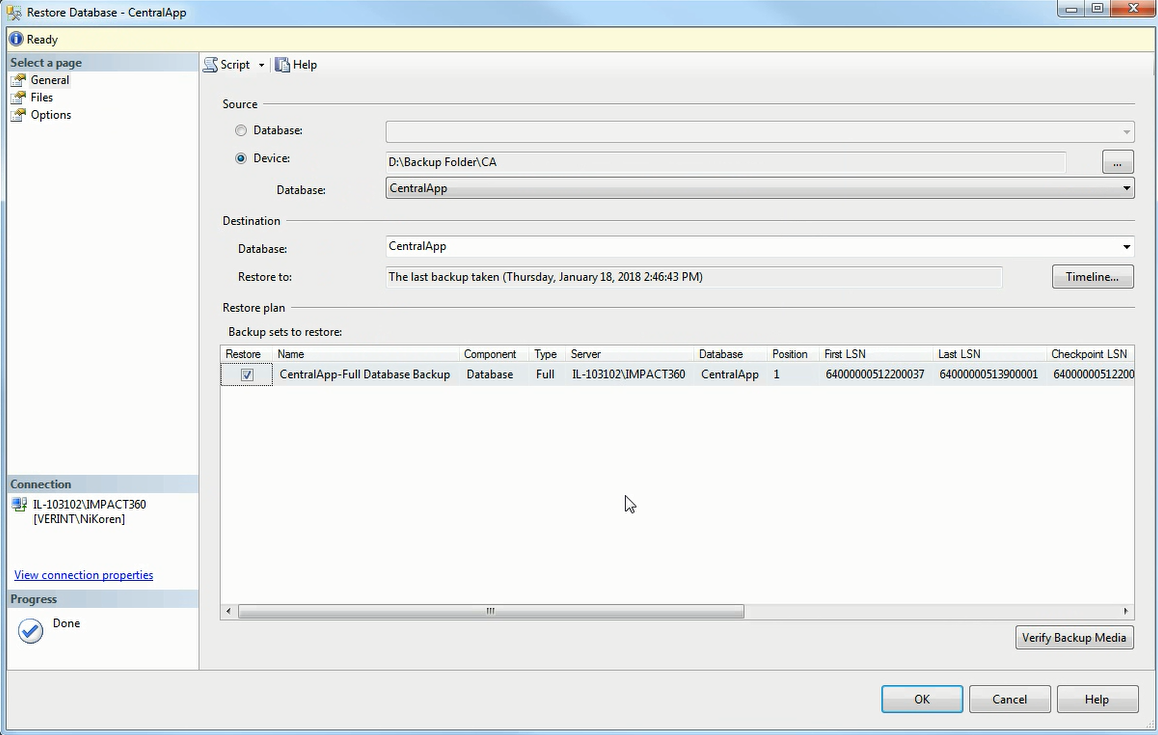
Right-click the Database that is in Restoring state, and select Restore Database.
-
Select the Options page.
-
From Recovery state, select RESTORE WITH RECOVERY, and click OK.
-
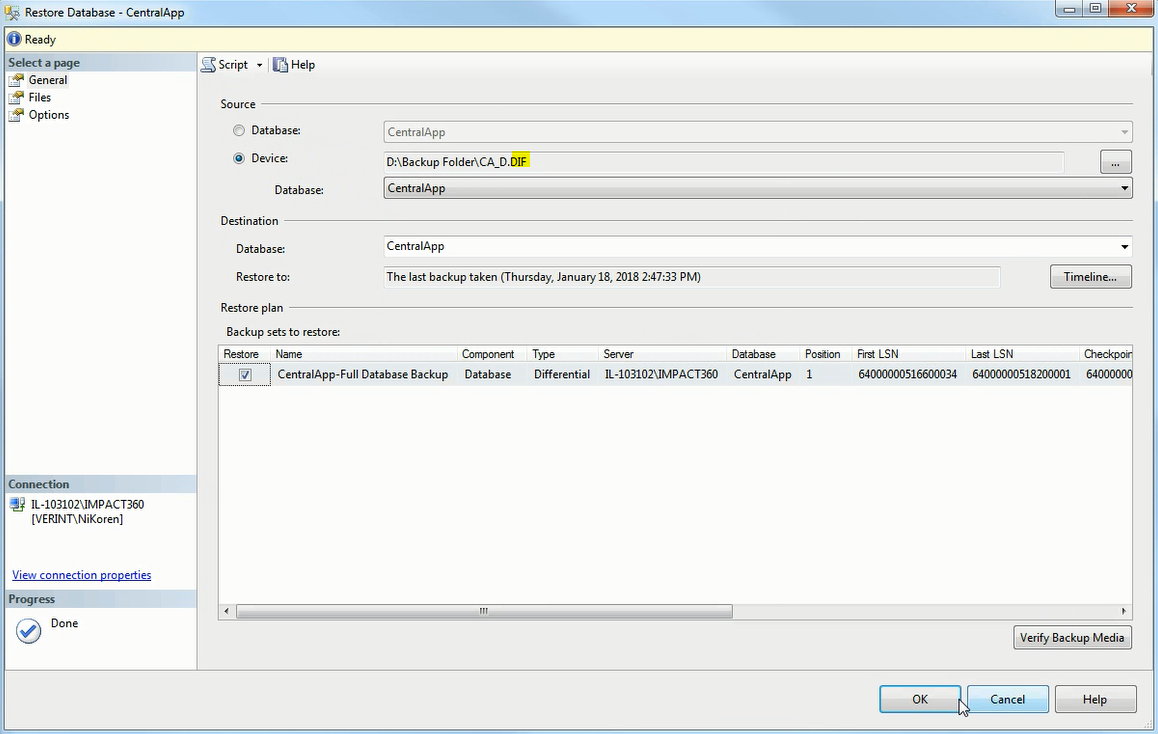
In the Source, select Device and set the location of the differential database backup.
-
Click OK to start the restore process.
-
Wait for the restore operation to complete successfully. Click OK when the message appears.