Known issues and limitations
Re-enable RAPS role after reinstall
Uninstalling the RIS KB removes the RAPS role from the Recorder server, making the RAPS adapter unavailable. After reinstalling the RIS KB, in Enterprise Manager, re-enable the RAPS role on the Recorder server. Then, associate the RAPS role to the data source member group.
Together and Gallery modes
Any calls or meetings using "Together" or "Gallery" mode results in capturing audio only. Video content is not captured.
Complex call scenario tracking in audio integrations
This release supports simple call scenario tracking (for simple inbound calls, outbound calls, and internal calls).
For the following complex call scenarios,
-
Calls with hold and retrieve (Inbound, outbound, internal)
-
Consultative calls
-
Call transfers (blind, non-blind)
-
Conference calls
-
Group calls
Multiple first participants join a call simultaneously
Sometimes a call can have more than the usual two call objects.
Typically, when a Teams meeting starts, the Teams bot creates two call objects: one object for the meeting organizer and a second call object when the first participant joins. The second call object is then used to group all other participants that join the call.
However, if multiple participants join the Teams call simultaneously and before Teams creates the grouping call object, then another call object is created for each of those "first" participants. One of these call objects then acts as the grouping call object.
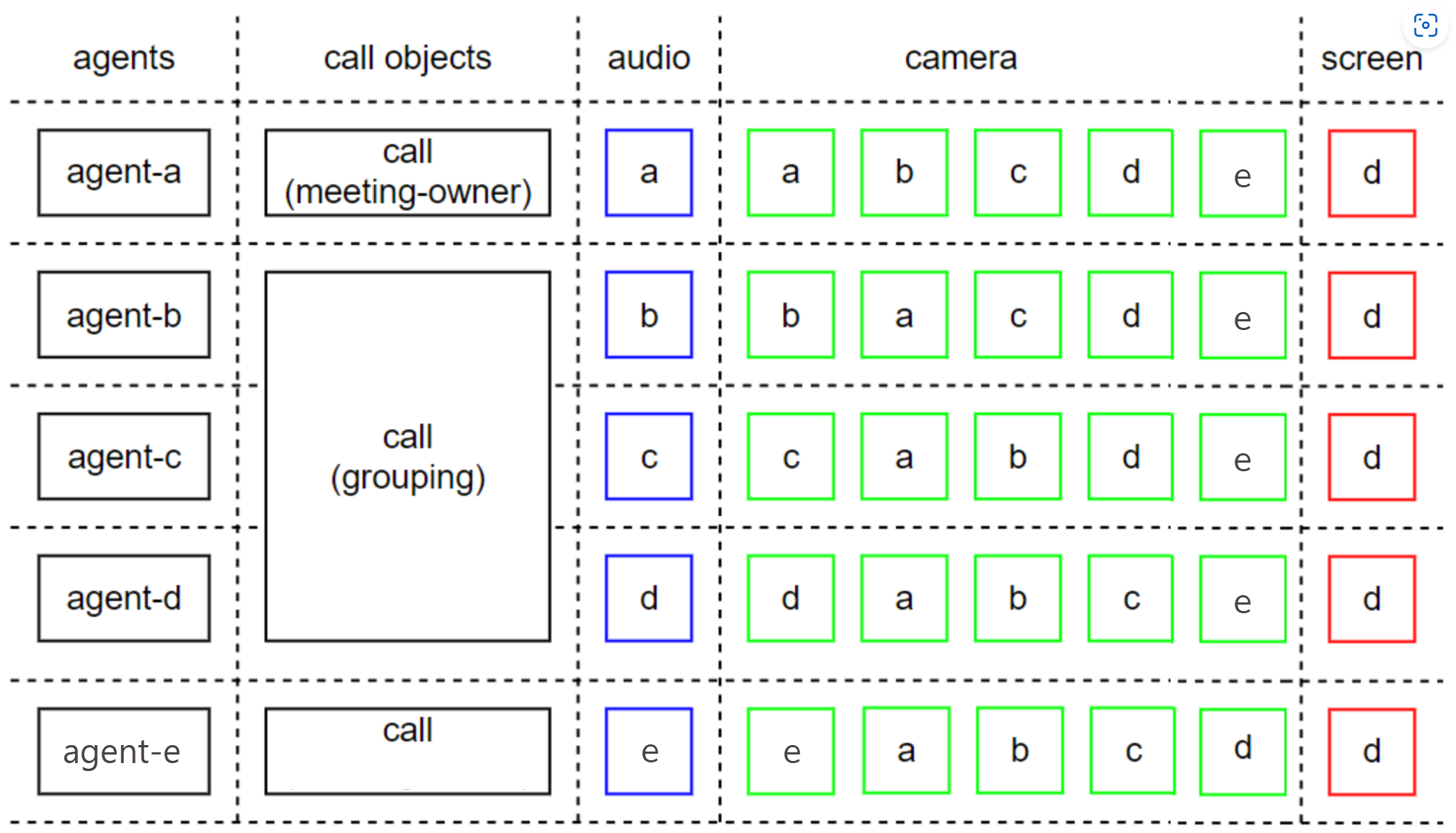
The following diagram shows what happens when agent-b and agent-e join a Teams call at the same time. The Teams BOT creates three call objects, one for the host (agent-a), one for agent-b, and another for agent-e. The BOT designates the call object for agent-b as the grouping call.
Number of camera videos captured per participant
A Microsoft Teams call has a limited number of video sockets (1-10) through which to deliver camera video to our system. A socket is like a virtual tunnel, which streams the video over the internet quickly, efficiently, and securely.
The Recorder limits the number of captured camera video streams per monitored participant. By default, it keeps the camera video from the last four active participants. When all of the available video sockets (0-10) are occupied, and a new monitored participant becomes the dominant speaker, the oldest camera stream is evicted, and the video of the dominant speaker is captured. You can change the maximum number of active participants captured from zero (none) to 10 by configuring the MSTeams.NumberOfCameraSocketsPerCallObject key on the Teams data source. Microsoft limits the maximum to 10 streams.
When you increase this threshold, it significantly increases the Recorder resources and number of recorder delivery IP ports used.
Example:
A Microsoft Teams meeting has five monitored participants with camera on. The following table exemplifies the number of video streams that the Recorder captures for different configurations of the MSTeams.NumberOfCameraSocketsPerCallObject.
|
MSTeams.NumberOfCameraSocketsPerCallObject |
Camera video streams per call |
|---|---|
|
0 |
None (5 participants x 0 videos) |
|
1 |
5 (5 participants x 1 video) |
|
4 (default) |
20 (5 participants x 4 videos) |
|
5 |
25 (5 participants x 5 videos) |
|
10 (maximum allowed by Microsoft) |
50 (5 participants x 5 videos) |
Tagging in audio integrations
This release supports attribute tagging (for the ANI, DNIS, Call direction, Employee, Call duration, Extension, and similar).
The following tagging is not captured for Microsoft Teams audio interactions:
-
hold/retrieve/HoldCount
-
transferred/TransferCount
-
conferenced/ConferenceCount
Chat integrations
-
Microsoft does not send events for any chats initiated from a user outside the tenant for which the application is registered. As a result, these chats are not captured. This limitation is on the Microsoft side.
-
The Microsoft Teams integration cannot capture custom attributes.
-
A single Chat application cannot capture interactions or attachments to those interactions for more than one tenant.
-
The Chat application must be registered in the same Microsoft tenant as the agents to be captured.
-
In a group chat, all members see the same content, regardless of whether they join or leave the chat later or earlier than other participants.
-
Edits to chat messages or deleted chat messages cannot be captured.
-
Reactions in chat are not captured.
-
In chat playback:
-
Only one guest is displayed.
-
Images and stickers that are copied and pasted result in the plain text word "[image]", rather than an actual image. They are also not associated with any name
-
Redundancy types for Chat
No type of native redundancy (that is, N+M nor N+N) is supported. If you require redundancy, independent Chat Recording Data Sources to capture and store each chat twice can be created.
Live Monitor
Live Monitoring interactions which include video or screen sharing, results in audio and screen capture display only.
Agent to Agent call where both agents place call on hold
When more than one agent is configured to capture all media, extra content is captured when both agents put a call on hold, then either agent resumes the call. Both agents capture audio and video content, even though one agent is still on hold. This issue happens because the Microsoft Teams Server and bot maintain a call hold state per call, and not per participant.
Recording channel number on Integration Status page
The Integration Status on the Recorder Integration Service server does not accurately report the number of used video channels under Channels (Rec/High/Max). It shows the number of recording streams instead.
Recording Mode in Integration Status page
In Recorder Manager, the IP Extension Status always displays the Recording Mode as Record for all employees. It bases this status on the Microsoft Teams data source, disregarding the Recording Profile setting for the same data source. This issue impacts the status display only, the recording profile setting is used.
Recording rules for screen share
You cannot create a recording rule for screen share recordings.
Whiteboard, polls, and file share
The following features are not captured:
-
Whiteboard
-
Polls/Q&A
-
File share/Attach files
Record if threadId is missing
The Microsoft Teams Application data source can be configured to ignore meetings, and only record P2P calls and conference calls. To accomplish this, our solution evaluates the "threadId" property in the participants’ call invite. In rare edge cases, this property could be missing. If threadId is missing, we cannot identify the type of interaction, so as a fallback mechanism, we record the participant.