Grant admin consent for the permissions
All assigned permissions need admin consent in the Teams tenant.
-
If you are an Admin, select the Grant Admin Consent for Verint button on the page that lists the assigned permissions to grant admin consent.
-
If you are not an Admin, build a specific URL and send it to the Admin for consent.
Before you begin
-
Have the following information available:
-
Redirect URI
-
Tenant ID
-
Client ID (App ID)
To find the Tenant ID and the Client ID (App ID), in Azure Active Directory under App Registrations, select the bot you created. Both IDs are listed on the Overview page.
-
Procedure
-
Construct the consent URL:
https://login.microsoftonline.com/{tenant}/adminconsent?client_id={client_id}&state=12345&redirect_uri={redirect_uri}
Replace the {tenant_id}, the {client_id} and the {redirect_uri} with the correct values.
-
Paste the URL into a browser.
The Microsoft portal requests that you sign in.
-
Sign in with administrator credentials.
The Microsoft portal displays a permission request form.
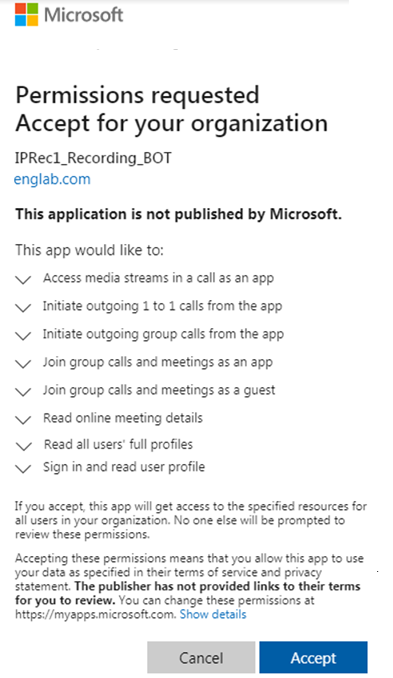
-
Select Accept.
What to do next