Create a capture profile
Use Recording Profiles to stipulate the type of content you want to capture for multiple Employees at once.
You may have Employees for whom you only want to record chats, others for whom you only want to record audio or video and VbSS. To any Employees who are not configured in the system, the recording BOT applies the default configuration of the data source on which the call is received. (In these scenarios, tagging and session creation may not work as they would for configured Employees.)
Procedure
-
Select the Application data source that you created previously.
-
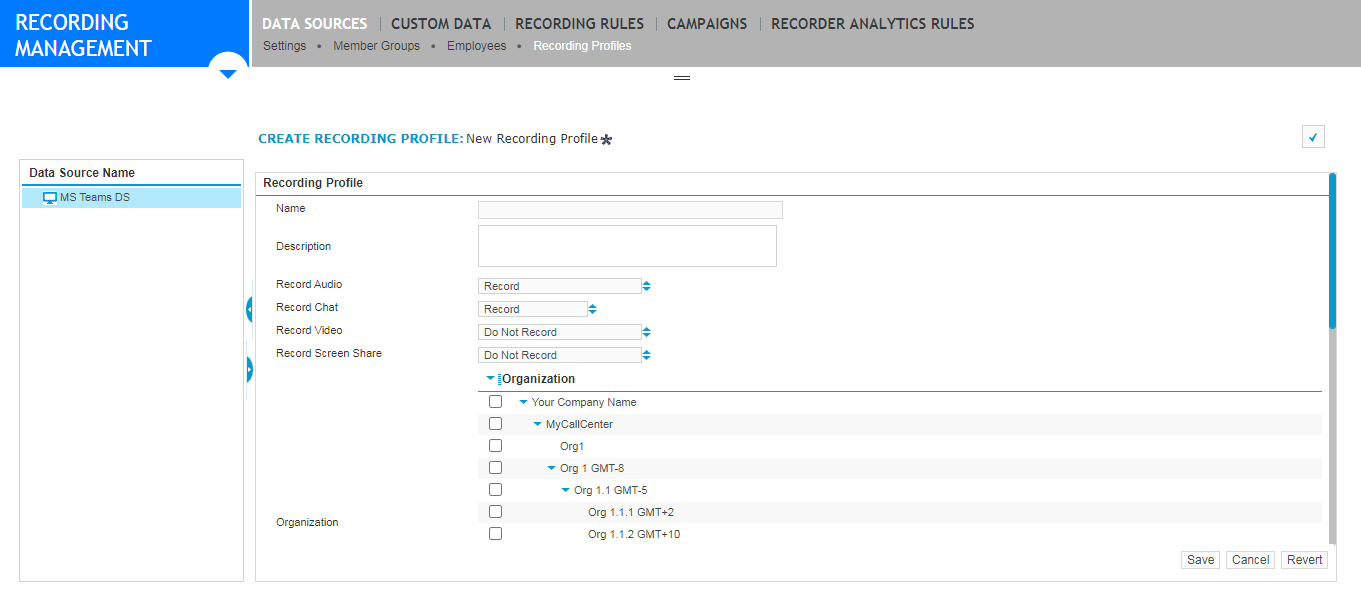
Click Recording Profiles (in the gray bar at the top of the screen). This screen displays all available Recording Profiles.
-
Click Create.
-
Type a Name for the profile.
-
Enter a Description (optional).
-
If the Record Audio option appears, specify whether audio should be recorded for this group of Employees by setting Record Audio to Record or Do Not Record.
-
If the Record Chat option appears, specify whether chat should be recorded for this group of Employees by setting Record Chat to Record or Do Not Record.
-
If the Record Video option appears, specify whether video should be recorded for this group of Employees by setting Record Video to Record or Do Not Record.
-
If the Record Screen Share option appears, specify whether VbSS should be recorded for this group of Employees by setting Record Screen Share to Record or Do Not Record.
-
There are two ways to add Employees to a Recording Profile. Note that you may mix and match both types, including both Organizations and individual Employees in the same profile:
-
Organization: These are organizations created under Organization Management. You may add multiple Organizations to a single Recording Profile. Selecting a parent Organization will automatically select its children, but you may de-select these individually.
-
Employee: Employees are set up under User Management. Select one or more Employees from the left-hand pane, then use the arrow buttons to move them to the right. If there is a large number of Employees, you may use the filter tool to narrow the selection.
-
-
Click Save.
What to do next
For audio, video, and VbSS, Configure the Microsoft Teams BOT Adapter
For chat, create a Create the Microsoft Teams Chat Adapter