Create a host organization and Service Provider Administrator (SPA) role
Create a host organization and Service Provider Administrator (SPA) role to perform all administrative actions related to the multi-tenant work environment, and update the Adhoc Query Analyst role privileges on the root organization.
The host organization is also known as tenant 0 (zero). All organizations in the tree that are not associated with a tenant are owned by the Service Provider and are considered to be tenant 0.
Procedure
-
Under the root organization, create a host organization for Service Provider administration purposes.
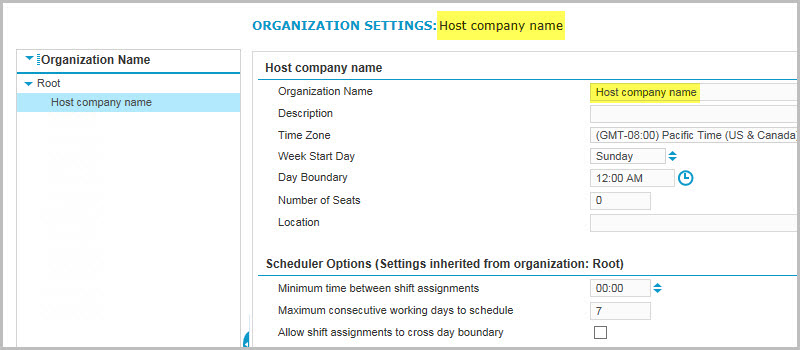
-
Go to User Management. Under Security, select Roles Setup.
-
Under Organization Name, select the root organization.
-
For the Adhoc Query Analyst role, assign the View Organization privilege (in the Framework section, under Organization).
-
Copy the Administrator role to the new host organization.
-
Change the name of the Copy of Administrator role to Service Provider Administrator.
-
Add privileges for the Service Provider Administrator role:
-
Under Forecasting and Scheduling, go to Queue Analytics and select the following privileges:
-
View Queue Analytics
-
Under View Queue Analytics: Create Public Views
-
Under View Queue Analytics: Edit Campaign Queue History
-
Under View Queue Analytics: View All Queue History
-
Under View All Queue History: Edit All Queue History
-
-
Under Forecasting and Scheduling, go to Schedule Viewing and select Edit Forecasting and Scheduling Calendar.
-
Under Forecasting and Scheduling, go to Host Settings and select Request Management Host Settings.
-
Under Framework, go to Tenant and select the following privileges:
-
View Tenant
-
Under View Tenant: Configure Tenant
-
-
Under Framework, go to System Administration and select the Configure Feature Settings privilege. Note that this privilege along with the View Tenant and Configure Tenant privileges in the previous step are needed to view a list of tenants and configure tenants.
-
Click Save.
-
-
Add privileges for the Service Provider Administrator role to view specific reports:
-
Under Reports, go to Setup and select Access Rights.
-
Under Management Reports, select the View Privilege for the Service Provider Administrator role for two of the following reports based on how tenants are billed:
-
License Usage Summary by Org
-
License Usage
OR
-
Product Usage by Employee
-
Product Usage by Organization
-
-
-
Create a Service Provider Administrator (SPA) user profile.
-
Give the user the Service Provider Administrator role with scope over the root level of all scope types (inherited down).
From now on, only use the Service Provider Administrator user to perform all administrative actions related to your multi-tenant work environment.
Create an organization (Workforce Optimization User Management Guide)