Schedule a report in SSRS
Ad hoc reports can be scheduled to run on a recurring basis using Microsoft SSRS Report Manager. Scheduled reports can be emailed or saved to a shared folder.
Any WFO user with the required privileges can log in to Report Manager and perform this task. These privileges are:
-
Access Ad Hoc Query
-
Deploy Reports
They are located under Framework > Reports.
Before you begin
Procedure
-
-
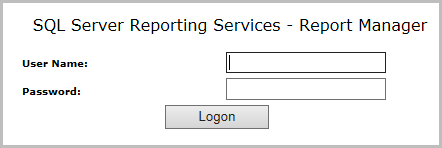
If you do not have a load balancer, enter the following address:
http://<ApplicationServerName>/Reports
or
https://<ApplicationServerName>/Reports
If you have a load balancer, enter the following address:
http://<LoadbalancerURL>/Reports
or
https://<LoadbalancerURL>/Reports
-
-
-
-
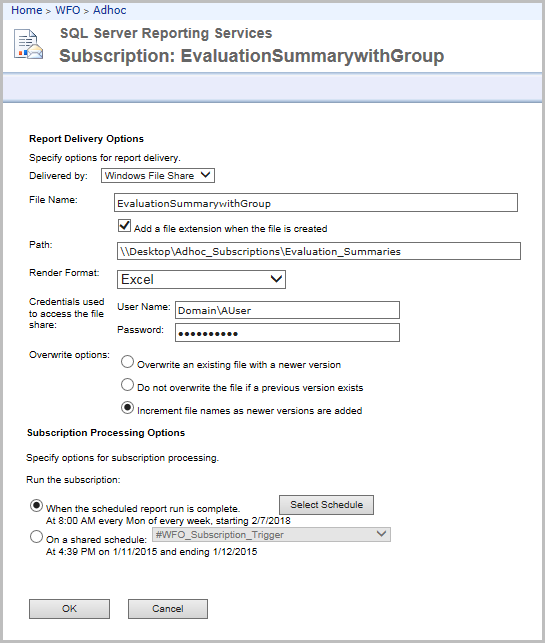
Under Report Delivery Options > Delivered by:, select one of the following:
-
Windows File Share: If this option is selected, in Path:, set the path to the preferred network share directory.
Set the path to a folder that already exists. SSRS does not create folders. The user whose credentials are used to access the file share must be enabled in Windows to access the drive.
-
E-mail: To send the report by email, under E-mail Settings, verify that the value in the SMTP Server field points to an SMTP server in EM and SSRS. Complete the required fields for sending the report by email.
-
-
-
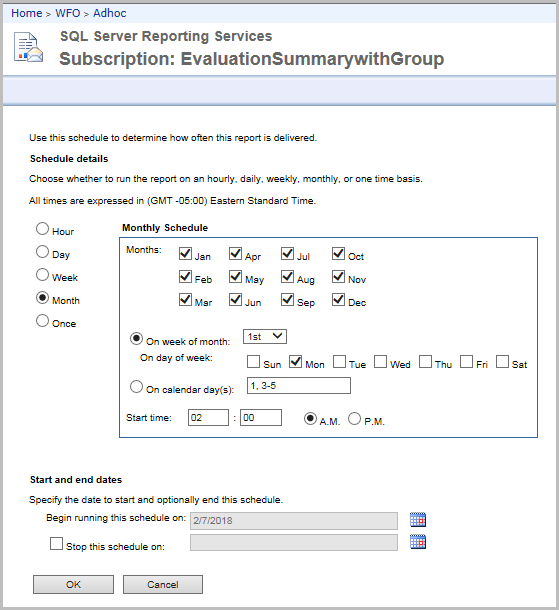
Define when the schedule should be run.