Define settings for Interaction Data Export with Processing rule
Add the Interaction Data Export with Processing action to the rule, and define the rule's export settings.
Select the media types to include in the export. For audio and screen recordings, select the format in which to export the files.
Once a rule is activated, output files are automatically exported to the specified destination folder on the destination media using the following directory structure: yyyy/mm/dd/hh/[output file name].
Example of output file names and paths:
2021/01/14/10/202101140952931239382831092912.json
2021/01/14/10/202101140952931239382831092912.wav
2021/01/14/10/202101140955939120918209382191.json
2021/01/14/10/202101140955939120918209382191.wav
2021/01/14/10/202101140955939120918209382191_screen_1.scn
2021/01/15/08/202101150832102398129148124123.json
2021/01/15/08/202101150832102398129148124123_text.json
Before you begin
Verify that you have a storage target configured on the Storage Targets page in System Management.
Procedure
-
In the Actions drop-down menu, select the Interaction Data Export with Processing action, and then select Add Action.
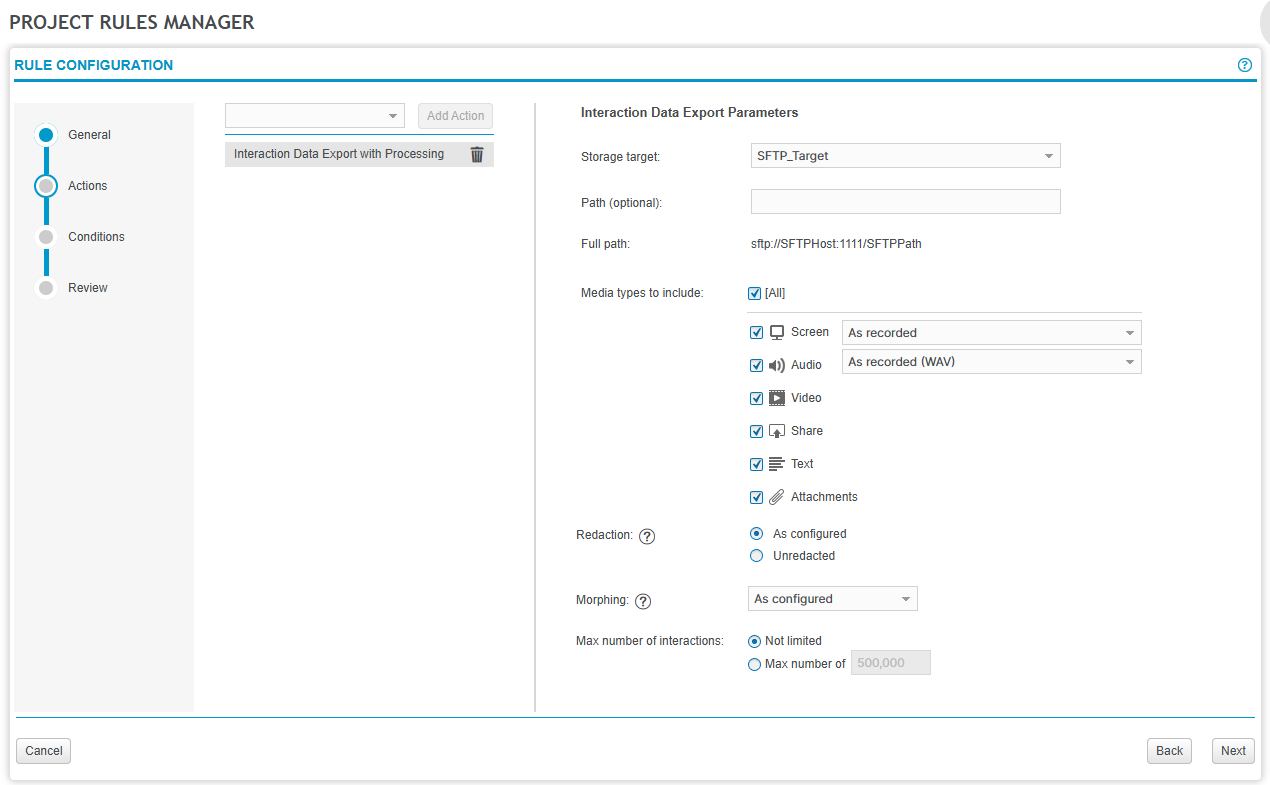
-
Under Storage target, select an available storage target from the list.
-
The list displays the storage targets configured on the Storage Targets page in System Management.
-
After selecting a target, the full path to the destination folder on the storage target is displayed.
-
-
(Optional) To export the data to a specific subfolder on the storage target, enter the folder name.
The full path is updated with the specified subfolder.
-
Select the media types to include in the export:
-
Screen
If Screen is selected, select the format in which to export the files:
-
As recorded: Export in the format used to capture the screen activity.
-
As recorded combined with Audio (AVI): Combine screen and audio media and export in AVI format. Selection of this option disables Audio as a separate media type.
-
Portable combined with Audio (AAC + H.264/MP4): When assigned the role privilege to Export screen capture as MP4, combines audio and screen into a portable MP4 format (AAC audio and H.264/MP4 video). Users can play back the media using any application that supports MP4. Selection of this option disables Audio as a separate media type.
-
Portable (H.264/MP4): When assigned the role privilege to Export screen capture as MP4, exports screen (H.264/MP4) to a portable MP4 format. Users can play back the media using any application that supports MP4.
-
-
Audio
If Audio is selected, select the format in which to export the files:
-
WAV: Export in the recorded WAV format.
-
G.711/WAV: Convert and export in G.711/WAV format.
-
AAC/MP4: Convert and export in AAC/MP4 format.
-
-
Video (as recorded in MP4 format)
-
Share (as recorded in MP4 format)
-
Text (exported in CIV format)
-
Attachments (exported as is)
-
-
If licensed for redaction and your role has the Export without redaction privilege, choose whether to use Redaction for exported media. Redaction protects sensitive customer information found in captured interaction media. The system analyzes interaction transcriptions to identify personally identifiable information (PII) and then redacts those portions of the media. Examples of sensitive customer information include debit and credit card details and medical information.
Choose from the following options:
-
Unredacted: Export the original media. Exporting unredacted media is audited.
-
-
If licensed for morphing and your role has the Export without morphing privilege, choose whether to use Morphing for exported media. Morphing protects the identity of persons speaking on the interaction by changing the voice heard. The anonymity of the speaker is preserved while the audio remains intelligible.
Choose from the following options:
-
Agent and customer: Apply morphing to anonymize both audio channels.
-
Agent only: Apply morphing to the employee/agent channel only. The customer voice is the original audio as captured.
-
Not morphed: Export the original audio for both the employee/agent channel and the customer channel.
-
-
(Optional) Define the Max number of interactions.
-
With no maximum number defined (default), the rule can export an unlimited number of interactions.
-
If you define a maximum number, it must be 1 or more, with a maximum value of 500,000.
-
-
Select Next.
What to do next
Define conditions for Interaction Data Export with Processing rule
Create a storage target (Enterprise Manager Configuration and Administration Guide)
Desktop Applications Deployment Reference and Installation Guide