Enable Call Recording with custom Twilio integration
If the default Twilio platform recording option is not enabled, then Interaction Capture cannot use the Twilio Conference Sid to download the recording. Instead, a custom configuration is required to enable the Twilio Recording Sid to be passed in the events, and to enable Interaction Capture to use this value to download the recordings.
With the custom configuration, Interaction Capture reads the attributes configuration from the data source at start up and passes them to the recorder Notification API. If there are changes to these attributes during a Twilio call, Interaction Capture is notified. At the completion of the call, Interaction Capture uses the information available for these attributes to pull the call recording from the Twilio Flex environment during call ingestion.
Before you begin
In the Twilio console, go to Settings. Under Recordings, set Call Recording to OFF.
Procedure
- In Twilio, add the Recording Sid to Twilio Task or Reservations events, such as the Twilio Task Update event.
-
In the Verint portal, create a custom attribute:
-
Go to Recording Management and select Attributes.
-
Select Create.
-
Enter the following values for the attribute:
-
Name: RecordingSid
-
Data type: String
-
Size: 20
-
Enabled: yes
-
Stored: Last value
-
Tagging Level: Session
-
-
Select Save.
-
-
If used, create the other two custom attributes, ConferenceSid and RecordingType.
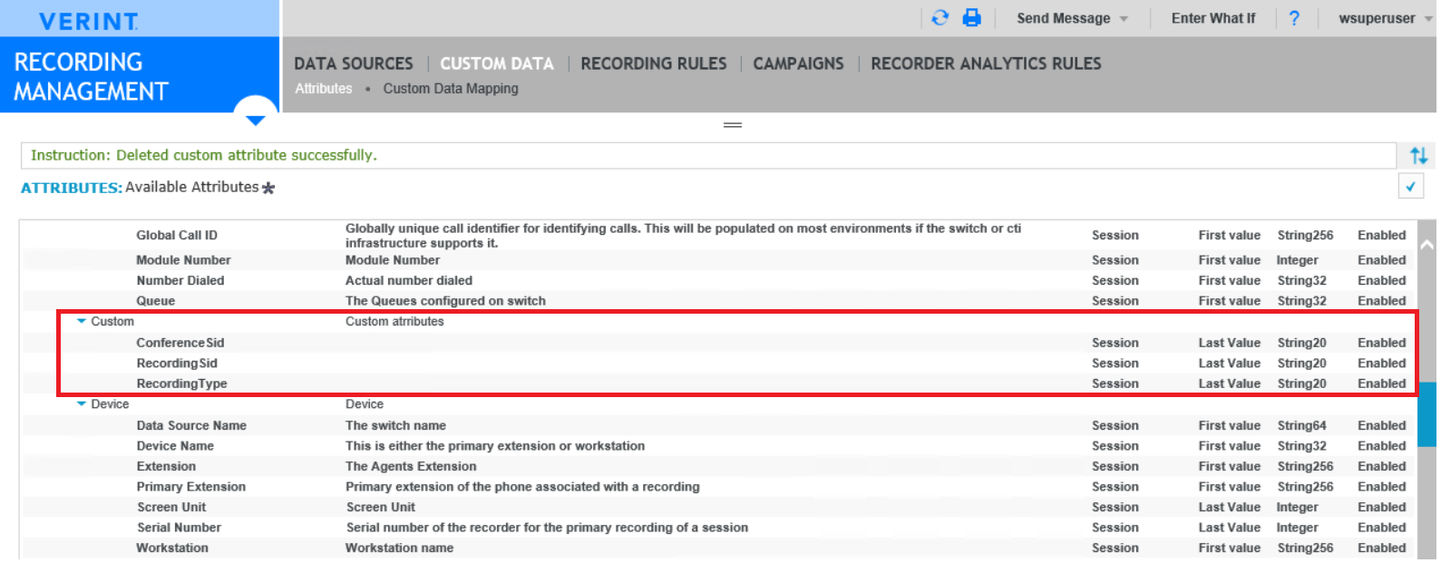
-
In Recording Management, under Data Sources, select Settings.
-
Edit the Twilio data source.
-
Under Advanced Settings, add the key RecordingAttributes, and set the value to RecordingSid,RecordingType,ConferenceSid.
-
Select Save.
-
Access Recorder Manager.
-
Go to General Setup. Under Integration Adapters, select Attributes.
-
In the list of adapters, select the Twilio Event Stream Adapter.
-
Locate the newly created custom attributes.
-
Provide the attributes with their source information, which is based on the attribute placement in Twilio events. The source values are similar to the following examples:
Attributes
Required?
Example Value
ConferenceSid
Optional
event.data.payload.task_attributes.conference_sid
RecordingSid
Required
event.data.payload.task_attributes.recording.sid
RecordingType
Optional
event.data.payload.task_attributes.recording.type
-
Select Save.
Create the Twilio Application data source
Create the Twilio Event Stream adapter
Create, edit or delete an attribute (Recorder Configuration and Administration Guide)