View personal schedule in graphical format (WCAG)
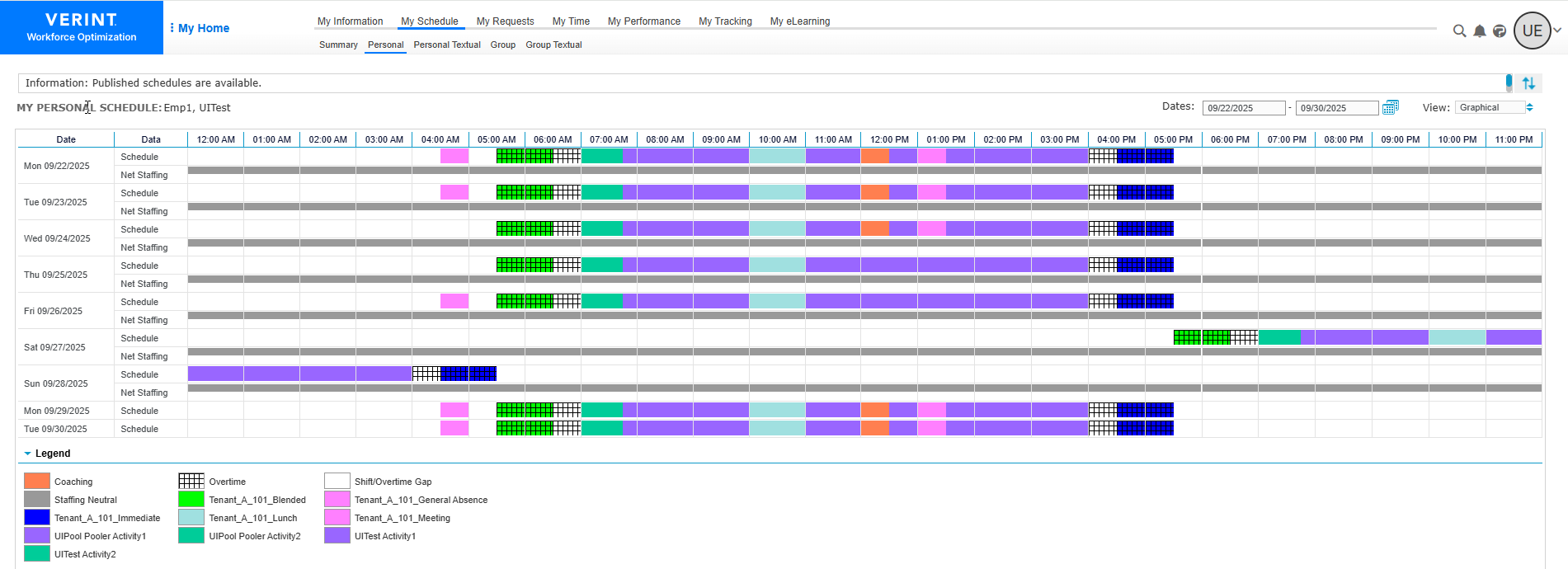
You can view your personal schedule information in graphical format.
With graphical view, you can use the Net staffing ribbon to identify time periods that are overstaffed or understaffed. For overstaffed periods, you can create a Voluntary Time Off (VTO) request. For understaffed periods, you can create a Shift Request & Change request.
Before you begin
To view the Net staffing ribbon on your personal schedule:
-
Go to Preferences.
-
Select Workforce Management.
-
Select the setting, Show Net Staffing in Graphical Schedules.
Procedure
-
Go to My Home. Under My Schedule, select Personal.
-
From the View box, select Graphical.
The system displays your personal schedule in graphical format.
-
To select a different schedule period, from Dates, enter a different date range and select Set.
-
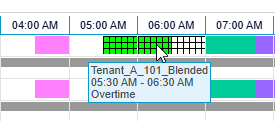
To view details about a specific shift event, point to the event on the schedule.
In the pop-up, the system displays the activity, time range, and other details (such as whether the event is an Overtime Event).
-
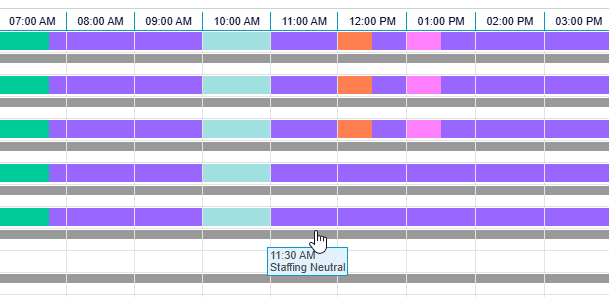
Optional. If the Net staffing ribbon is displayed, you can view the status of the staffing level for a specific time by placing your cursor over that time on the schedule.
The system displays the staffing level status - Neutral, Overstaffed, or Understaffed.
-
Optional. If the Net staffing ribbon is displayed, you can create either a Shift Request & Change or Voluntary Time Off request:
-
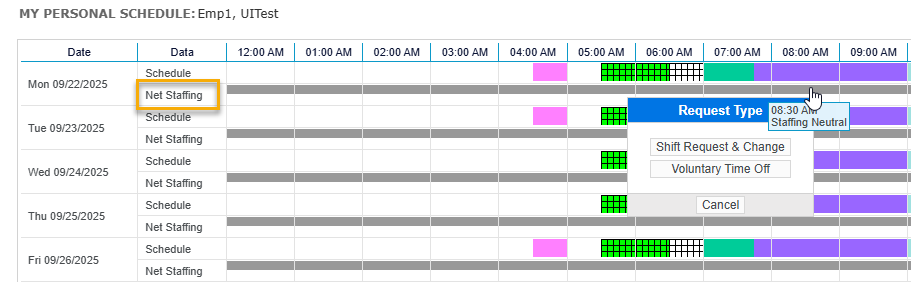
From the Net staffing ribbon, place your cursor at the start time of the request you want to create and click.
For example, if you want to create a VTO request that starts at 8:30 AM, place your cursor at 8:30 AM on the Net Staffing ribbon and click.
-
From the Request Type pop-up, select either Shift Request & Change or Voluntary Time Off.
The system displays the Create New Request form for the type of request you selected.
-
Complete the form for your selected request.
-
Workforce Management Preference Settings (Workforce Optimization Getting Started Guide)