Submit multiple, non-grouped shift bids for Full Schedule Period auctions (WCAG)
For a Full Schedule Period auction, select a fixed schedule for working and non-working days for the entire scheduling period. You cannot create a custom schedule for the scheduling period in this type of auction.
For only the Full Schedule Period auction, depending on auction configurations, you can either submit a single request or multiple requests that contain all of your selected bid options. (Only one request is approved.) When you submit multiple, non-grouped shift bids, you can set preferences for each individual shift bid.
Procedure
-
Go to My Home. From My Requests, select My Bid Options.
-
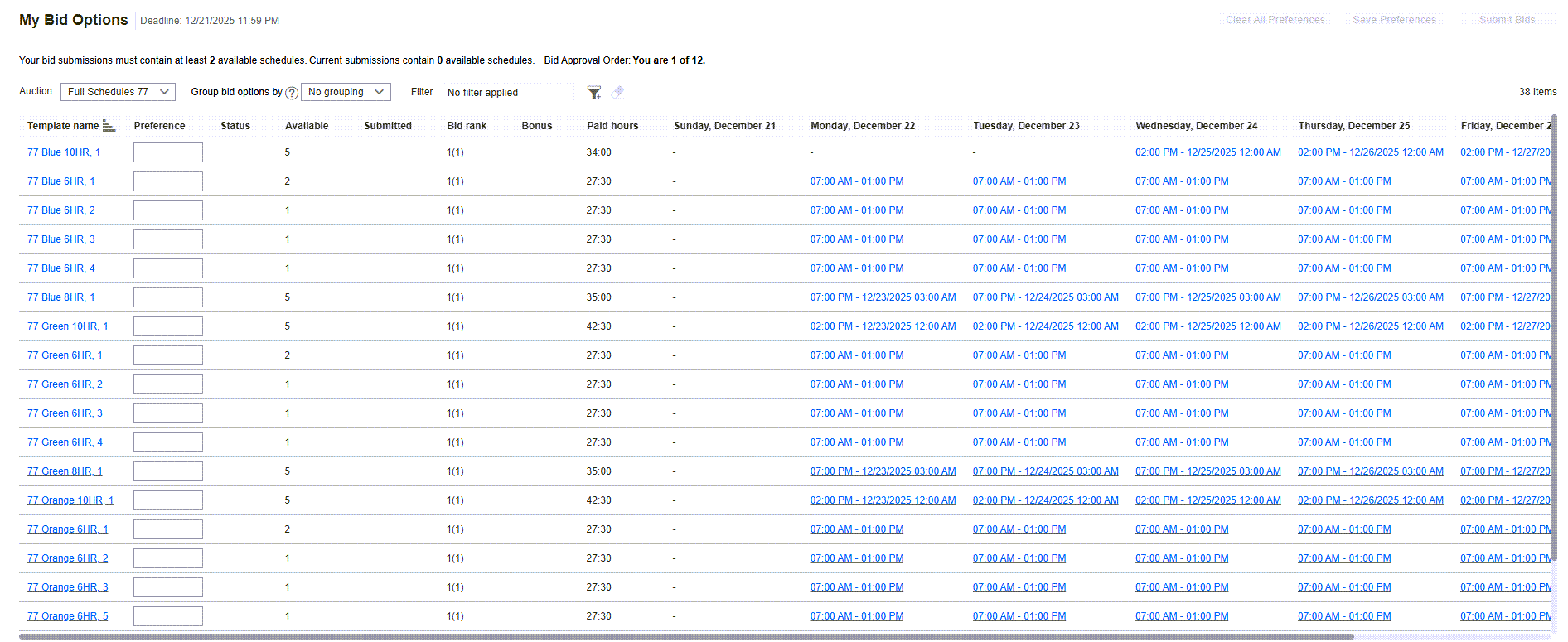
From the Auction drop-down list, select the Full Schedule Period auction you want.
-
From the Group Bid Options by: drop-down list, select No grouping.
When you select this option, bid options are listed individually and not grouped according to similar attributes.
-
Optional. To limit the bid options displayed in the list, select a filter from the Filter drop-down list.
-
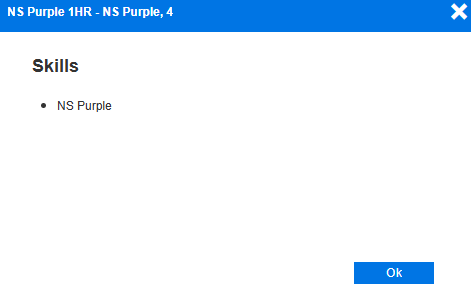
Optional. To view the skills required for a shift, from the Template Name column, select a shift template.
The system displays the skills required for the shift. To return to the My Bid Options screen, select Close.
-
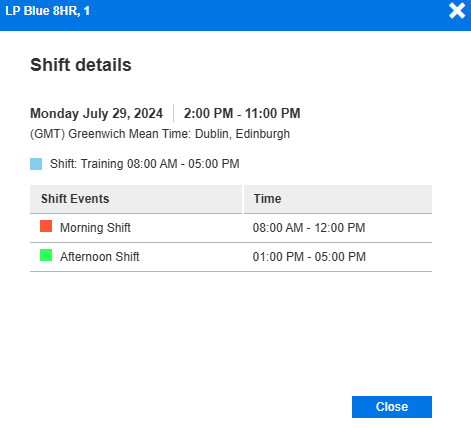
Optional. To view the details of a shift, select the shift from the date column that displays the shift time range.
The system displays the date and time of the shift, and the shift event details, including activities and time ranges of the events.
-
In the Preference field for each relevant schedule template, enter a numeric value to indicate your preference for that schedule or shift. (For example, enter 1 for your first choice, and 2 for your second choice.)
-
Select Save Preferences.

The system saves your preferences.
-
To submit your shift bid options and preferences, select Submit Bids.

-
When prompted to continue, select OK.
-
Note the following results:
-
On My Bid Options page: This page is updated with the preferences saved for the submitted bids, and the system updates the status of the requests.

After a bid is submitted, the preference number can be changed, saved, and resubmitted when the bid status is Pending or Escalated. (The status can be viewed on the employee’s My Requests page).
-
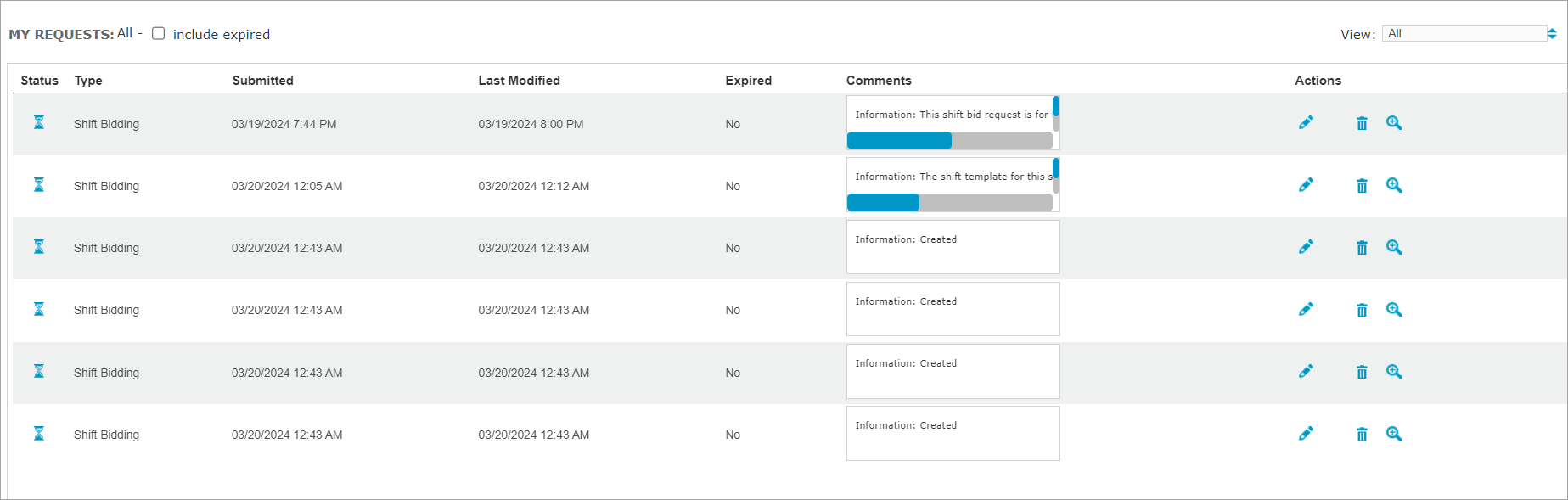
On My Requests page: Each submitted shift bid is displayed.
-