Submit a single shift bid request for a Full Schedule Period auction (for employees)
For a Full Schedule Period auction, select a fixed schedule for working and non-working days for the entire scheduling period. You cannot create a custom schedule for the scheduling period in this type of auction. To submit a single shift bid request for a Full Schedule Period auction, you must submit the request in non-grouped shift bid mode.
For example, you can select a shift template that has the following shifts:
-
Shift on Monday from 8:30 AM - 5:30 PM.
-
Shift on Tuesday and Wednesday from 7:30 AM - 4:30 PM.
-
Shift on Thursday and Friday from 9:30 PM - 6:30 AM (the next day).
-
The shift template does not have any scheduled shifts on Saturday and Sunday, so these days are your non-working days for this shift bid.
Procedure
-
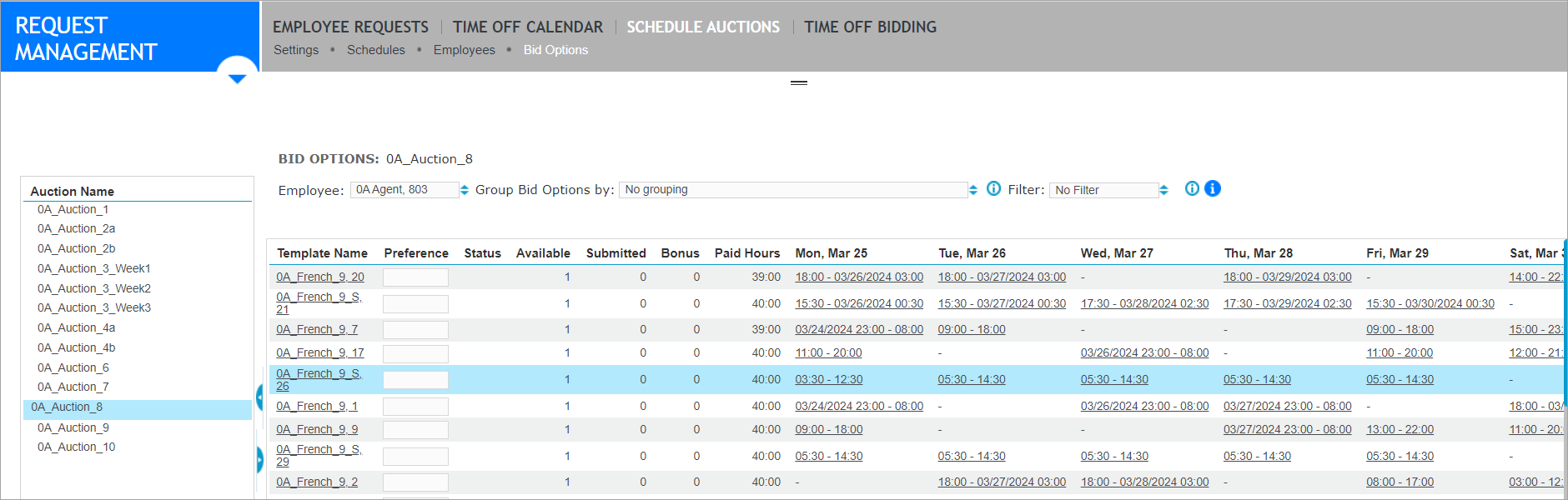
Go to Request Management. From Schedule Auctions, select Bid Options.
-
From the Auction Name column, select the auction you want.
-
From the Employee drop-down list, select the employee for whom you want to submit a single shift bid request for a Full Schedule Period auction.
-
Optional. To limit the bid options displayed in the list, select a filter from the Filter drop-down list.
-
Optional. To view the skills required for a shift, from the Template Name column, select a shift template.
The system displays the skills and their proficiencies required for the shift. To return to the My Bid Options screen, select Done.
-
Optional. To view the details of a shift, select the shift from the date column that displays the shift time range.
The system displays the shift template name, time range, activities, and shift events of the shift.
-
Select the row of the shift template you want for the scheduling period. For a Full Schedule Period auction, you must select a fixed schedule for working and non-working days for the entire scheduling period.
-
Select Create.
-
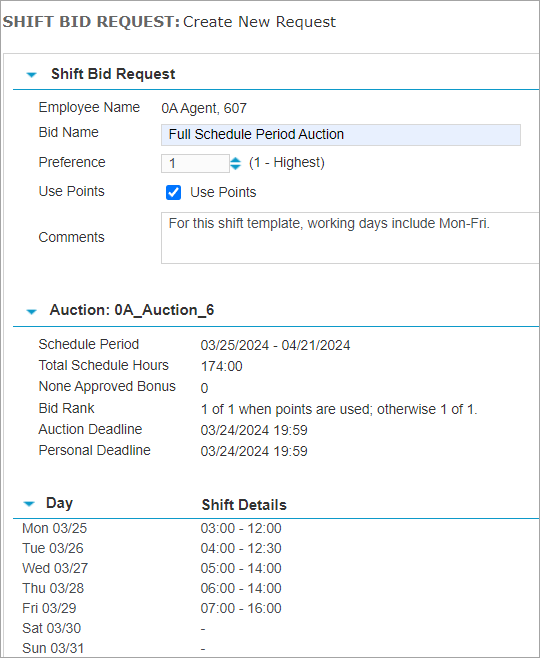
On the Shift Bid Request form, complete the following fields:
-
Bid Name: Name that describes the shift bid request.
-
Preference: Preference or priority of the shift bid request (1 is the highest preference.)
-
Use Points: Optional. When an auction is configured to use bonus points, select this check box to use bonus points for the shift bid request. Using points might affect the rank on the shift bid requests.
-
Comments: Optional field to include comments about the shift bid request.
-
-
View the details about the selected auction, and the shifts included in the shift template you selected. For non-working days, a hyphen (-) appears.
-
Select Save.
The system saves your shift bid request, and updates the status of the request.
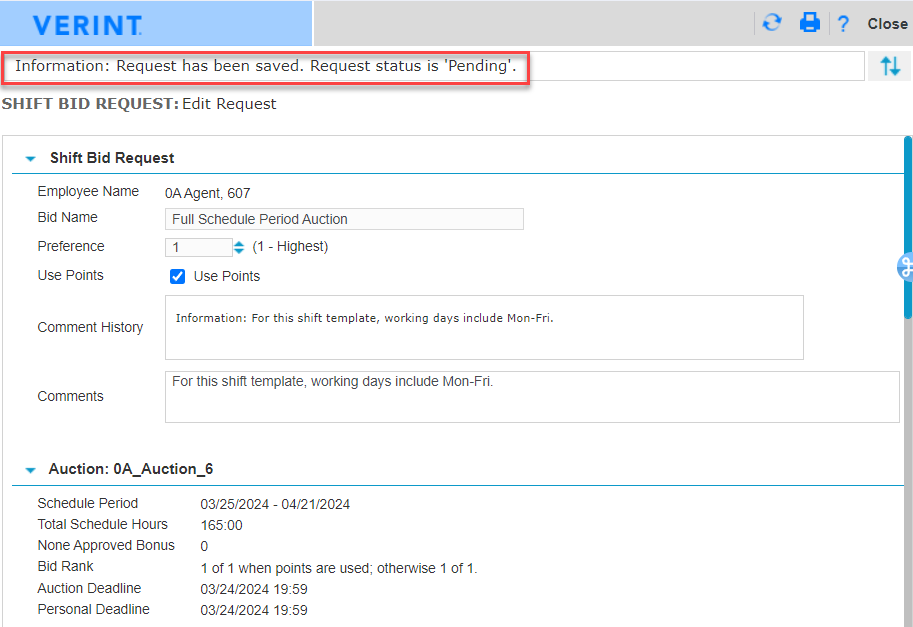
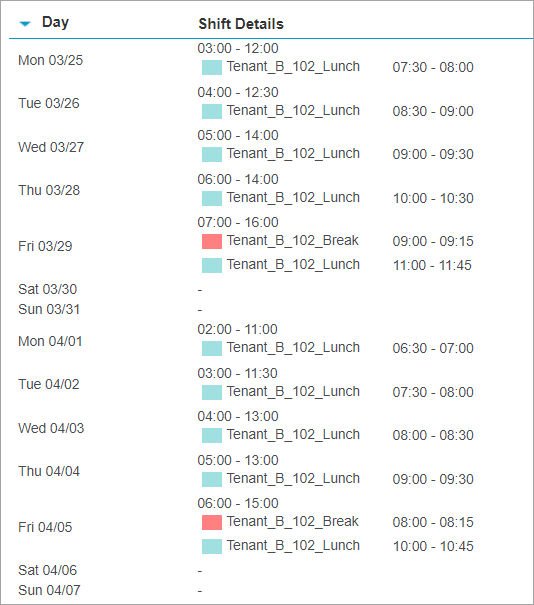
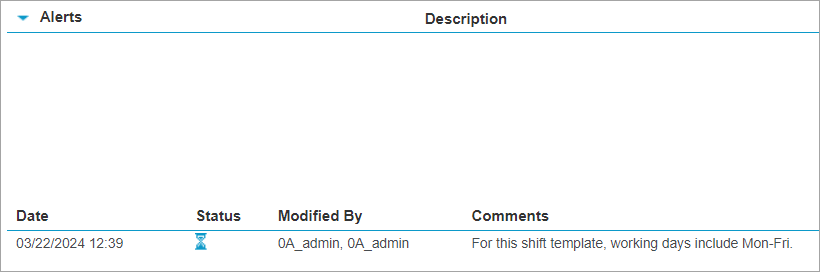
In addition, it now displays the details of your selected shifts, including shift events and calendar events on the selected days. It also displays any alerts, and a history of updates related to the shift bid request.
-
Review your bid. If needed, you can edit the Bid Name, Preference and Comments fields, and select Save.
-
When you have finished with all changes to your shift bid request, select Save and Done.
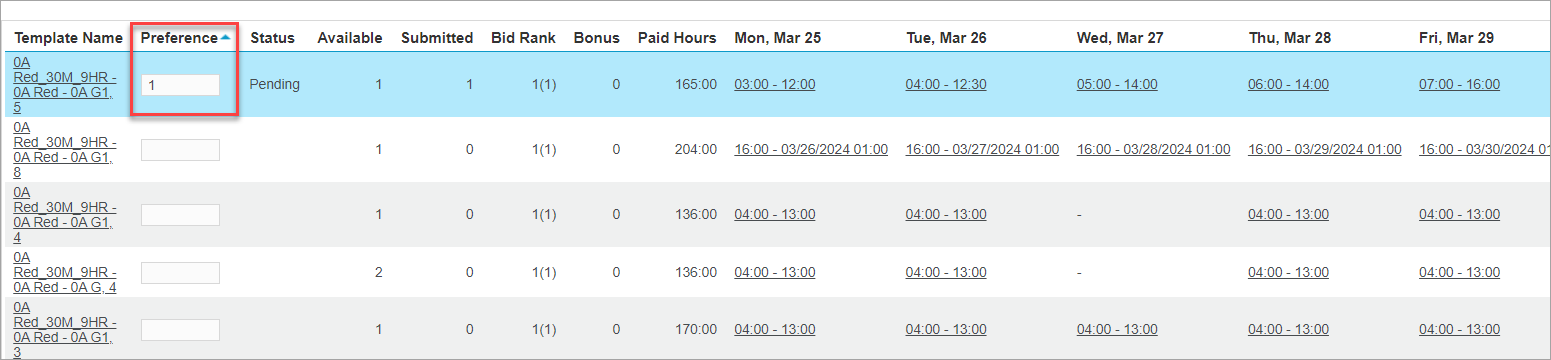
The Bid Options page is updated with the preferences saved for the submitted bids.
Create a filter for Bid Options (for employees)
Bid Options filter settings (for employees)
Bid Options columns for single shift bid requests (for employees)
Submit multiple, non-grouped shift bids for a Full Schedule Period auction (for employees)
Submit multiple, grouped shift bids for a Full Schedule Period auction (for employees)