Adherence Minutes
Default Access Rights
This report can be run by the following roles: Manager, Retail Regional Manager, Tenant Administrator.
Overview
This report summarizes adherence to schedule information (in minutes) per employee per workday.
This report does not return adherence exceptions when an employee is not scheduled for an activity or if the employee is scheduled for an activity that is mapped to No Activity.
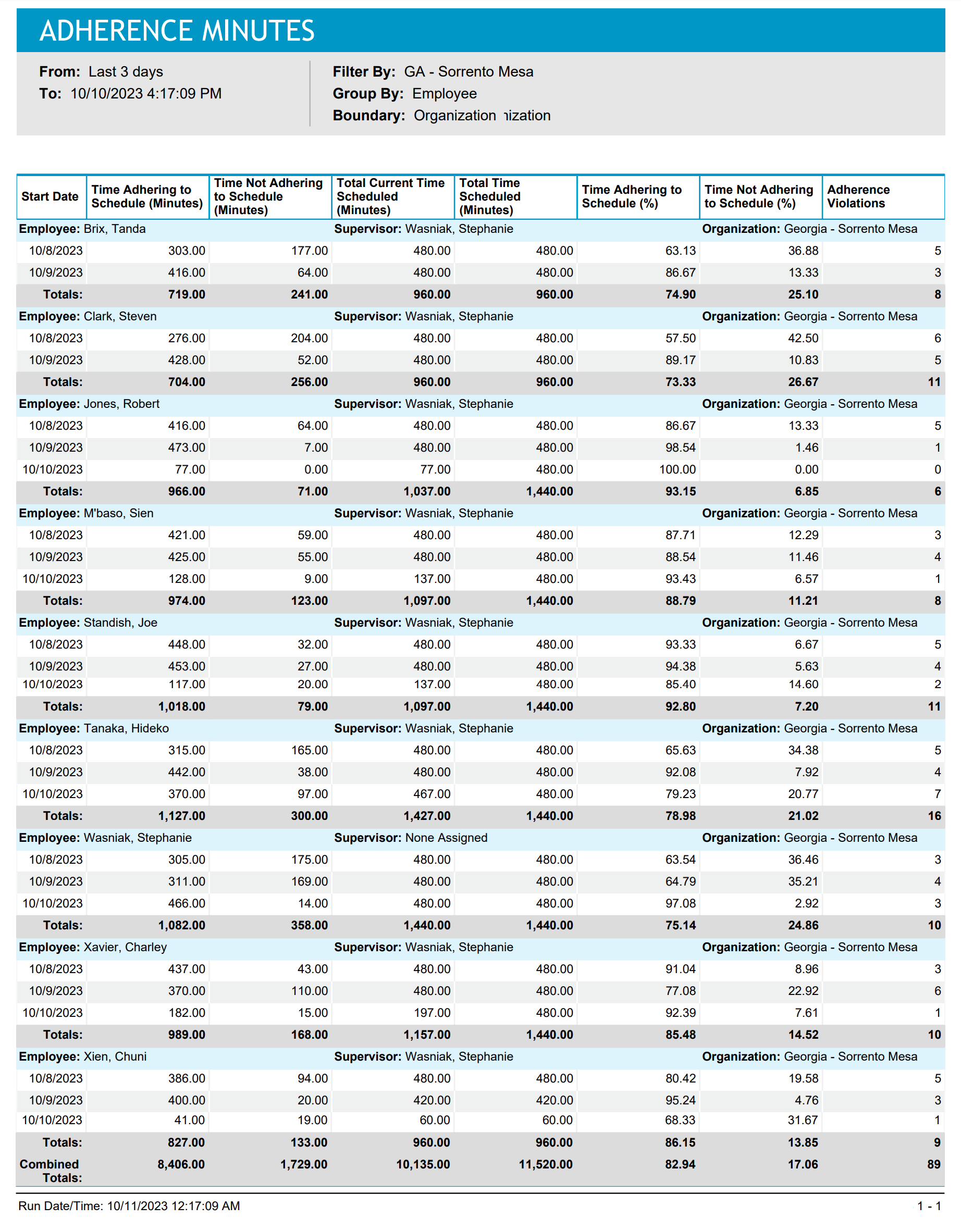
This report (or the very similar Adherence Summary report) is key for evaluating employee's overall adherence to schedule. Typically, the focus is on the results for Time Adhering To Schedule (%). Supervisors can review this report daily for use in coaching agents towards better adherence. Information from reports run over a longer period, such as a quarter, is often used in performance evaluations.
Inputs
-
Employee Filter: Indicates the set of employees to report on.
-
Group By
-
Employee: Aggregates time entries per employee.
-
Organization: Aggregates time entries per organization.
-
Supervisor: Aggregates time entries per supervisor.
-
-
Boundary: Defines the scope of scheduling data included in the report:
-
Organization: Includes data within the selected organization day boundaries. For shifts that span beyond this day boundary, only the data within the selected time frame is included.
For example, the Boundary parameter is set to Organization. The shift, FullTime_8hrs, starts on 8/16 at 10:00 PM and ends on 8/17 at 6:00 AM. For the organization, Company A, the day boundary is 12:00 AM. The selected Time Frame for the report is 8/16-8/16. Therefore, only data on the schedule from 8/16 at 12:00 AM to 8/16 at 11:59:59 PM is included in the report. The data for the shift, FullTime_8hrs, on 8/16 between 10:00-11:59:59 PM is included in the report. However, the data for the shift, FullTime_8hrs, on 8/17 between 12:00 AM-6:00 AM is not included in the report.
-
Shift: Includes all data for shifts with start times within the selected time frame, including shifts with end times outside the time frame.
For example, the Boundary parameter is set to Shift. The shift, FullTime_8hrs, starts on 8/16 at 10:00 PM and ends on 8/17 at 6:00 AM. The selected Time Frame for the report is 8/16-8/16. Therefore, even though the end time for the shift, FullTime_8hrs, is on 8/17, the report includes all shift data, from 8/16 at 10:00 PM until 8/17 at 6:00 AM.
-
-
Time Frame: Defines the date and time range of the report. Select one of the following options:
-
Last <x> days: Defines the number of 24-hour intervals before today at 11:59:59 PM, which serves as the time period for which data is generated for the report. Data is included from the date in the past at 12:00:00 AM until the current date and time. For example, you enter 4, making the parameter Last 4 days. Today's date is 8/30/2023 and the current time is 3:00 PM. Therefore, the report displays data from 8/27/2023 at 12:00:00 AM until 8/30/2023 at 3:00 PM.
-
Date range: Defined date and time range from which the report data is calculated. For example, you select 8/27/2023 at 2:00 PM - 8/31/2023 at 9:00 AM. Therefore, the report displays data from 8/27/2023 at 2:00 PM - 8/31/2023 at 9:00 AM.
-
Outputs
-
From / To: Defines the date and time range of the data included in the report.
-
Employee Name: The name of employee for whom adherence data is being summarized.
-
Manager Name: The manager of the employee for whom adherence data is being summarized.
-
Start Date: The workday being summarizing. (The following field applies to this workday).
-
Time Adhering To Schedule (Minutes): The amount of time the employee is adhering to the schedule for that day.
-
Time Not Adhering To Schedule (Minutes): The amount of time the employee is not adhering to the schedule for that day.
-
Total Current Time Scheduled (Minutes): The total amount of scheduled minutes during the date and time range of the report, up until the time the report is run.
This value does not include future scheduled minutes (or minutes scheduled after the time the report is run). This value is also the sum of the values displayed in the columns: Time Adhering to Schedule (Minutes) and Time Not Adhering to Schedule (Minutes). The data in this column displays accurate adherence calculations when there are scheduled shifts that end after the time the report is run.
-
Total Time Scheduled (Minutes): Only includes activities that are not mapped to activity No Activity.
-
Time Adhering To Schedule (%): Percentage of scheduled “work” time in which the employee is adhering.
-
Time Not Adhering To Schedule (%): Percentage of scheduled “work” time in which the employee is not adhering.
-
Adherence Violations: The number of adherence violations where the planned activity is not mapped to activity No Activity.