Intraday Productivity
This report returns information on the productivity of employees (total work assigned (hours) vs. remaining scheduled hours) grouped by a queue or a team.
For the charts produced by this report, you have the ability to drill down.
The report can be run for details or for summaries, and has two modes:
-
Schedules: Considers the employees' operations media type activities in their schedules as generated by Forecasting and Scheduling. The data is shown in the Scheduled Time column.
-
Time Records: Considers the employees' operations media type activities, entered in their time records through the Time Record page of the My Time section of the My Home module. The data is shown in the Total Actual Time column.
Default Access Rights
This report can be run by default by the following roles: Administrator, Manager, Scheduler.
Inputs
-
Time Frame: The report can be run for the last N days.
-
Time: Specify the time for which to run the report, using the time selector.
-
End date: User the drop-down selector to specify the end date of the report. Choices are: Last VCT Import Date Time or the current date.
-
Employee Filter: Select the employee filter to use, create a new filter, or edit an existing filter.
-
Mode: Select the mode to use when running the report: Time Records or Schedules.
-
Group By: Select the entity by which to group the report: Organization, Supervisor, or Campaign.
-
Display Mode: Select the display mode for the report: Detailed or Summary.
-
View: Select the view to be used in the report: Tree View or Matrix View. The tree view shows tables of both the employee productivity details and the queue productivity details, with an interactive collapsible tree to drilldown an employee to the queue level.
The matrix view, on the other hand, has a single table (organization details) which displays employees as rows and work queues as columns in a static table or matrix form (with no interactive nodes). Each employee or work queue cell contains the productivity of that employee for that queue, that is, the employee-queue productivity (assuming queue hopping). If queue-hopping is not used or the queue is not mapped to an activity, the cell is blank. The last column of the matrix shows the total employee productivity across all the queues. The bottom right corner final row or column shows the total organizational productivity.
-
Show Work Queue Productivity: Use the drop-down selector to specify whether to show the work queue productivity or not.
Outputs:
-
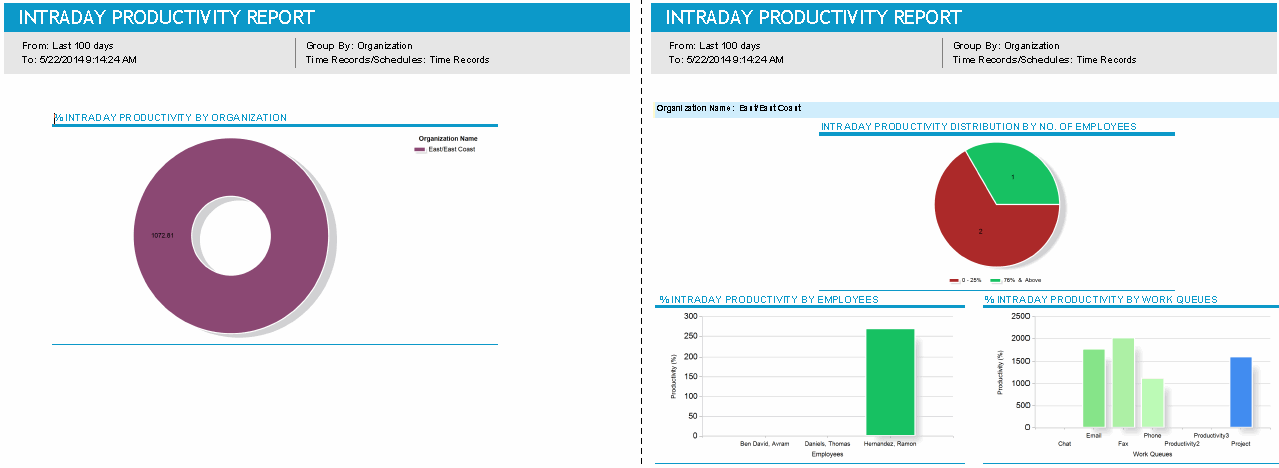
Graphs: One for the group by entity, and a second one for the intraday productivity distribution.
-
Bar charts: One for % Intraday Productivity by Employee, a second for % Intraday Productivity by Work Queue.
-
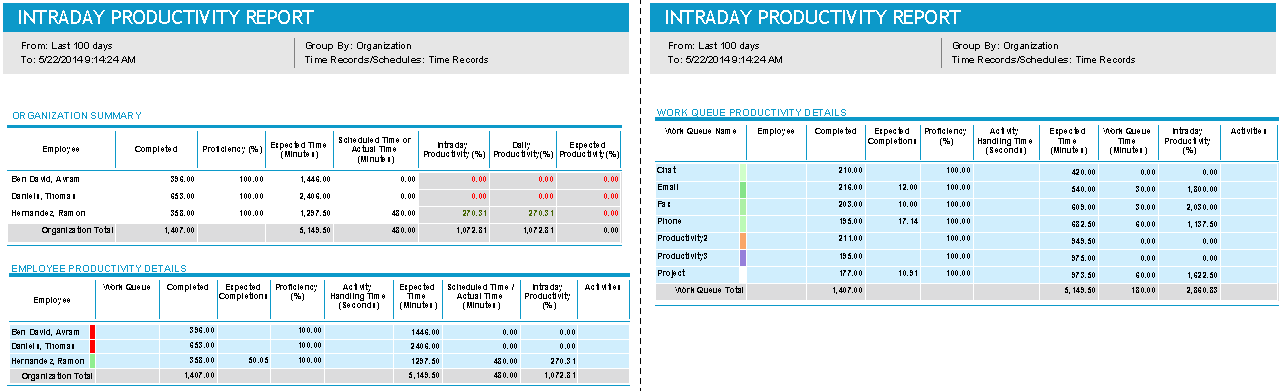
Organization Summary: Shows for each employee in the organization:
-
Employee
-
Completed
-
Proficiency (%)
-
Expected Time (Minutes)
-
Scheduled Time or Actual Time (Minutes)
-
Intraday Productivity (%)
-
Daily Productivity (%)
-
Expected Productivity (%)
-
-
Employee Productivity Details: Shows either a tree view or a matrix view for each employee in the organization:
-
Employee
-
Work Queues
-
Completed
-
Expected Completions
-
Proficiency (%)
-
Activity Handling Time (Seconds)
-
Expected Time (Minutes)
-
Scheduled Time or Actual Time (Minutes)
-
Intraday Productivity (%)
-
Activities
-
-
Work Queue Productivity Details: Shows for each work queue:
-
Work Queue Name
-
Employee
-
Completed
-
Expected Completions
-
Proficiency (%)
-
Activity Handling Time (Seconds)
-
Expected Time (Minutes)
-
Work Queue Time (Minutes)
-
Intraday Productivity (%)
-
Activities
Also shows summaries for each work queue and activity.
-