Productivity
The Productivity report reports on the productivity of employees grouped by organization, supervisor, or campaign.
Productivity is calculated based on the individual VCT Events of type CHECKIN per queue per employee, and the deferred (email) type activities recorded or scheduled for each employee. The report only lists the employees in the selected group who are doing some work within the report period. Nonproductive employees (those with zero checkins) are not listed on the report.
For the charts produced by this report, you have the ability to drill down.
The report can be run for details or for summaries, and has two modes:
-
Time Records: Considers the employees' operations media type activities, entered in their time records through the Time Record page of the My Time section of the My Home module. The data is shown in the Total Actual Time column.
-
Schedules: Considers the employees' Assigned Work Activity activity type in their schedules as generated by Forecasting and Scheduling. The data is shown in the Scheduled Time column.
The following graphics show detailed and summary for each of the above mentioned modes, group by campaign, organization, and supervisor.
Detailed Report for Schedules, Grouped by Campaign:
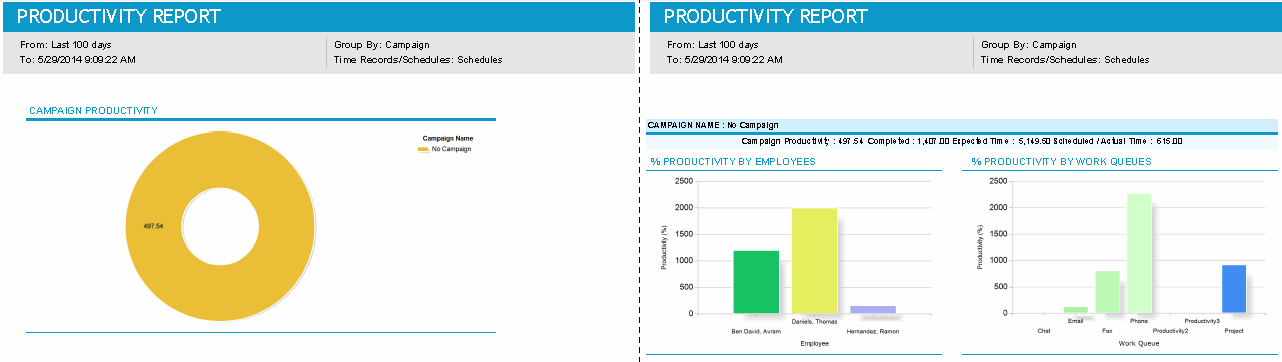
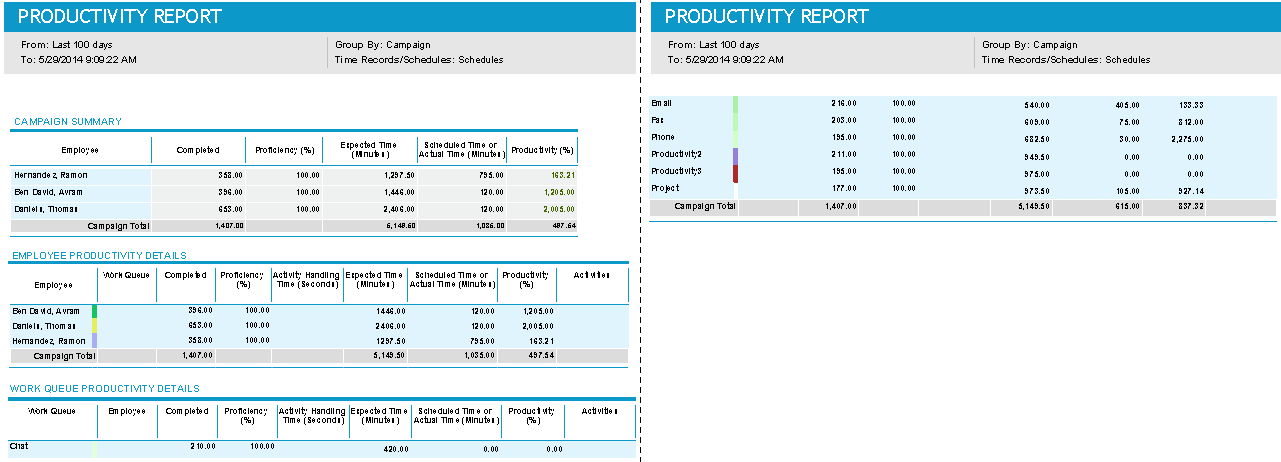
Detailed Report for Schedules, Grouped by Organization:
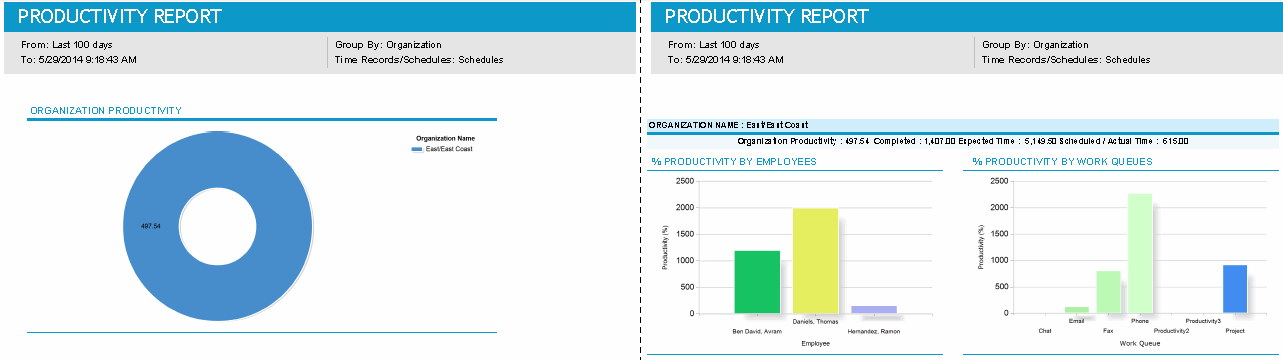
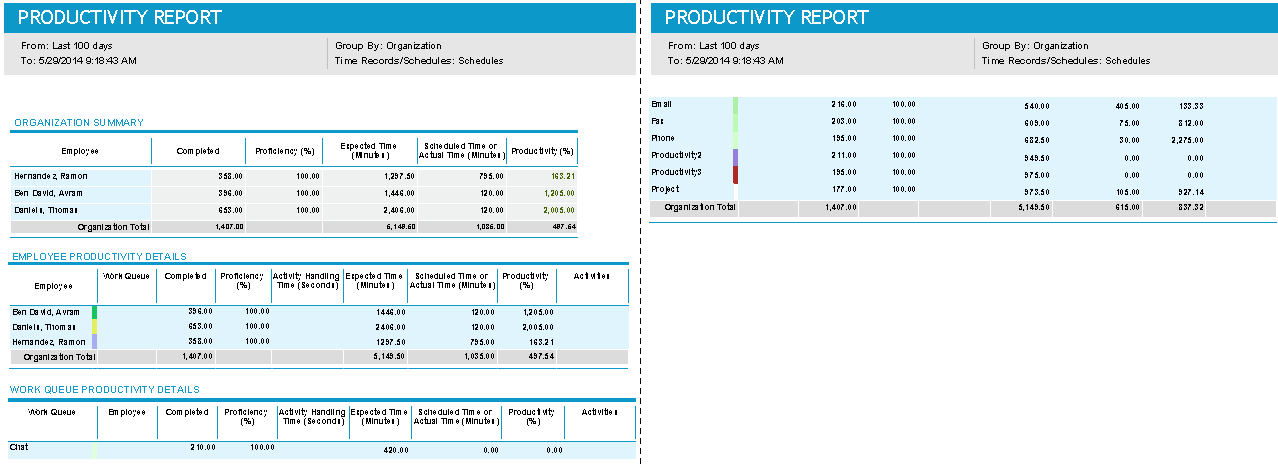
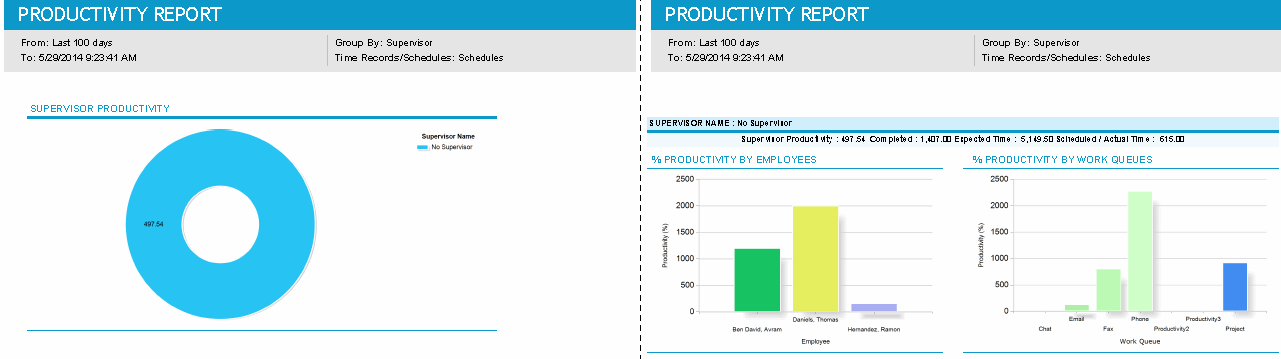
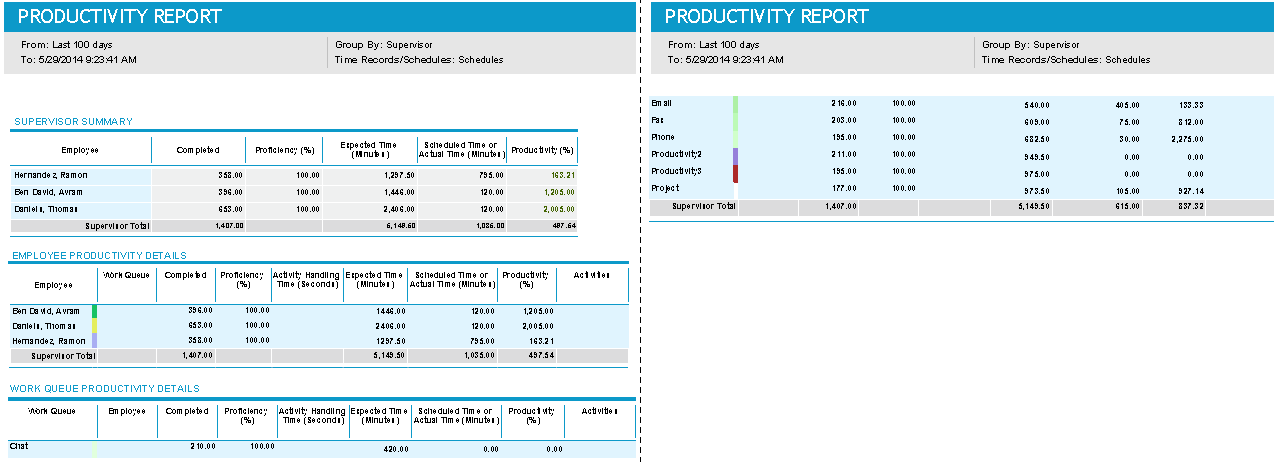
Detailed Report for Schedules, Grouped by Supervisor:
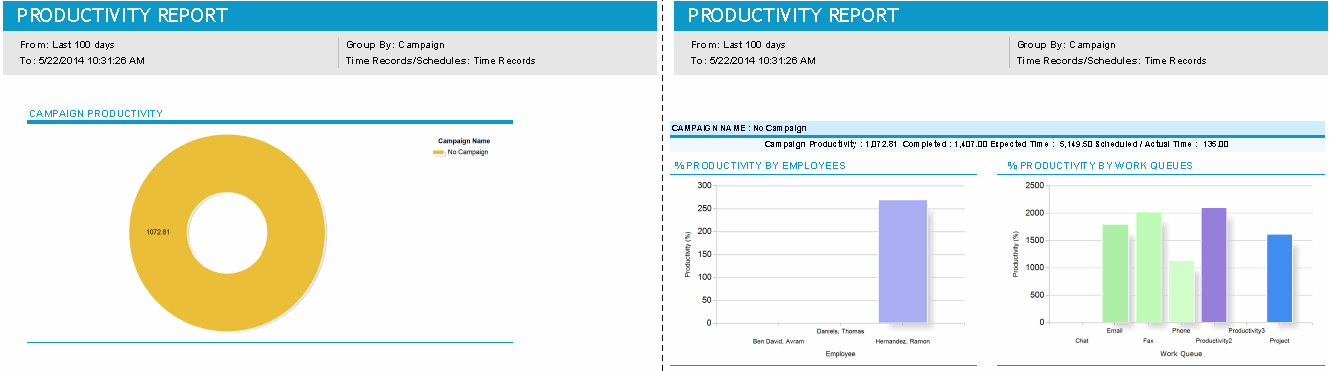
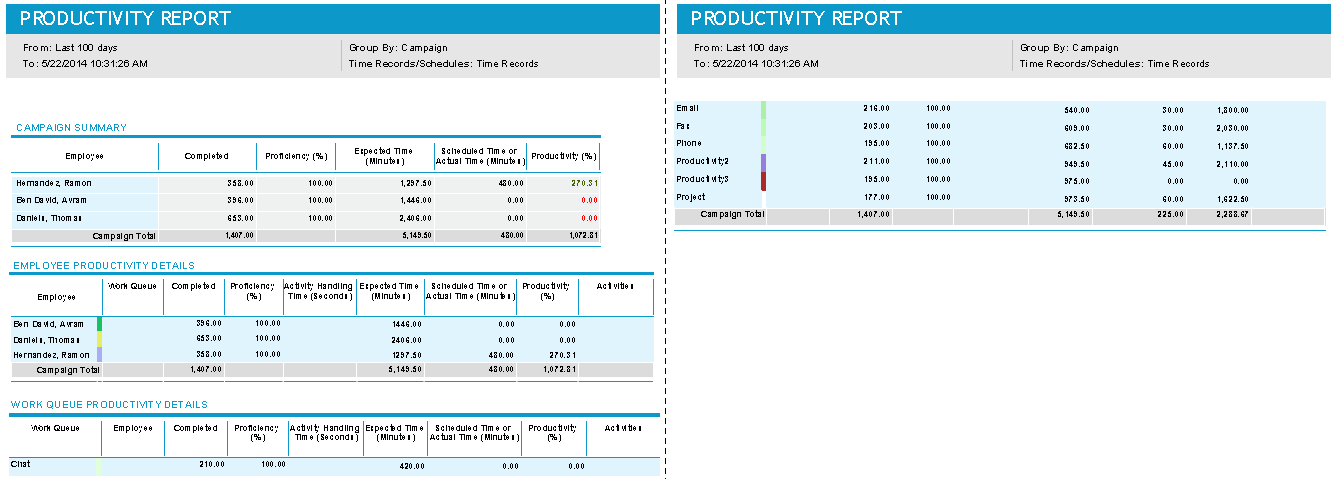
Detailed Report for Time Records, Grouped by Campaign:
Detailed Report for Time Records, Grouped by Organization:
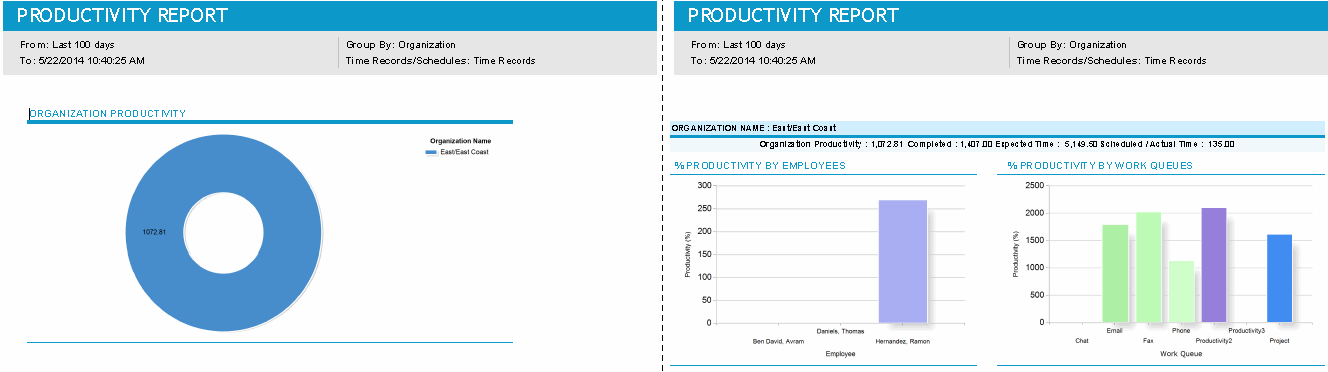
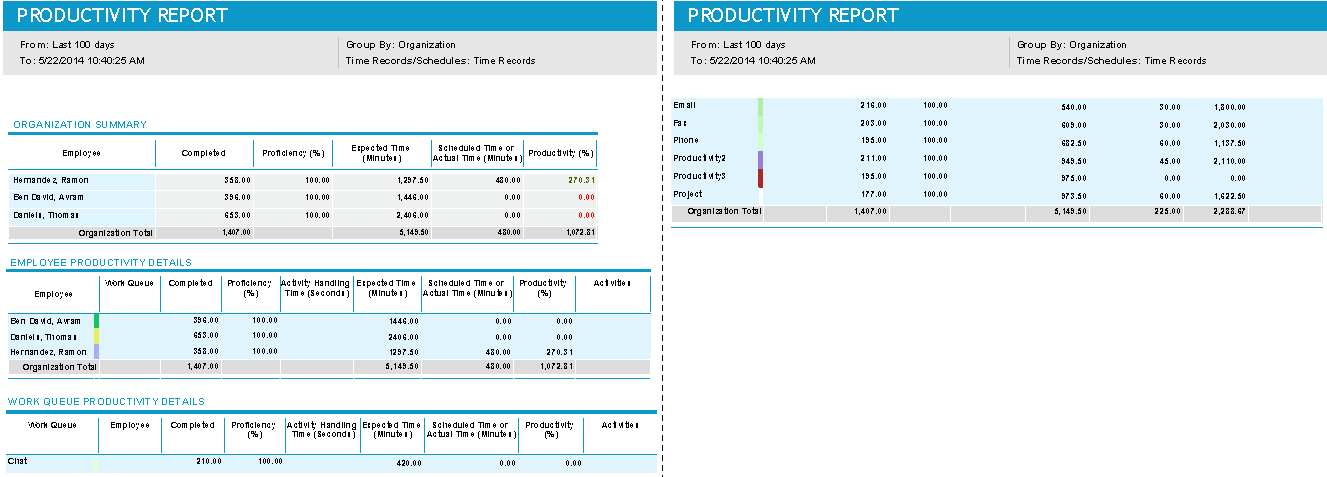
Detailed Report for Time Records, Grouped by Supervisor:
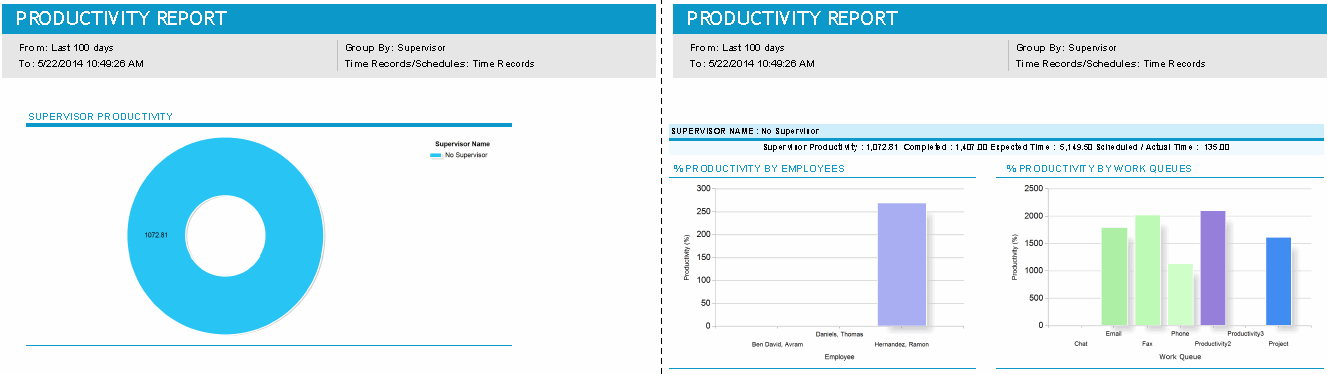
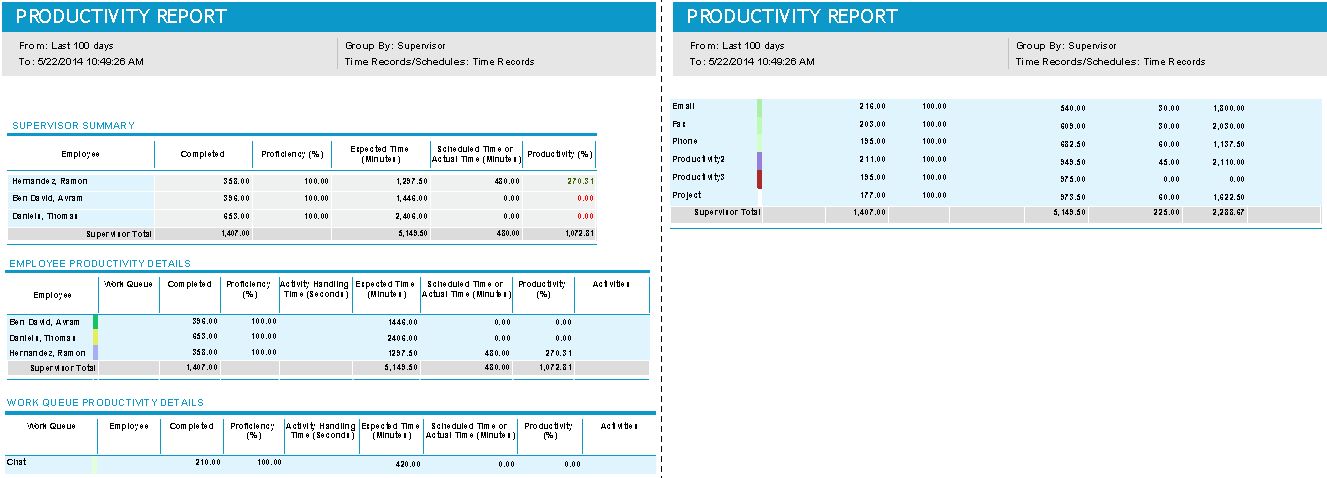
Summary Report for Schedules, Grouped by Campaign:
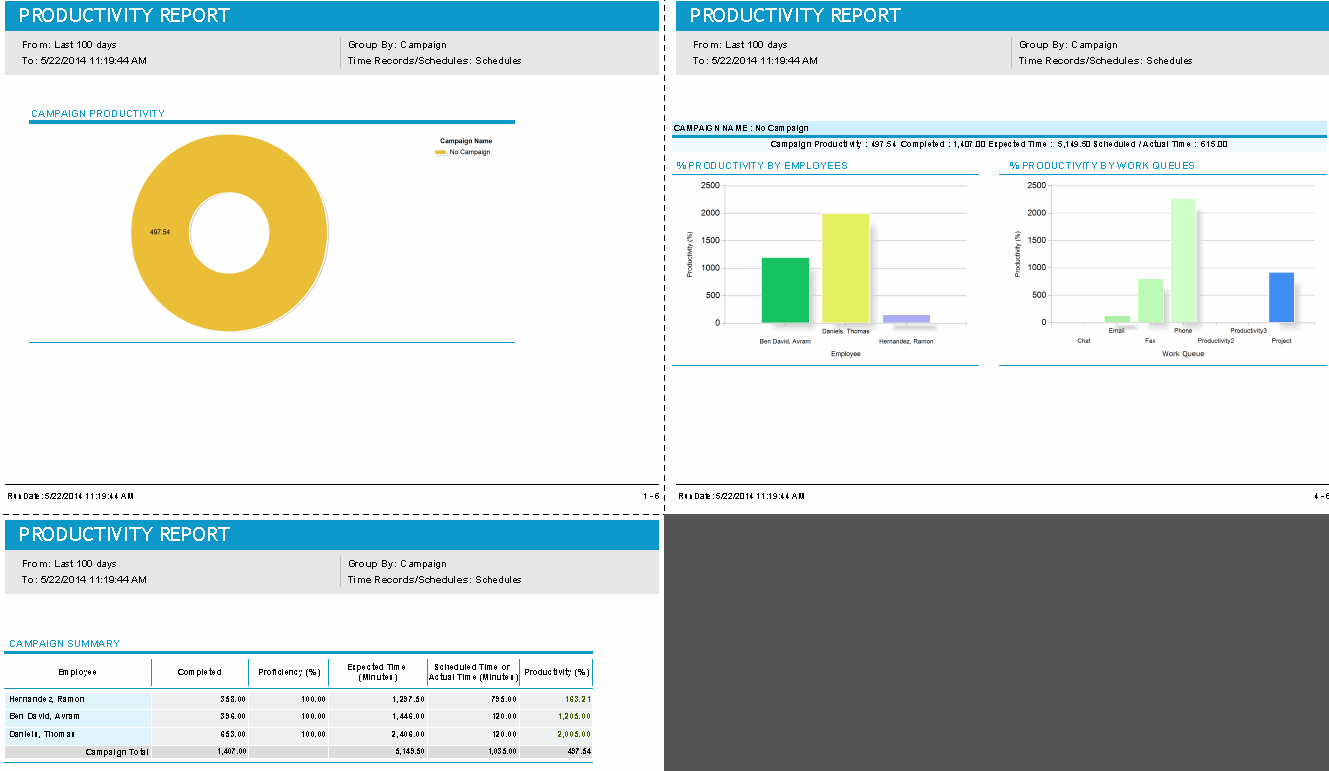
Summary Report for Time Records, Grouped by Campaign:
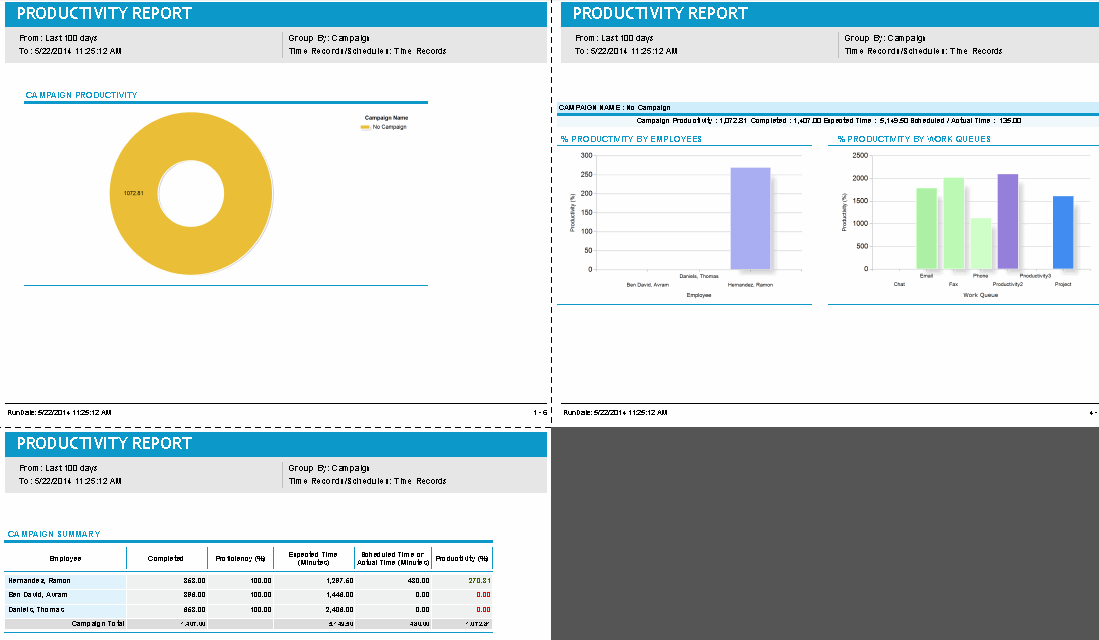
Summary Report for Time Records, Grouped by Organization:
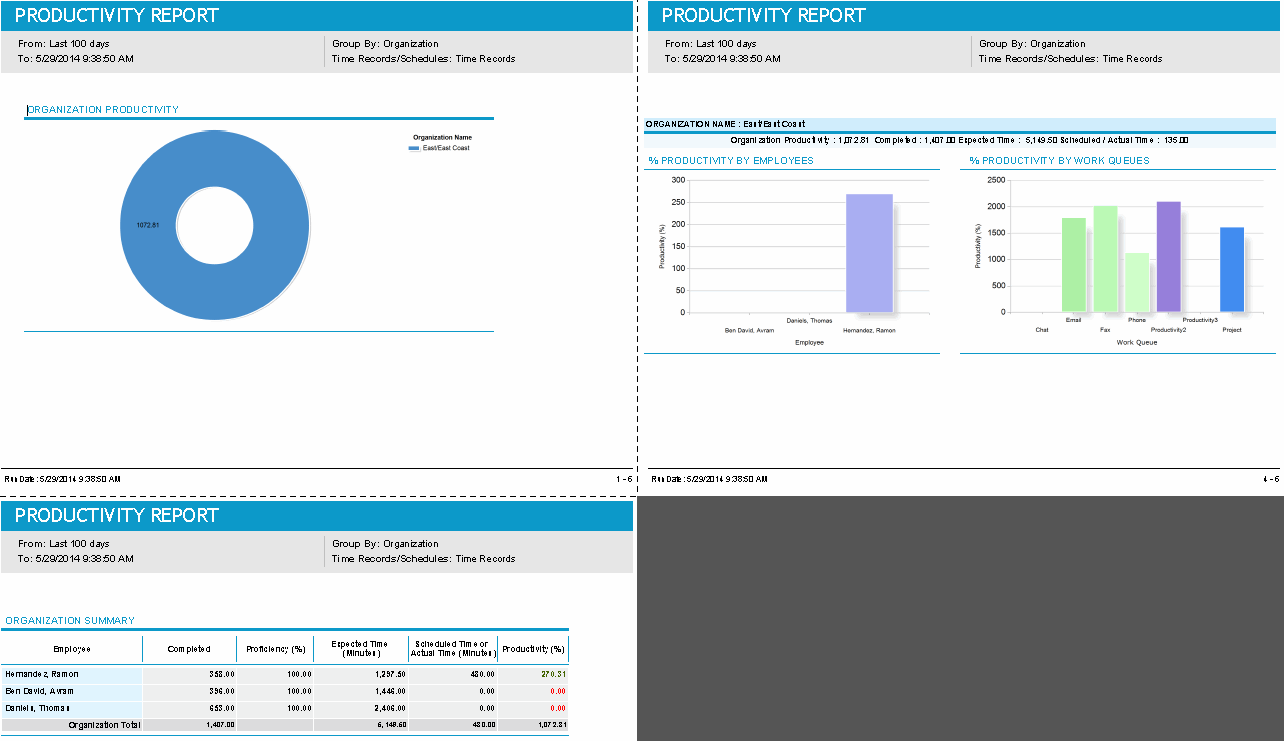
Summary Report for Time Records, Grouped by Supervisor:
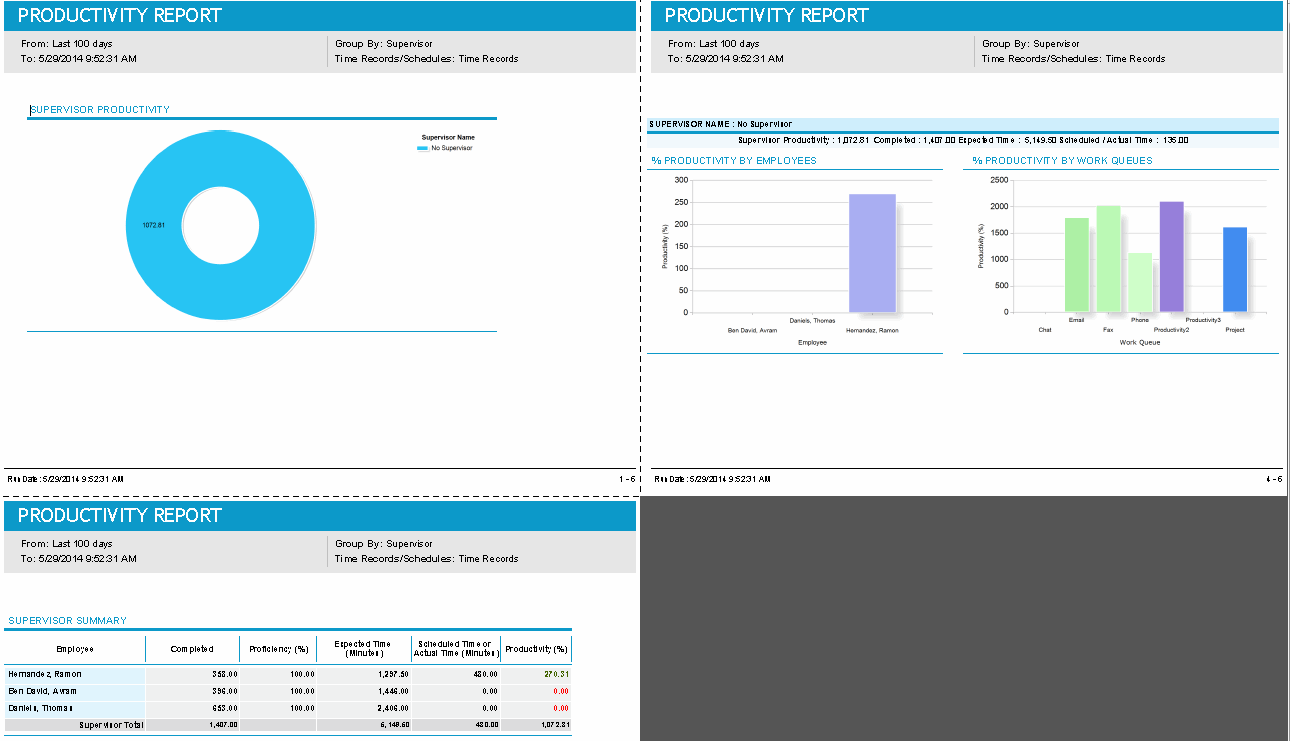
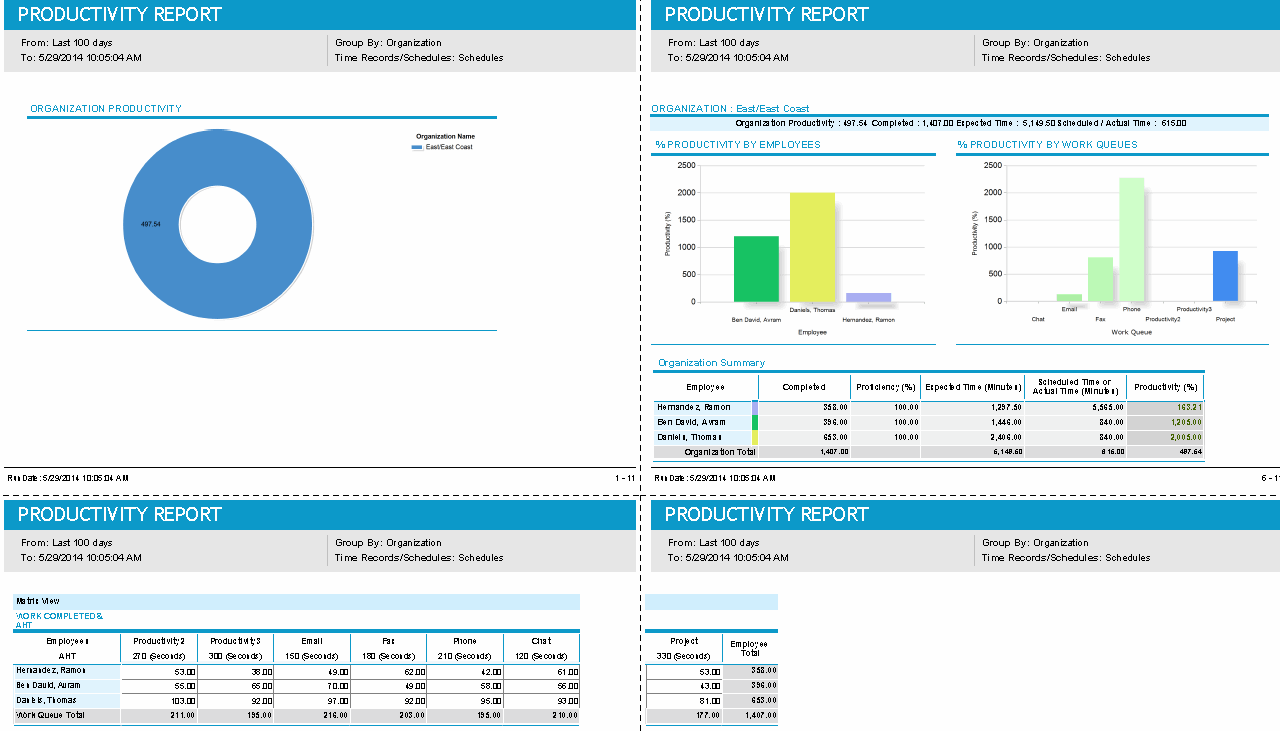
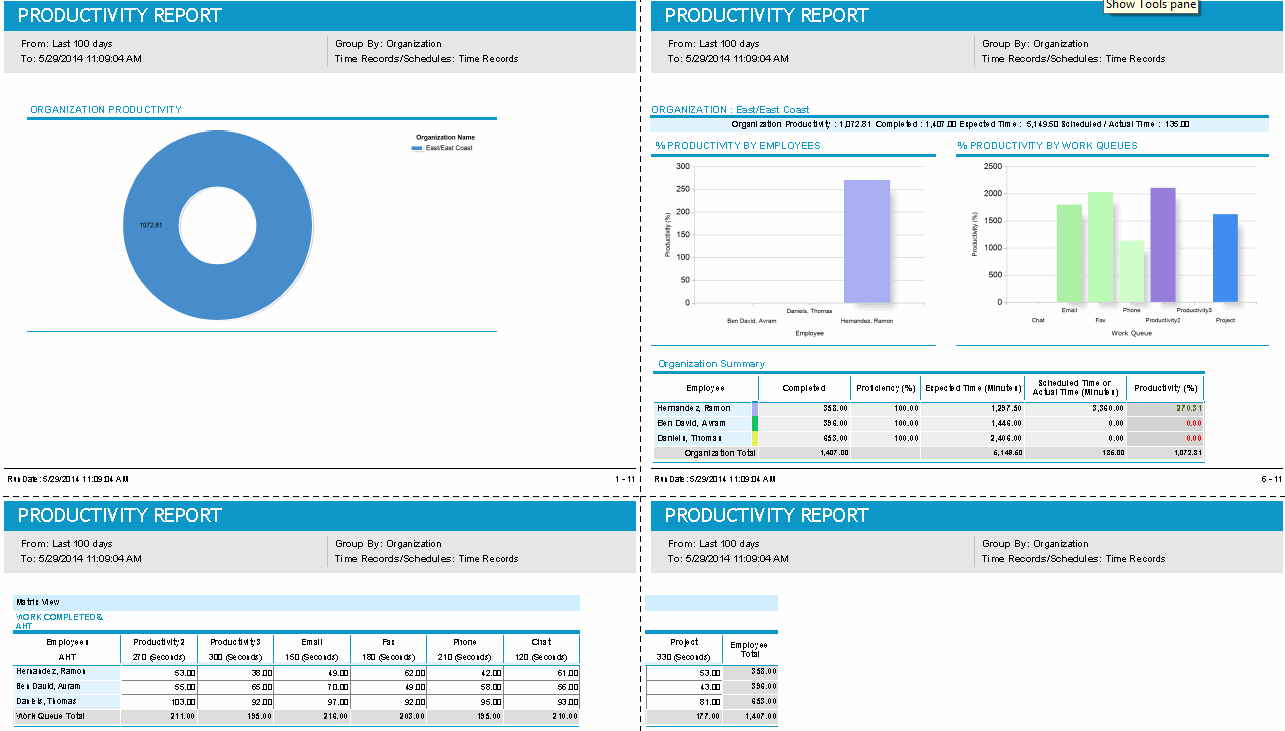
In addition to the detailed and summary views shown previously, there is also a matrix view, two examples of which are shown below:
Matrix Report for Schedules, Grouped by Organization:
Matrix Report for Time Records, Grouped by Organization:
Default Access Rights
This report can be run by the following roles: Administrator, Manager, Scheduler.
Inputs
-
Time Frame: Time span of the report.
-
Employee Filter: Allows you to select or edit existing employee filters at the organization level, or create new ones.
-
Mode:
-
Schedules: Considers the employees' operations media type activities in their schedules as generated by Forecasting and Scheduling. The data is shown in the Scheduled Time column.
-
Time Records: Considers the employees' operations media type activities, entered in their time records through the Time Record page of the My Time section of the My Home module. The data is shown in the Total Actual Time column.
-
Group By: Information can be grouped by organization, supervisor, or campaign.
-
Display:
-
Detailed: Shows employee data in detail.
-
Summary: Shows each employee's summary information.
-
View: In detailed mode, an additional parameter, View, has two options: a tree view or a matrix view. The tree view shows tables of both the employee productivity details and the queue productivity details, with an interactive collapsible tree to drilldown an employee to the queue level.
The matrix view, on the other hand, has a single table (organization details) which displays employees as rows and work queues as columns in a static table or matrix form (with no interactive nodes). Each employee or work queue cell contains the productivity of that employee for that queue, that is, the employee-queue productivity (assuming queue hopping). If queue-hopping is not used or the queue is not mapped to an activity, the cell is blank. The last column of the matrix shows the total employee productivity across all the queues. The bottom right corner final row or column shows the total organizational productivity.
-
Show Work Queue Productivity: Check this box to include in the report the % Productivity by Work Queues graph.
Output
The report consists of two tables:
-
Summary information
-
Detailed information
Summary Information
-
Employee: Employee name
-
Completed: The total value of all CHECKIN events done by the specific employee for the corresponding Volume work queue or sub-work queue.
-
Proficiency (%): The average proficiency for each employee computed from the proficiency levels set in Forecasting and Scheduling. If an employee has no skills, Proficiency = 100 * 1/proficiency in Forecasting and Scheduling for the employee. If the employee has skills, Proficiency = 100 * 1/skill proficiency.
-
Expected Time (Minutes): Completed * Activity Handling Time for the work queue / 60
-
Scheduled Time or Actual Time (Minutes)
-
Scheduled Time: The sum total in minutes of all activities with an activity type of Assigned Work Activity that are part of the employee's schedule.
-
Actual Time: The sum total of all operations media type activities in minutes that are part of the employee's time record.
-
-
Productivity (%): (Expected time (minutes)*100)/ Scheduled or Actual Time)
Detailed Information
The detailed information table displays essentially the same information as the summary table, except that it breaks down completed work by work queue and shows the activity handling time of each work queue. Expected Time (Minutes) is displayed at the work queue level. Productivity (%) is computed at the employee level using the same formula as for the summary.