Change the WebLogic 14.x Admin Account Password (Windows Authentication)
Perform this manual procedure to change only the WebLogic Admin Account password.
Before you begin
Back up the WebLogic 14.x Files Needed to Restore the Existing Account or Password
Procedure
-
On the Application Server, access the WebLogic administration rconsole using the following URL:
http://localhost:7001/rconsole
-
Sign in to the rconsole using the existing WebLogic Admin Account credentials.
-
From the left pane toolbar, select Edit Tree.
-
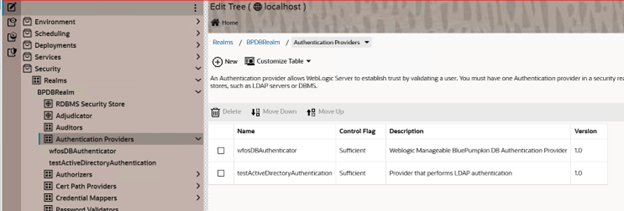
From the tree shown in the left pane, expand Security and then expand Realms. Under BPDBRealm, select Authentication Providers.
-
From the right pane, select the name of the Active Directory provider. The Description for the Active Directory provider states, Provider that performs LDAP authentication.
-
In the Active Directory Authentication parameters, provide the Credential used for authentication.
-
Click Save.
-
From the upper right of the page, select the cart icon
 .
. -
Click Commit Changes. After the changes activate, the right pane shows the message, All changes have been activated. However, 1 items must be restarted for the changes to take effect.
-
An Active Directory administrator must perform this procedure in Active Directory.
Reset the WebLogic admin user password to the new value in Active Directory > Users & Computers.
-
Right click the user object and click Reset Password.
-
In the New password field, enter the new password.
-
In the Confirm password field, enter the new password again.
-
Make sure the Unlock the user’s account check box is selected.
-
Click OK.
-
-
Access the enterprise portal with a web browser, and verify that you can sign in using any Windows domain account that was previously used to access the portal.
If you cannot sign in, a mistake has occurred somewhere in this procedure. To reset the password, repeat this procedure from step 1.
-
Use a text editor to update the boot.properties file on the application server.
-
Use Notepad or a similar text editor to open the boot.properties file on the application server from the following location:
%VERINT_WEBLOGIC_DOMAIN_HOME%servers\ProductionServer\security
-
For the password= parameter, type the new password (to replace the existing password value).
-
Save the boot.properties file and close the text editor.
-
Restart the WFO_ProductionDomain_ProductionServer Windows service from the Services window on the server on which you have edited the boot.properties file.
-
If you have an application server cluster, repeat this step on every server in the cluster before continuing to the next step.
-
-
From the enterprise portal, select System Management > Enterprise > Settings.
-
Under Installations (left pane), open the Framework Applications server role.
-
In the Framework Applications server role settings, update this field:
-
Administrator Account Password - Enter the new password for the WebLogic Admin Account here. (Click the icon to the right of the text box to set and confirm the password.)
-
-
Wait for the Pending Messages icon to disappear from the top of the screen before continuing to the next step.
-
Verify that the CMA distribution is completed successfully for the application servers.
-
Open the Enterprise Manager Agent (EMA) application on the application server.
-
To open the EMA, enter this URL in the web browser: http://hostname/EMA, where hostname is the host name of the application server.
-
Select Status > System Monitor.
-
In the Status Messages area, look for a message stating: CMA Distribution: complete successfully on date_and_time

-
-
Check the Alarm Dashboard for an alarm indicating that it is necessary to restart the WFO service.
-
From the enterprise portal, select System Monitoring > System Monitor > Alarm Dashboard.
-
In the Alarm Dashboard, look for an alarm named Service restart required that is active on an application server for which you have changed the WebLogic Admin Account password.
If you have multiple application servers, you see one alarm for each application server.
The alarm indicates that it is necessary to restart the WFO_ProductionDomain_ProductionServer service. (The alarm Details pane for an alarm indicates the specific service that must be restarted.)
-
When you see this alarm for an application server, restart the WFO_ProductionDomain_ProductionServer service on that application server and then acknowledge the alarm.
If the Framework Applications plug-in fails, check the pluginerror.log file. Find the log file in:
<install_directory>\Software\UCMServices\Plugins\Databases\FrameworkApplications.
-
What to do next
Restore the Existing WebLogic 14.x Admin Account User Name or Password
Technologies, Security and Network Integration Deployment Reference Guide