Assign database permissions to MSA/DMSA
Depending on the deployment, the system can be implemented with either Management Service Account (MSA) only, or both MSA and Database Management Service Accounts (DMSA).
-
If MSA only is implemented, the following must be granted to MSA: Login, Permission to connect to database engine, and sysadmin server role.
-
If both MSA and DMSA are implemented, the following must be granted to the accounts as follows:
-
To MSA: Login, and Permission to connect to database engine.
-
To DMSA: Login, Permission to connect to database engine, and sysadmin server role.
-
Procedure
-
From the Start desktop, click SQL Server Management Studio.
-
In the Connect to Server window, do the following:
-
In the Server type list, select Database Engine.
-
In the Server name list, select the SQL Server name.
-
In the Authentication list, select Windows Authentication. Mixed mode is also supported.
-
-
Under Object Explorer, expand Security > Logins.
-
Under Logins, verify that the MSA, or the MSA and DMSA exist in the list, and do one of the following:
-
Do the following:
-
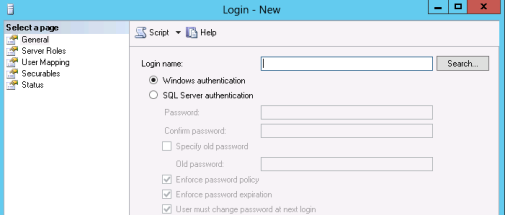
Right-click Logins, and click New Login.
-
In the Login name field, type the required account name (MSA/DMSA). You can click Search and select the account.
-
Click OK.
The account is added to the Logins list.
-
-
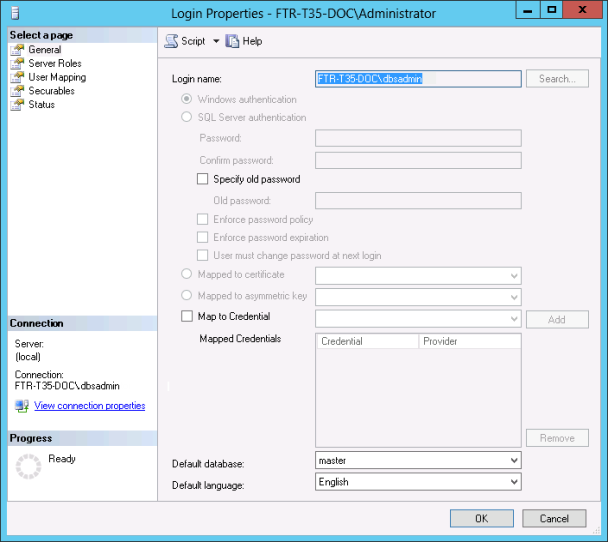
Double-click the Service Account that you added.
-
In the Login Properties window, verify that the Default language is set to English.
-
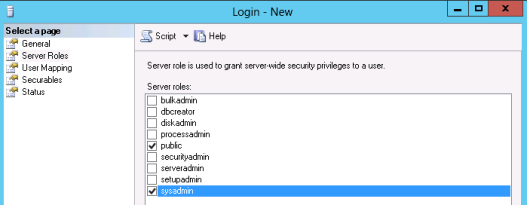
From the list of Select a page on the left, click Server Roles.
-
On the Server Roles page, select the sysadmin server role. (If MSA only, add sysadmin to MSA. If MSA and DMSA, add systadmin to DMSA.)
-
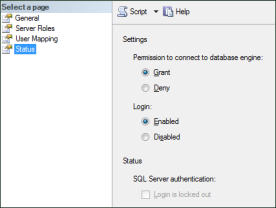
>Under Select a page, click the Status page.
-
Under Permission to connect to database engine, select the Grant option.
-
Click OK.