Assign a range of IP extensions
Assign IP extensions by specifying a range, as opposed to selecting specific extensions, to associate these primary extensions with a Member Group. Any secondary extensions are also included in the assignment. You can specify a contiguous range, or you can specify single or sub-ranges of extensions by separating with a comma, such as 1000, 1050-1075, and 1080-1090.
Procedure
-
Click Recording Management > Data Sources > Member Groups, and then select a Data Source that supports IP Extensions.
-
Choose an IP Extension Pool that has extensions already created, and then click Edit.
-
Click Assign & Create Phones > Assign Range.
-
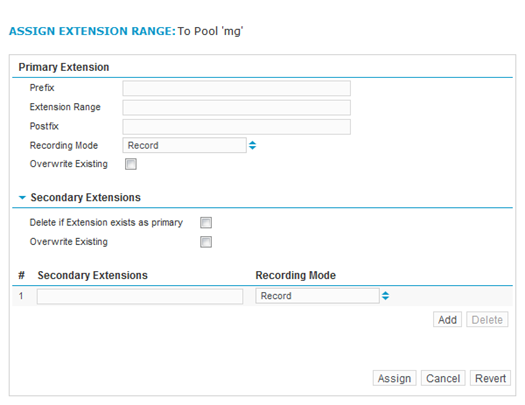
Complete following fields:
Primary Extension
Prefix
Type any digit or letter that will precede the extensions number.
Extension Range
Type an extension number range, such as 1,2, 3-100. Here, extensions 1 through 100 would be created. Extensions are case-insensitive.
Postfix
Type any digit or letter that will appear after the extension, as an identifier.
Recording Mode
Choose an extension recording mode as described in Extension recording modes.
Overwrite Existing
Select this check box to have existing extensions replaced with new ones created in the range if there are duplications. The new one then assumes the characteristics of the range. If left unchecked, the original extension will remain with its existing characteristics (such as recording mode).
-
Record—Record all calls on this extension.
-
Recording Resource—Not available in all cases, and only used for soft phones. Use in conjunction with a Service Observe or Single Step Conferencing Recorder Control Type.
-
Start on Trigger—Do not record calls on this extension until a recording rule is triggered or an external API command starts recording. If the recorder is set to recorder controlled, recording will start whenever the recorder starts, but audio prior to the recording trigger will be deleted; the interaction will start there, and continue to the end of the call.
-
Application Controlled—Record every call, and then delete it. At any time during a call, a recording rule or an external API command can cause the recorder to keep the call.
-
Do Not Record—Do not actively record this extension. Other extensions on the same call will follow their respective Recording Mode, and may record audio for this extension. External API commands or recording rules do not override this setting.
-
Click Assign.
|
Secondary Extension |
|
|---|---|
|
Delete if Extension exists as primary |
Select this check box to indicate that the primary extension will be deleted if a primary extension with the same number/identification is detected. |
|
Overwrite Existing |
Select this check box to have existing extensions replaced with new ones created in the range if there are duplications. The new one then assumes the characteristics of the range. If left unchecked, the original extension will remain with its existing characteristics (such as recording mode). |
|
Secondary Extensions |
Type in only secondary extensions whose recording modes will be changed. If you do not type in secondary extensions they are assigned with the same recording mode as the primary extension. Click Add to add additional rows so that you can type in other secondary extensions. |
|
Recording Mode |
Choose an extension recording mode: |