Common Sound Files page description
This page lists the current survey languages (the default language and any custom languages), the sound components, and any associated common sound files. Use this page to upload a sound file or review an uploaded sound file.
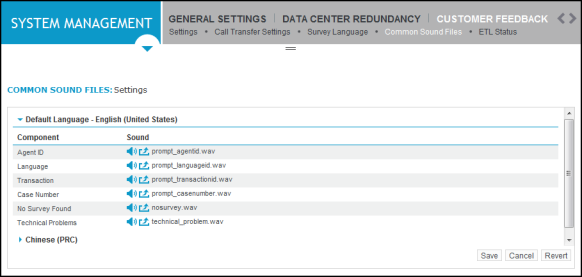
|
Column |
Description |
|---|---|
|
Component |
Lists the name of the common sound file components. |
|
Common sound file components |
|
|
Agent ID |
Prompts the agent to enter their ID. Used to associate the agent with the survey. This sound file is required when a Call Transfer definition is created with Agent ID Input is set to Manual Entry. |
|
Language |
Prompts the agent to enter the language code. Used to determine which language version of the survey is played for the customer. This sound file is required when a Call Transfer definition is created with Survey Language Input is set to Manual Entry. |
|
Transaction |
Prompts the agent to enter the transaction code. Used to determine which survey is played for the customer. This sound file is required when a Call Transfer definition is created with Transaction Input is set to Manual Entry. |
|
<user-specified> |
Prompts the agent to collect user-specified information--typically Case Number or Customer ID. This label is defined on the Customer Feedback Settings page. This sound file is required when a Call Transfer definition is created with <user-specified> Input is set to Manual Entry. This information is available in the Feedback Sessions report. |
|
No Survey Found |
Message that indicates the survey cannot be found. |
|
Technical Problems |
Message that indicates there is a technical issue that prevents the successful transfer of the call to the survey server. It is unlikely that this message will need to be played. |
|
Sound column |
This column contains two icons for each sound component.
|
 icon is clicked, the corresponding sound file is played.
 icon is clicked, the upload window is displayed for selecting a file. After a sound file has been uploaded, the file name is displayed.