System Management - Enterprise menu options
You use the System Management - Enterprise menu options to configure and manage the Installations tree and the servers and server roles.
All the System Management - Enterprise menu options are shown here. In this example, the Server node is selected and the Advanced Mode is turned on. The menu options that display to a particular user depend on the security privileges assigned to the user and whether Advanced Mode is turned on. Advanced Mode is typically turned off in most environments.
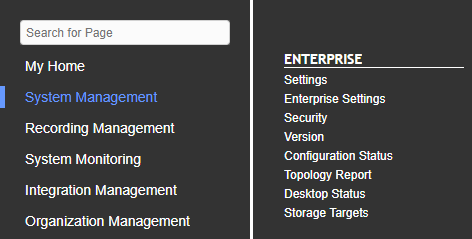
The table below briefly summarizes the functionality available from each of the System Management - Enterprise menu options.
|
System Management - Enterprise menu item |
Description |
|---|---|
|
Settings |
Use this menu to create and manage the Installations tree. You can add site groups, sites, and servers to the Installations tree. You can also copy servers, move servers, and block distribution of configuration changes to servers from this menu. |
|
Enterprise Settings |
Use this menu to specify configuration settings common to all servers in the enterprise. You can specify credentials for important system-wide accounts, specify the SMTP server the system uses, schedule system maintenance times, and system backup locations from this tab. |
|
Security |
Use this menu to specify HTTPS, data encryption, and application security settings that apply to all servers in the enterprise. |
|
Version |
Use this menu to view version information about any server in the enterprise. You can also view version information about service packs, update releases, server role components, and server role component patches installed on any server in the enterprise. |
|
Configuration Status |
Use this menu to view configuration errors associated with each server. You can also view various status information about configuration messages sent from the Enterprise Manager to its managed servers. |
|
Topology Report |
Generate a topology report in upgrade and troubleshooting scenarios. This report shows all items licensed in the enterprise. The report also shows details about every server in the enterprise, such as hardware/software installed and disk capacity. These details are useful when evaluating the system for upgrades. |
|
Desktop Status |
Displays the status of desktop systems that host software components that have registered with the Enterprise Manager application. The Desktop Status screen also includes a "Collect Logs" feature that enables you to collect log files from the software components installed on individual desktops. |
|
Storage Targets |
Users can export interactions from the Risk Management (RM) and Project Rules Management (PRM) applications to three different storage target types: Amazon S3, SMB, or SFTP. In the Enterprise Manager, you define the storage target to which interactions can be exported. The names of the storage targets defined in Enterprise Manager appear in the user interfaces of the RM and PRM applications when a user exports interactions from those applications. |
|
Data Center Migration - Internal Use Only |
Use this feature when upgrading a server to the next service pack or major release. See the Migration Guide for instructions on using this feature. |