Capture and review LDAP network packets
Use a tool such as Network Monitor or Wireshark to capture the network packets and review the LDAP queries.
Procedure
-
Start a new capture in Network Monitor.
-
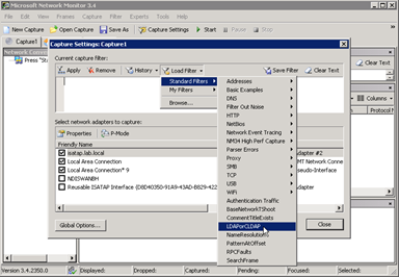
To create a capture filter so that only LDAP related traffic appears, click Capture Settings.
-
Click Load Filter and select LDAP or CLDAP, then click Apply.
-
Close the Capture Settings, and then click Start to begin the capture. Note that at the very top of the capture, details about any filters that you have enabled are displayed.
All LDAP traffic to and from this server are now captured.
-
Reproduce the issue you need to troubleshoot, and compare it to captures of the successful login.
-
After reproducing the issue, to stop the capture, click Stop.
-
Review capture results:
In the capture, there are 4 important messages related to authentication traffic:
-
Simple Bind Request (bindRequest)
-
Simple Bind Response (bindResponse)
-
Search Request (searchRequest)
-
Search Results (searchResEntry)
Example: First User authentication:
In the page below, the user account called First User was authenticated successfully because the bindReponse is success. The bindRequest packet contains the credentials entered by the user on the login page.
The numerous search requests and results list all the Active Directory groups that First User is a member of.
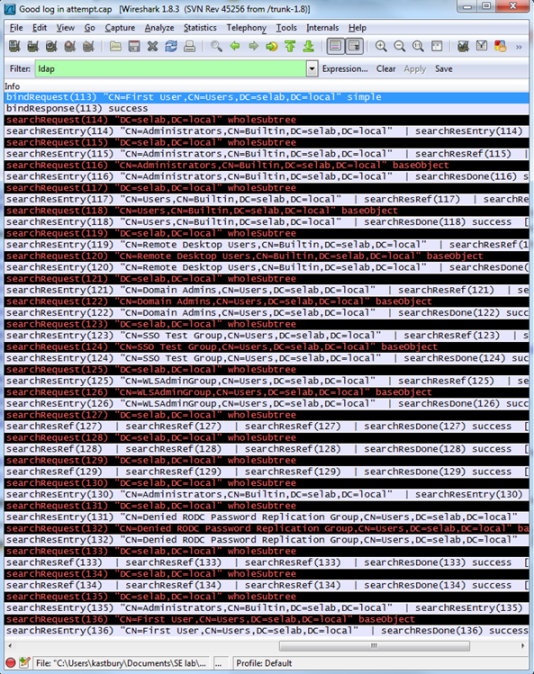
If there is a problem with the credentials that the user entered, the bindReponse shows the LDAP error code to be used to find the reason the login attempt failed.
Example: bindResponse shows error code 49 for Invalid Credentials
-
Access a complete list of all LDAP response codes and their definitions from RFC-4520 with this link.