Configure SAML 2.0 Service Provider services
Configure the WebLogic to act as a service provider in the SAML user authentication flow.
Procedure
-
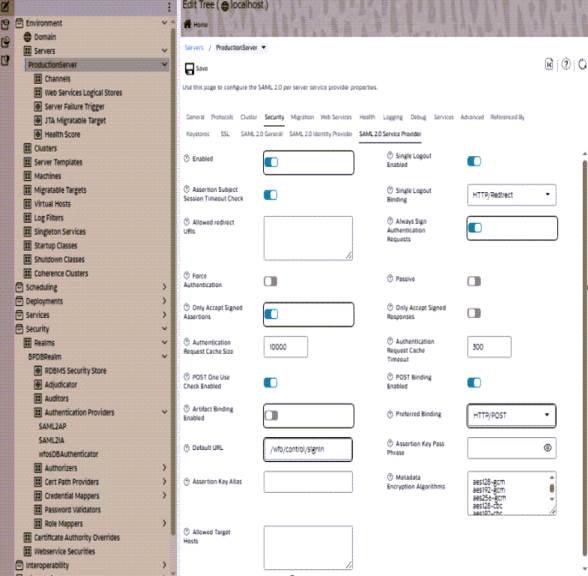
From the WebLogic Console left pane, select the Edit tree icon, Environment, Servers, and ProductionServer.
-
From the right pane:
-
Select the Security tab, and the SAML 2.0 Service Provider tab.
-
Select the Enabled option.
-
Select the Always Sign Authentication Requests option.
-
Select the Only Accept Signed Assertions option.
-
Clear the Artifact Binding Enabled option.
-
From Preferred Binding, select POST.
-
In Default URL, set the root URL of WFO application (/wfo/control/signin).
-
-
Select Save.
-
From the Shopping cart icon, select Commit Changes.
-
Restart the WFO_ProductionDomain_ProductionServer service for this application server only.