Import SAML IdP metadata to WFO WebLogic
The SAML IdP metadata is required to identify and trust messages (assertions) arriving from the IdP.
As of HFR5, in a multi-tenant environment, import SAML IdP metadata files for each tenant, in order to configure WebLogic to trust messages arriving from multiple SAML IdPs.
When replacing an existing SAML IdP metadata file in WFO WebLogic, you must first delete the existing file before importing the new one.
Procedure
-
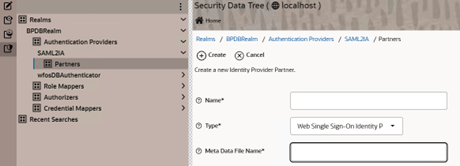
From the WebLogic Console left pane, select the Security Data Tree (last icon), Realms BPDBRealm, Authentication Providers, SAML2IA, and Partners.
-
Select New.
-
In the Name field, do one of the following:
-
In a single-tenant environment, enter WFO-IdP.
-
In a multi-tenant environment, enter the tenant IdP name, for example IdP_A.
-
-
In the Type field, select Web Single Sign-On Identity Provider Partner.
-
In the Meta Data File Name field, enter the full path of the Metadata file. The path cannot include spaces.
-
Select Create.
-
To open the IdP, do one of the following:
-
In a single-tenant environment, open WFO-IdP.
-
In a multi-tenant environment, open the tenant IdP, for example IdP_A.
-
-
Select Enabled.
-
In the Description field, do one of the following:
-
In a single-tenant environment, open WFO-IdP.
-
In a multi-tenant environment, enter a unique tenant IdP description, for example IdP for tenant A.
-
-
To set Redirect URIs for the browser/web login, do one of the following:
-
In a single-tenant environment, enter /wfo/bluepumpkin.html.
-
In a multi-tenant environment, enter /wfo/IDP<X>.html.
where X is a unique and counting number between 1-100, representing access to the tenant IdP. For example - /wfo/IDP1.html.
WebLogic redirects the user browser to the tenant IdP according to the configured Redirect URIs values.
-
-
From the Shopping cart icon, select Commit Changes.
-
In a multi-tenant environment, repeat steps 2-11 for importing additional SAML IdP metadata files.