Upload the certificate
Upload the certificate that was created previously and was signed by the same external authority who signed the certificates for the
Before you begin
-
Add the Certificate Authority (CA)
This certificate must be signed by the same external authority that signed the certificates for the
-
Have the PrivateKey.pem file.
Procedure
-
Sign into the CipherTrust Manager Web Interface.
-
Go to Admin Settings, go to Interfaces.
-
Corresponding to the web interface, click
 (More) and select Certificate Options....
 -
Select Upload New Certificate.
-
In the Upload Certificate window, select the Text option.
-
Copy the entire content of the certificate file (it can have the chain of certificates) followed by the key content and paste the certificate (.cer files) and key (PrivateKey.pem) details.
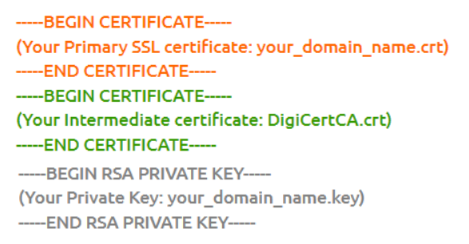
You need not provide the password, as while generating CSR, a password is not provided (Encrypt Private Key).
-
Click Upload Certificate.
-
Select View Certificate and make sure that new certificate is uploaded.
-
Go to Services, click Restart to restart the web interface and refresh the browser.