Create the application gateway
The Azure Application Gateway forwards incoming requests based on rules. It forwards the incoming requests as follows:
-
You define on which ports it accepts the requests and define a listener for each port.
-
If the connection on that port is secure, select HTTPS as the protocol in the HTTP settings and provide a cryptographic service provider (CSP) SSL certificate for the application gateway to use.
-
You define the rules that tell the application gateway which request to forward to which backend pool. Rules can be defined based on URL (path-based) or port. We recommend using the port-based rules.
Procedure
-
From the Home page, select Application gateways.
-
Click Create.
-
On the Basics page, enter the required details using the Resource group, Virtual network and Subnet you have created.
-
On the Frontends page, select a public IP address (ILPIP). You can add it here or select a reserved IP that is not already assigned.
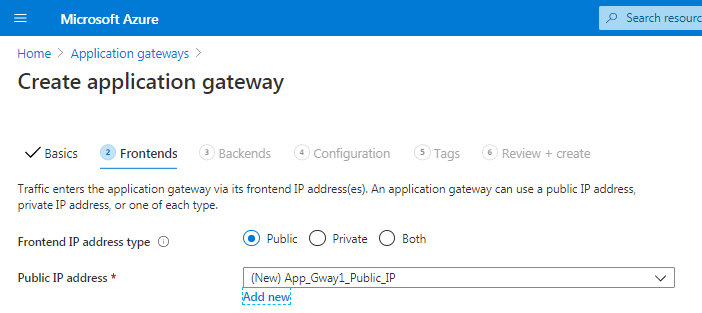
This frontend forwards incoming requests to the backend servers that process the requests.
-
Write down this public IP address. For this Application Gateway to be used in your Teams tenant, it needs a CNAME record. The CNAME record belongs to the domain of your Teams tenant and points to this public IP address.
-
On the Backends page, select Add a backend pool.
Backend servers are organized into backend pools in which the application gateway evenly distributes the workload. The application gateway also monitors the health of backend servers and does not route any traffic to backends that fail the health check.
-
For each pool, enter a name and set Add backend pool without targets to Yes.
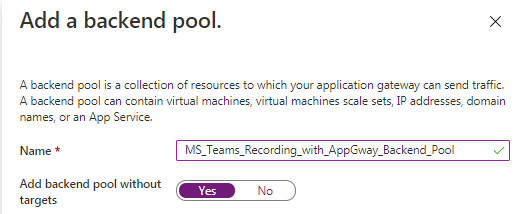
-
On the Configuration tab, add a routing rule for each port to be opened on the application gateway.
-
Define the Listener.
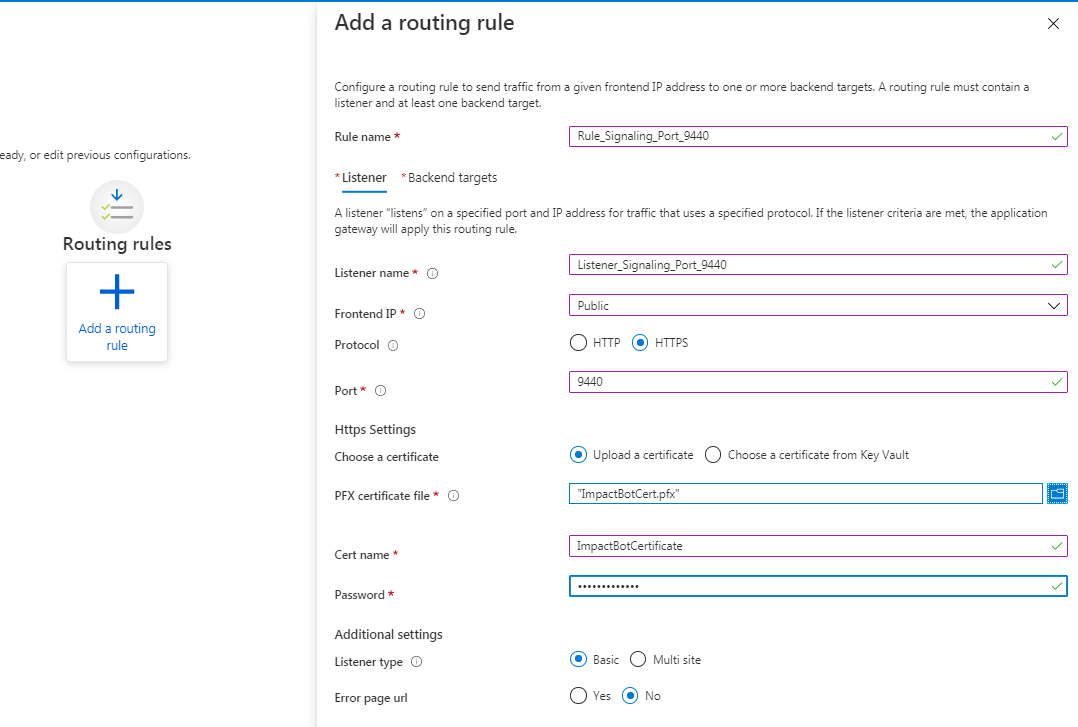
-
Define the Backend targets to which requests coming to the port are routed.
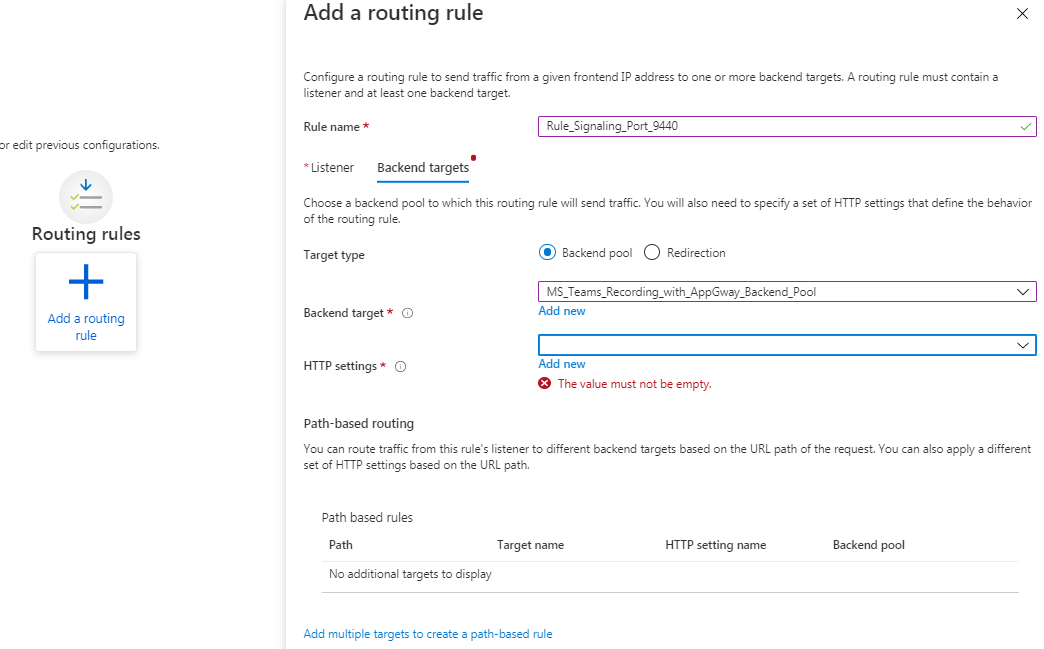
When creating the backend target, add an HTTP setting for this rule. (Define a separate HTTP setting for each port). Set the port you are defining the rule for, then for Teams Bot VMs, use the following settings:
-
Backend protocol = https
-
Backend port = <Corresponding signaling port on Recording bot VM>
-
Use well-known CA certificate= Yes
-
Override with new host name= Yes
-
Host name override = Pick host name from backend target
-
Custom health probe = No
-
-
On the Tags tab, configure tags as needed.
-
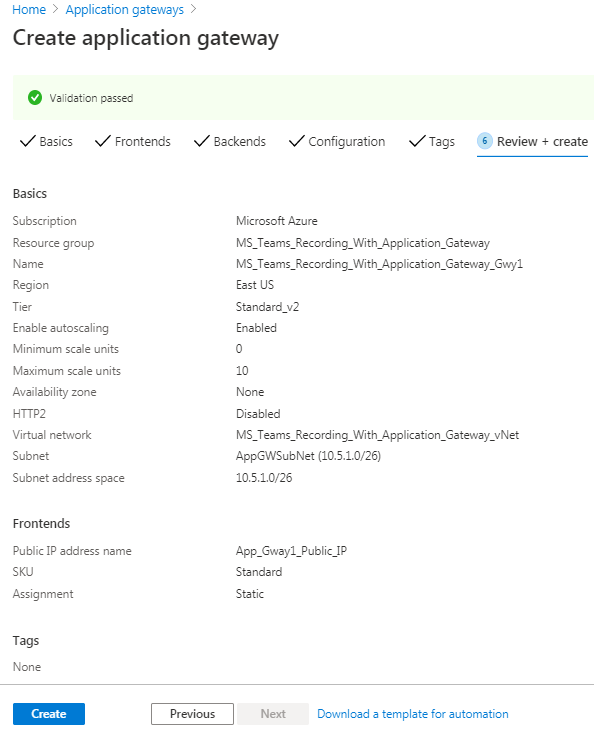
On the Review + Create tab, select Create, and wait for the application gateway to be deployed.
What to do next