Monitor employees
You can monitor and evaluate an ongoing interaction and screen activity for a specific employee of interest.
The Monitor Employees Dashboard displays a list of your employees and their status. Using the status, you can view which employees are logged on to a phone, which are logged off, and which are currently on a call. According to the status, you can determine which employee to monitor.
You can only monitor employees in your visibility (assigned to the organization/groups over which you have scope).

Before you begin
Verify that in the User Management application you have the following privileges:
-
Monitor by employee
-
One or both of the following: Monitor audio, monitor screen
-
View employees
Procedure
-
Under Real Time, select Monitor Employees.
-
To view specific employees in the dashboard, under Organizations do one of the following:
-
To display a specific employee, click
 or
or  or
or  and select the employee to display.
 -
To display employees associated with a specific organization, click
 and select the organization.
 -
To display employees associated with a specific group, click
 and select the group.
Up to 50 employees can be displayed per page. If more than 50 employees exist for your selection, use
 to move back and forth between the pages.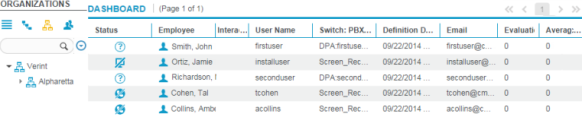
-
-
In the dashboard, locate the employee to monitor according to the employee status.
If filters are defined based on the PBX ID, employees that do not meet the filter definitions are unavailable for monitoring.
-
To start monitoring the employee in real time, double-click the employee to access the Real-Time Interaction Review workspace.
If the employee is on a call, you can hear the conversation in the Real-Time Interaction Review workspace. This option is available if you have the privilege to monitor audio. If a screen recording is available, you can view the employee screen even if the employee is not on a call. This option is available if you have the privilege to monitor screens.
What to do next
Real-Time Interaction Review workspace