Map attributes to an adapter
Mapping attributes to an adapter identifies, to the Integration Service, which CTI fields should be tagged.
Before you begin
Create an adapter or learn about adapter creation in the Recorder Configuration and Administration Guide.
Procedure
-
Go to System Management. Under Enterprise, select Settings.
-
In the Installation Tree, select the relevant Recorder server.
-
Click Launch and select Recorder Manager to open the Recorder Manager application.
-
In Recorder Manager, click General Setup.
-
Under Integration Adapters, select Settings.
-
In the left-hand pane, select the
-
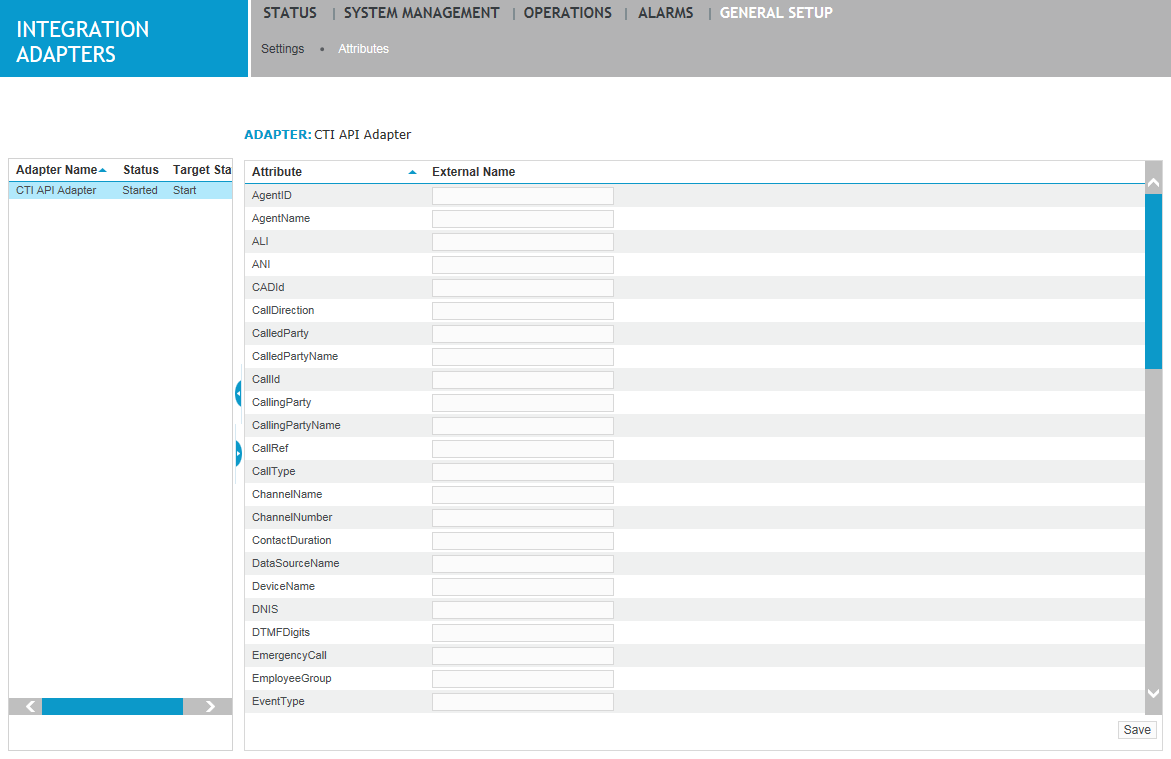
Click Attributes.
-
For example, if you have an attribute named "MyCallId", you would map the attribute to the External Name “event.call.callId”.
You can find external names in the Recorder Integration Service logs. See "Identify CTI data" in the Recorder Configuration and Administration Guide for more information. For all of the rules governing the External Name field, including cases where the external attribute consists of a list of values, see Attribute external name syntax.
-
Click Save.
Attribute external name syntax