Add and modify pools
As an admin, you can create a new pool using the pool configuration wizard. With Configure Pools privilege, you can add, edit, or delete pools. However, in cases where you do not have the privilege to view all the organizations connected to a pool, you cannot perform these actions.
 or
or  and save the details.
The Add Pool screen has two configuration sections:
-
General - To configure the pool details
-
Employee - To configure the employees who are associated with the pool.
Employees are associated to a pool by selecting their organization, skills, and employee types. All employees who meet this criteria are associated with the pool and they can view the number of employees who meet this criteria at the bottom of the pool creation wizard.
Procedure
-
Go to Request Management. From Request Anything, select Pools.
-
Click Add Pools to create and configure pools by providing the following details:
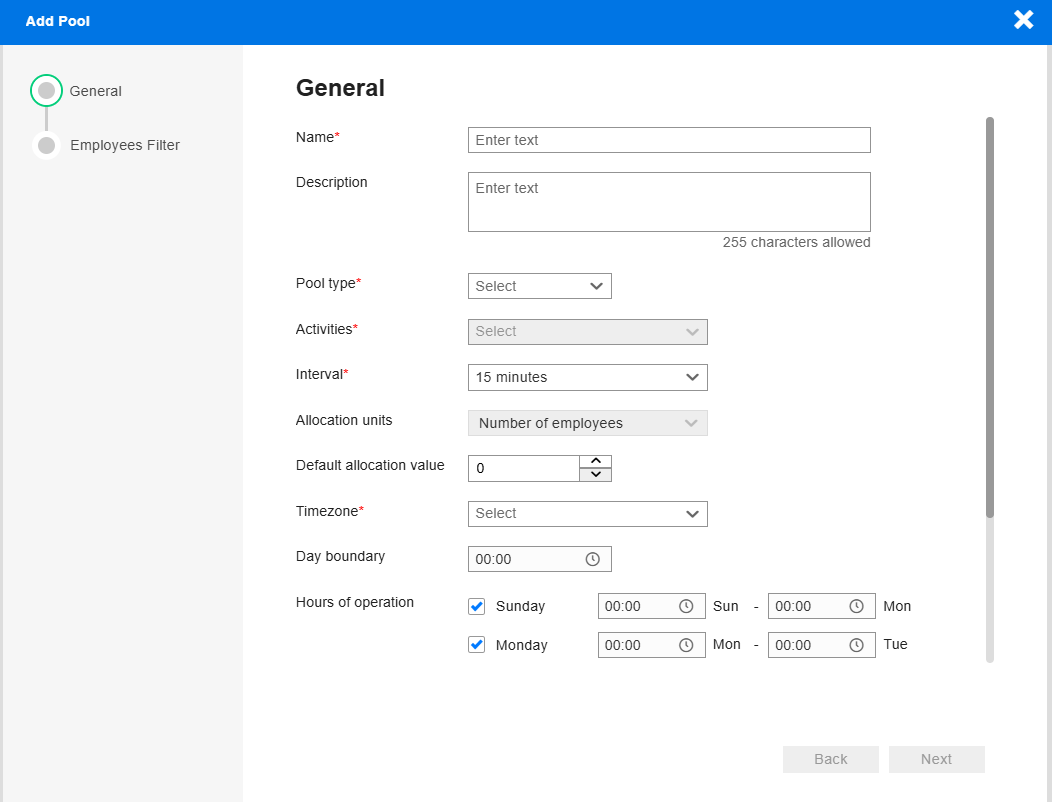
Under the General section, complete the Pool configurations and click Next.
-
Under Employee Filter, you can define employees who will be connected to the pool by filtering them based on organization, skills, and employee types.
The effective dates of organization association and skill association are considered to decide the timeframe during which an employee is associated with the pool.
You can filter Employees attributes by
-
Organizations - Select the checkbox or use
 to view the entire list of organizations.
 -
Skills -
Match exact skills - Employees with only that specific skills are associated with the pool.
Match selected skills and additional skills - Employees who have skills where the selected skill is one of them are part of the pool.
Employee filter - Select the employee types, such as full-time, part-time, contract, and supervisor.
-
-
Click Create Pool to save the details.