Employee Verification report
Use the Employee Verification report to identify irregular IAFD employee verification results by organization. The report aggregates verification statistics for each employee.
Managers can have the report delivered regularly to investigate the cause behind verification irregularities. For example, use the report to identify cases where employee verification statistics suggest that someone other than the enrolled employee is providing service to customers.
Report sections
Report output for Employee Verification consists of two sections.
-
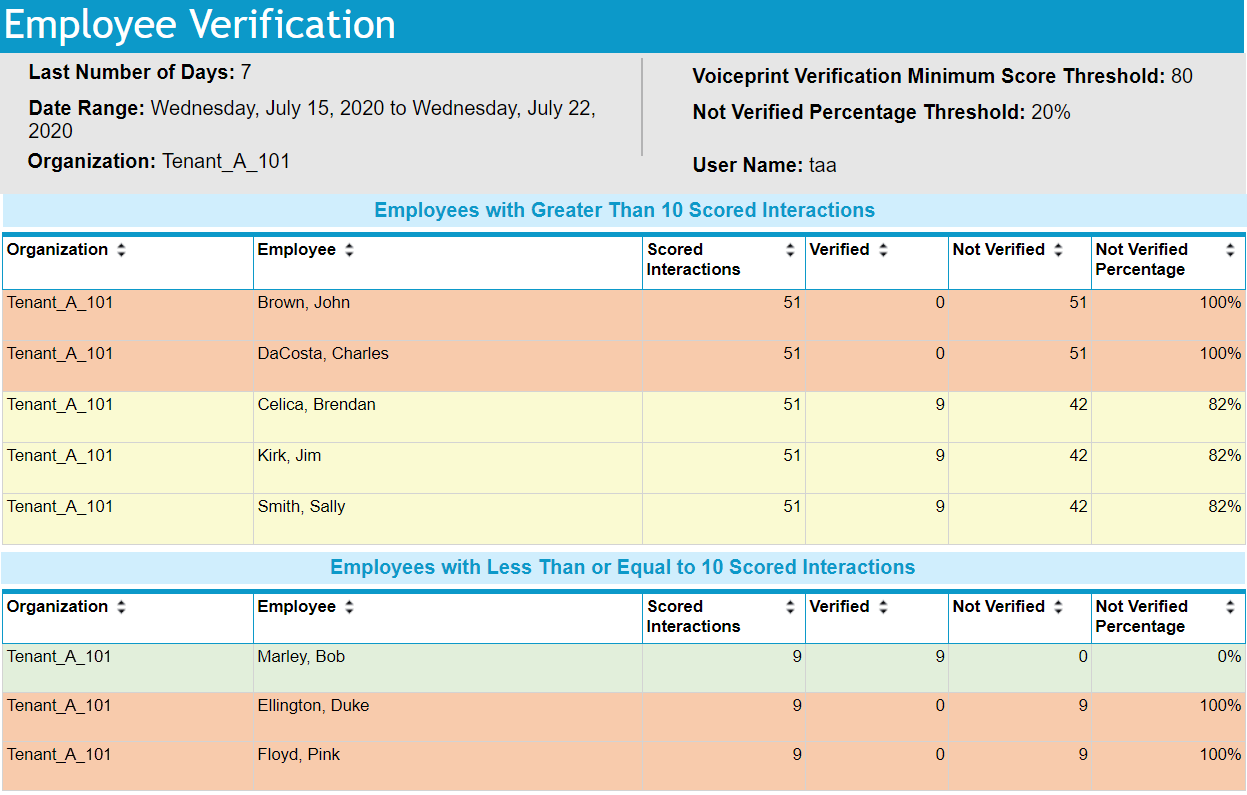
Employees with Greater Than 10 Scored Interactions: Displayed first in the report output, this section tabulates verification activity for employees with more than 10 scored interactions.
-
Employees with Less Than or Equal to 10 Scored Interactions: Displayed last in the report output, this section tabulates verification activity for employees with 10 or fewer scored interactions. You can use this section to identify employees with an unusually low volume of verification activity.
Report parameters
The Employee Verification report requires specific additional parameters listed in the next table.
|
Parameter |
Description |
|---|---|
|
Date Range |
Includes employee verification activity for a relative or an absolute range of dates. Defaults to the current date as a From/To date.
|
|
Organization |
Use the organization selector icon All employees in the selected organizational hierarchy with verification scores for interactions are included on the report. |
|
Voiceprint Verification Minimum Score Threshold |
Establishes the minimum verification score required for an interaction to be reported as "Verified." Verifications below the threshold are reported as "Not verified" and verifications above the threshold are reported as "Verified." Verification score values can range from -100 to 100.
Enter a decimal value from -100 to 100. Defaults to a value of 5. |
|
Not Verified Percentage |
Establishes the acceptable failed verification percentage for each employee. Color-coded table rows identify employees with calculated percentages above and below the value entered. Enter an integer value from 0 to 100. Defaults to a value of 20. For example, John Doe has 8 "Not Verified" interactions out of 20 scored interactions. The not verified percentage is calculated as 40%. If you set the not verified percentage to 20%, the report identifies the employee as having exceeded the report value using a background color. John Doe is a candidate for further research to determine why so many "Not Verified" results occurred. |
 to select a date range using the date picker.
 to select an organization for the report. Selection of an organization includes any suborganizations to which you have access.
Report columns
Each section tabulates verification activity by employee. The columns for the tables in each section are the same.
-
For ease of identification of possible verification irregularities, table rows are color coded based on the Not Verified Percentage column value for each employee.
-
The primary, default sort order is descending order by the calculated not verified percentage, then by organization, and last by employee.
-
You can use any column heading to sort the table data in ascending or descending order.
|
Column name |
Description |
|---|---|
|
Organization |
The organization to which the employee belongs. |
|
Employee |
Full name of the employee for which a verification score was assigned. |
|
Total Scored Interactions |
The total number of interactions scored for the employee for the report date range. This figure includes both "Verified" and "Not Verified" results. |
|
Total Verified |
The total number of interactions for the employee with a verification score greater than or equal to the Voiceprint Verification Minimum Score Threshold for the report date range. |
|
Total Not Verified |
The total number of interactions for the employee with a verification score less than the Voiceprint Verification Minimum Score Threshold for the report date range. |
|
Not Verified Percentage |
A figure for the employee representing the ratio of Total Not Verified scores relative to the Total Scored Interactions for the report date range. The percentage is calculated as (Total Not Verified / Total Scored Interactions) * 100. The calculated figure, when compared with the Not Verified Percentage parameter, determines the background color used for the employee row in the report table:
|
Report example
The Last Number of Days value is provided only when requested as a report parameter. Date Range represents either the report parameter or is calculated when Last Number of Days is specified.
Default report access rights
By default, the following roles can run this report: Administrator, Analyst, Enterprise Manager Admin. .
IAFD reports and widgets (Real-Time Analytics Framework Configuration and Administration Guide)