WIT Drilldown Chart Report
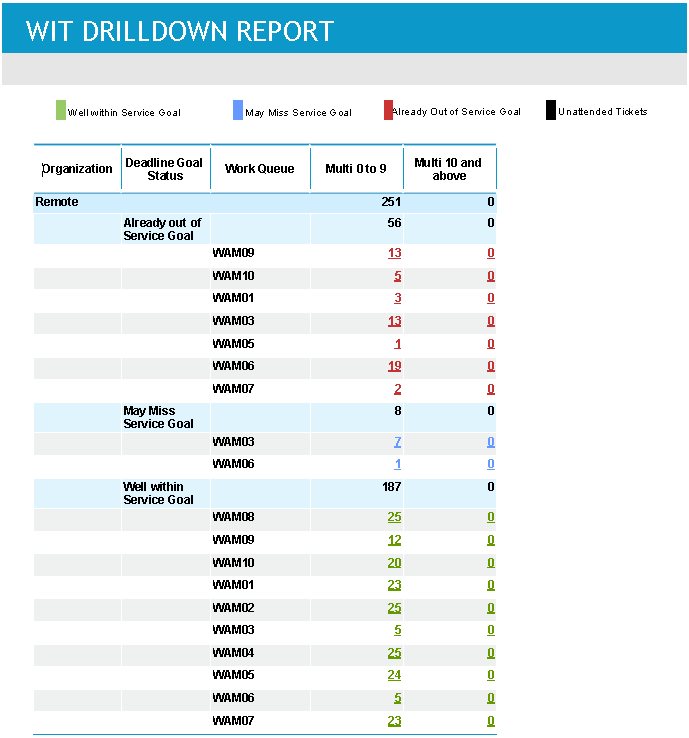
You can interactively drill down to the details of individual work items that make up the age brackets.
In the creation of the WIT filter, you can choose to aggregate data from multiple data sources (transaction systems) into the WIT Drilldown Chart (and WIT Aging Chart reports).
By using the drilldown feature for one of the numbers representing the work items for an aging bracket, you can see the additional details in a new window:
-
The new window displays work item details for the selected aging bracket. The new window includes all work item details.
-
If you have configured the CRM system’s URL (see the External URL for WIT Tickets field found in System Management > Data Sources > WIT Configuration), the new report provides a link from the external ID field to the selected work item. If the external system requires authentication, it should be configured on the WIT Configuration page.
Default Access Rights
This report can be run by the following roles: Administrator, Manager, Scheduler.
Inputs
-
WIT Named Filter: The filter used to focus on subsets of data in the WIT Aging Chart report that are relevant to you.
-
WIT View: A saved set of attributes (such as employee ID, work queue, status of the item) you want to see in the report.
Outputs
-
Attributes: The attributes selected in the WIT view.
-
Aging buckets: The Aging buckets defined on the WIT Configuration page of the Data Sources section of the System module.