Integration overview
Plan and prepare for integrating the Verint recording solution with Zoom Contact Center by understanding the required components, how they communicate, and who is responsible for deploying them.
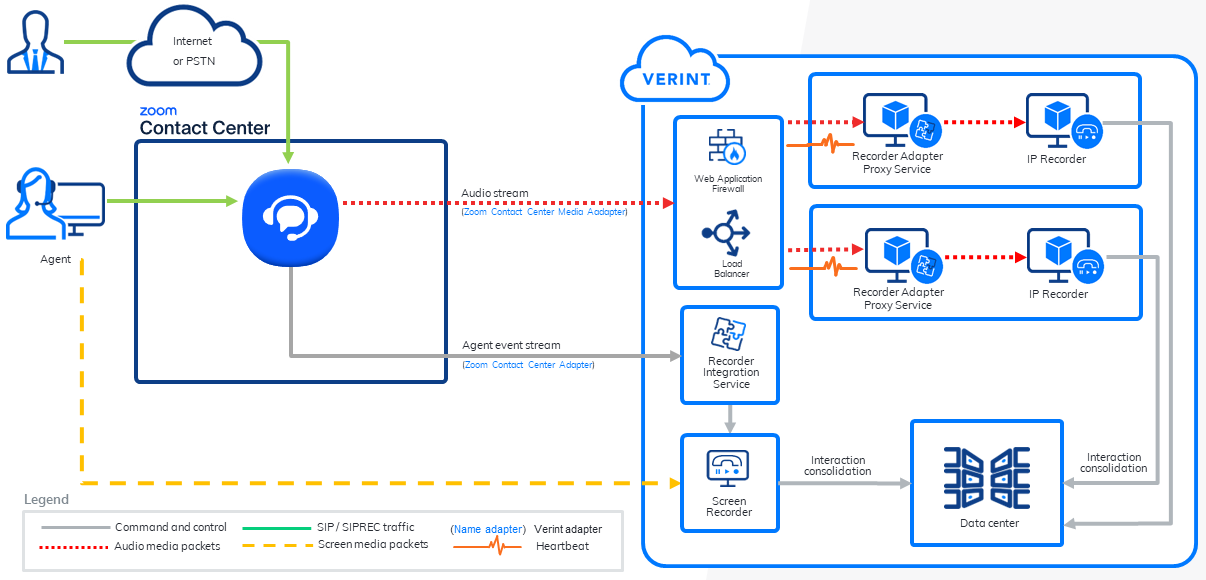
Components
-
Customer phone
-
Public network (internet or public-switched telephony network)
-
Agent phone and computer running Verint Agent Desktop and the Verint Screen Capture module
-
Zoom Contact Center as a Service (CCaaS)
The customer is responsible for configuring the Zoom Contact Center cloud platform.
-
Web application firewall
-
Load balancer
-
Verint Recorder running Recorder Adapter Proxy Service (RAPS) and IP Recorder roles. RAPS hosts the Zoom Contact Center Media Adapter.
-
Recorder Integration Service, which hosts the Zoom Contact Center Adapter
-
Screen Recorder
-
Data Center Service
Sequence for audio capture (call flow)
The following sequence of events demonstrates how the recording solution captures audio from an engagement:
-
A configured agent makes an outbound call to a customer, takes an incoming call from a customer, or transfers a call to another configured agent.
NOTE: A configured agent has a Zoom Contact Center account and a Verint employee account that is associated to the Zoom Contact Center data source.
-
The Zoom Contact Center API sends the following sequence of events to the Zoom Contact Center Media Adapter:
-
StreamingConfig event identifies the audio format as LINEAR16 16,000 Hz.
-
SessionEvent with the event type CALL_STARTED.
-
AudioContent event contains one AudioContent event type per Participant on the call, up to a maximum of two participants.
-
-
When the Zoom Contact Center Media Adapter receives the audio content, it converts the audio from LINEAR16 to PCMU/8000 (G.711 Stereo), and sends the audio packets to the Recorder.
The Recorder
-
When a configured agent puts the call on hold (user_hold event) or transfers the call (transfer_initiated event), the Recorder stops capturing.
If an interaction includes the agent screen, audio is muted to stay in sync with the video.
-
During a warm consultative transfer, the conversation between the configured agent and the consulting agent is captured.
-
When the call ends, Zoom Contact Center API sends a SessionEvent with the event type CALL_Ended to the Zoom Contact Center Media Adapter. The Media Adapter closes the connection to Zoom, and stops recording.
-
The Recorder Integration Service stitches the call audio and agent screen activity together and sends the files to the Verint Data Center for long-term storage.
-
Your personnel can replay the call audio using the Interactions and Risk Management modules. To find a specific call, search for the agent's name, date of the call, caller ID, or the dialed number.
Sequence for screen capture
The following sequence of events demonstrates how the recording solution captures the configured agent's screen activity:
-
When the Recorder Integration Service receives a call Ringing event, the Verint Recorder sends a command to the Verint Agent Desktop service to start capturing the screen.
-
The Agent desktop service streams the screen to the Screen capture service, which hosts the LAN data source.
-
The Recorder Integration Service responds to events as follows:
Agent event
Integration Service response
Ringing
Start capturing: Create an SCN file in the call buffer on the Recorder.
Not Responding
Stop capturing: Delete the SCN file.
Connected
Continue capturing. Mark the SCN file to be kept.
Consulting, Consult Done, On Hold, Hold Done, and Wrap Up
Continue capturing screen.
NOTE: Audio is silent during hold.
Transfer Started
Start recording the new call segment.
Transfer Declined, Transfer Rejected, or Transfer Done
Stop recording the transferred call segment.
Agent Available
Stop capturing. Notify Ingestion Web Service.
-
The Recorder Integration Service stitches the call audio and screen activity together and sends the files to the Verint Data Center for long-term storage.
-
Your personnel can replay the call audio and associated screen activity using the Interactions and Risk Management modules.