Capture Status Recovery fields for Zoom Meetings
The Interaction Recovery section of the Interaction Capture Status report shows recovery jobs that ran for the adapters listed. For each job, the report shows the number of interactions the system detected, recovered, and failed to recover. It also provides job timestamps, recovery timestamps, and the watermark timestamp, so you can verify the status and outcome of the call recovery process. Jobs are removed from the report when they are older than the current watermark minus 10 days.
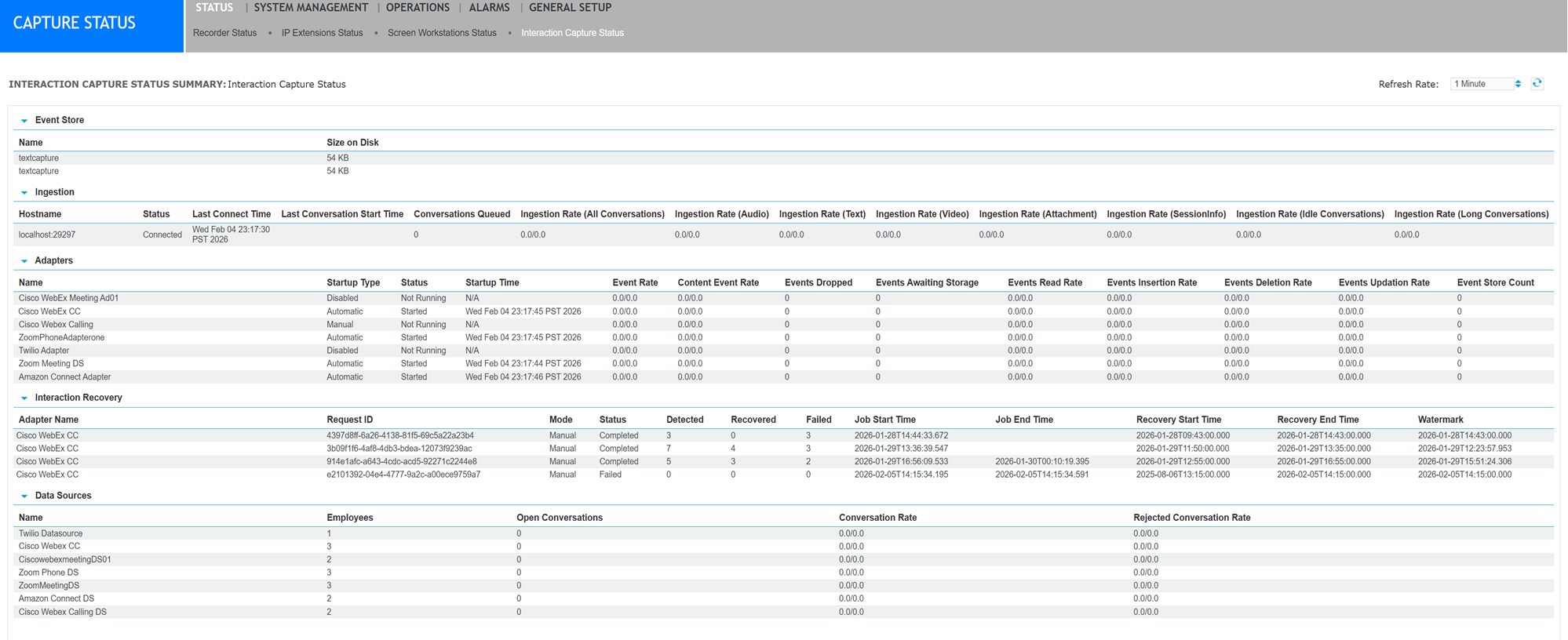
Interaction Recovery
|
Field |
Description |
|---|---|
|
Name |
The name of the adapter from which calls are being recovered. |
|
Request Id |
The unique identifier of the call recovery request. |
|
Mode |
The mode can be either Manual or Automatic.
|
|
Status |
The status of the call recovery job (In progress, Failed, Stopped, Complete). The "Stopped" status indicates that the adapter was stopped in the middle of the recovery job. In this case, start the adapter and run the recovery job again. |
|
Missed Calls Detected |
The number of missed calls detected. |
|
Missed Calls Recovered |
The number of missed calls recovered. |
|
Job Start Time |
When the recovery job was initiated. |
|
Job End Time |
When the recovery job finished running. |
|
Recovery Start Time |
The scheduled start time for recovery. |
|
Recovery End Time |
The scheduled end time for recovery. |
|
Watermark |
The watermark indicates the last interaction that was successfully recovered.
How to use the watermark Use the watermark to determine when to restart recovery:
|
Verify call recovery status for Zoom Meetings
Call recovery overview for Zoom Meetings
Interaction Capture Status (Recorder Configuration and Administration Guide)