Add terms and phrases to project (Connected mode)
Add single or multiple terms and phrases, define their band adjustments, and phonetic representations.
-
Terms and phrases
Type the new terms and phrases manually or import them from a .pbpx file into the project.
-
Band adjustment
Define the band adjustment that represents the probability for a term or phrase in the language model.
-
Phonetic representation
Add pronunciations for each term or phrase automatically or manually.
Automatic pronunciations are available from the automatic phoneme generator. All language models include automatic phoneme generators that are loaded when you select the model as part of the project properties. The automatic phoneme generator displays a single pronunciation for new terms. For existing terms, the phoneme generator displays a pronunciation only if that pronunciation is not included in the available list.
Similar Terms and Phoneme lists help to create pronunciation manually, by searching for similar terms with phonemes or by combining phonemes from the list to create the phonetic representation.
Before you begin
Procedure
-
In the View Phrases section, click Add New Phrase.
-
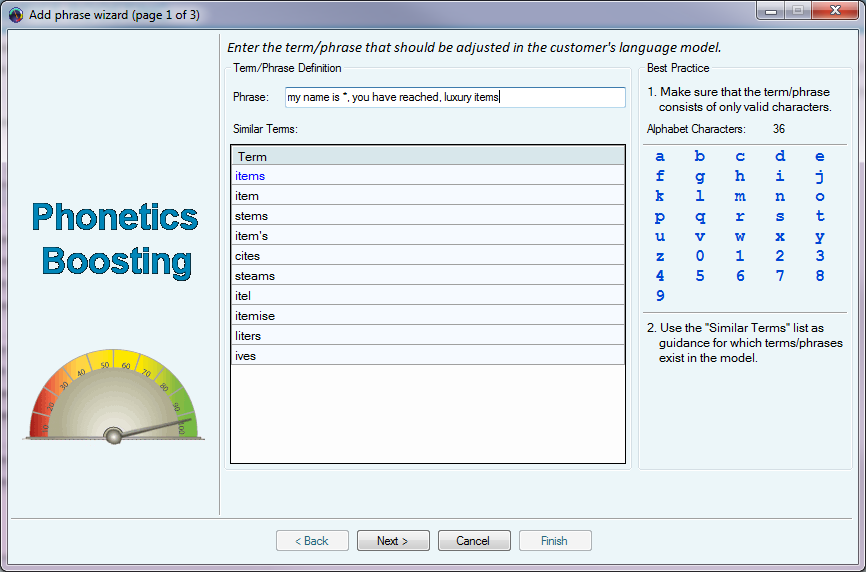
In the Phrase field, type the new term or phrase to add to the project.
-
To add a phrase, type the term or phrase. For example, software upgrade.
-
To add multiple phrases with or without wildcards, separate each phrase with a comma. For example: how can I * you, thank you for calling ACME.
As you type, the list of Similar Terms is populated with the terms in the base language model that are similar to the term you are currently typing.
-
-
Click Next to open page 2 of the Add Phrase Wizard (page 2 of 3)
-
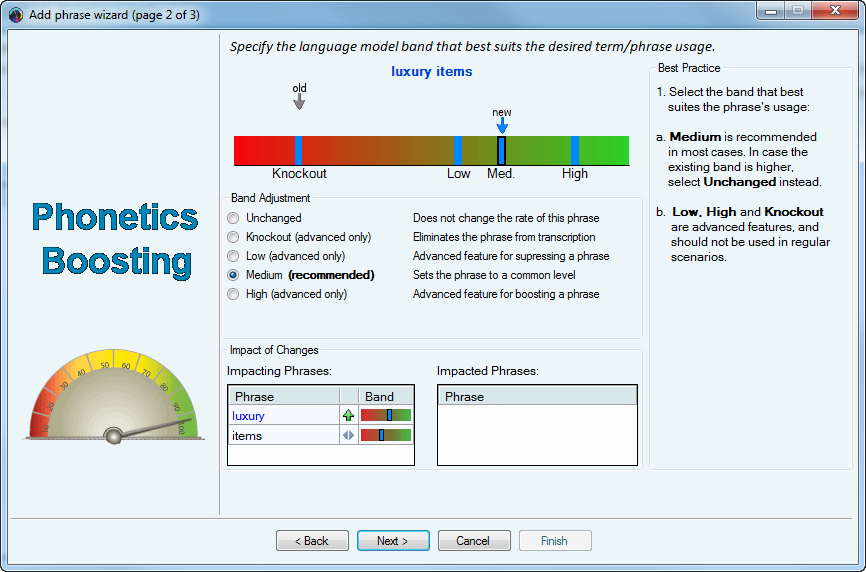
Select Band Adjustment.
-
If the color graph shows that the existing band is higher, select Unchanged. Otherwise, select Medium.
-
Impacting Phrases: Shows the impact of the new term or the phrase on the Speech Recognition engine’s vocabulary. The Band column reflects the probability of the term/phrase, as either
 (Boost),
  (Suppress),
  (Unchanged) and
  (Knockout, indicating lowest probability and will not appear in the transcription).
 -
Impacted Phrases: Shows the phrases that will be boosted as a result of the new term/phrase.
-
Click Next to open the Pronunciation tab in the Add Phrase Wizard (page 3 of 3).
-
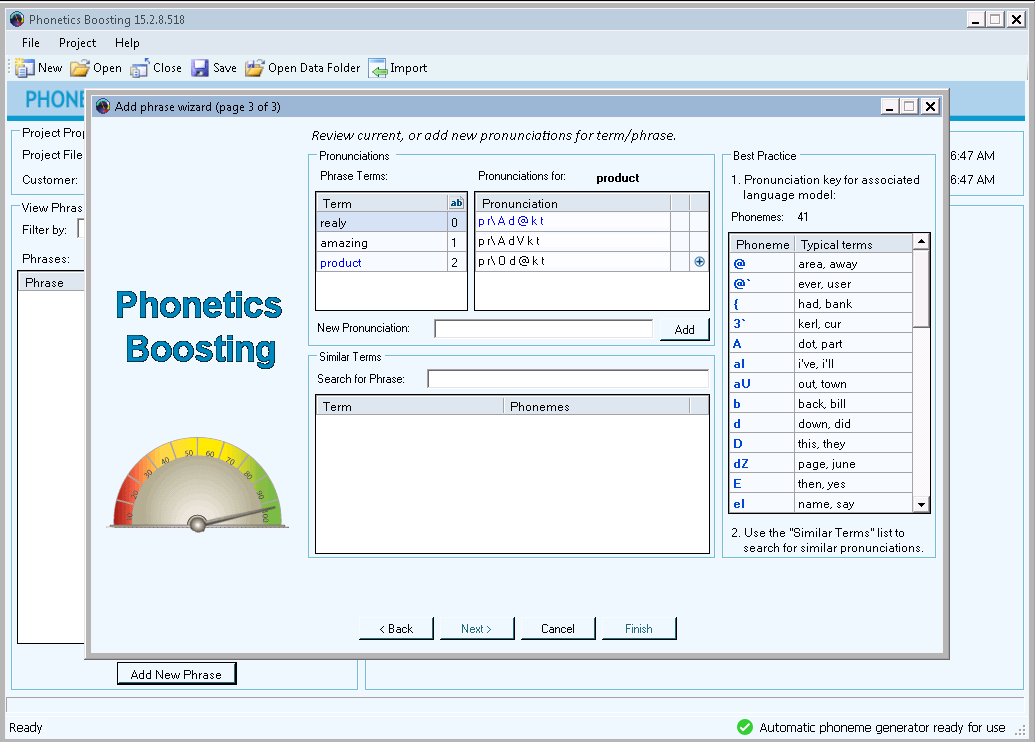
The list of Phrase Terms shows the new term or phrase with the available pronunciations. For a phrase, pronunciations are shown for each term in the phrase.
-
Existing terms or new terms without pronunciations show 0, and are highlighted in blue.
-
-
To add the pronunciation from the phoneme generator, do the following:
-
Click the
 icon next to the term.
The pronunciation is added for the term, and
is replaced by  and
and  .
. -
To edit the pronunciation, click
, and change as needed. -
To not use the pronunciation, click
and then confirm the delete message. The pronunciation is not added to the term, but reappears in the list with .
-
-
To add pronunciations from Similar terms, do the following:
-
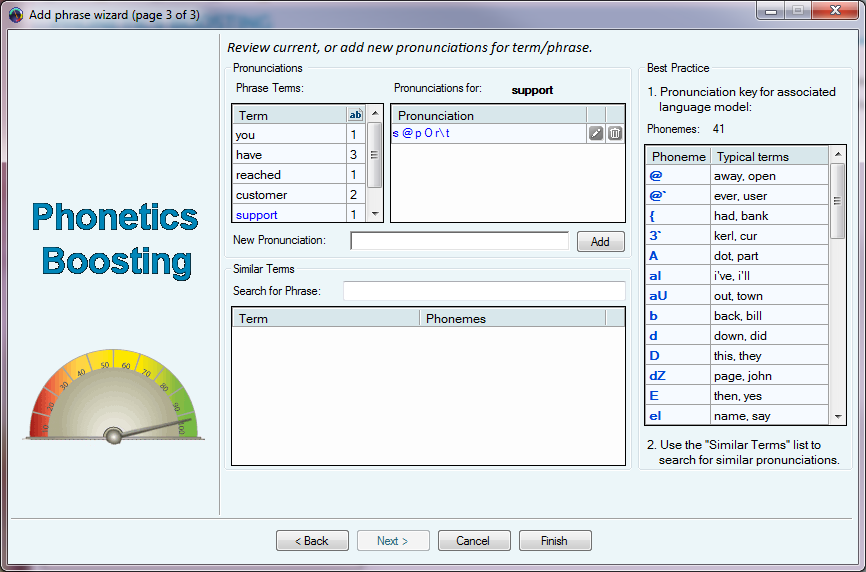
In the Search for Phrase field, start typing letters in or similar to the term/phrase for which you want to create a pronunciation.
-
From the list of terms that appear, select the phoneme that best represents the new term/phrase and click
to add it to the New Pronunciation field. -
To add another phoneme to the string in the New Pronunciation field, press the space bar to add a space, and then select the phoneme from the list.
-
-
To add pronunciations according to the phonemes that represent specific speech sounds, do the following:
-
From the list of Phonemes on the right, find the phoneme similar to the term or phrase, for which you want to create a pronunciation.
-
In the New Pronunciation field, type the phoneme as it appears in the Phoneme list on the right.
-
To add another phoneme, press the space bar and then repeat step a and step b.
-
Continue until you have the complete phonetic representation of the term or phrase.
-
-
To add the new pronunciation, click Add.
-
Click Finish.
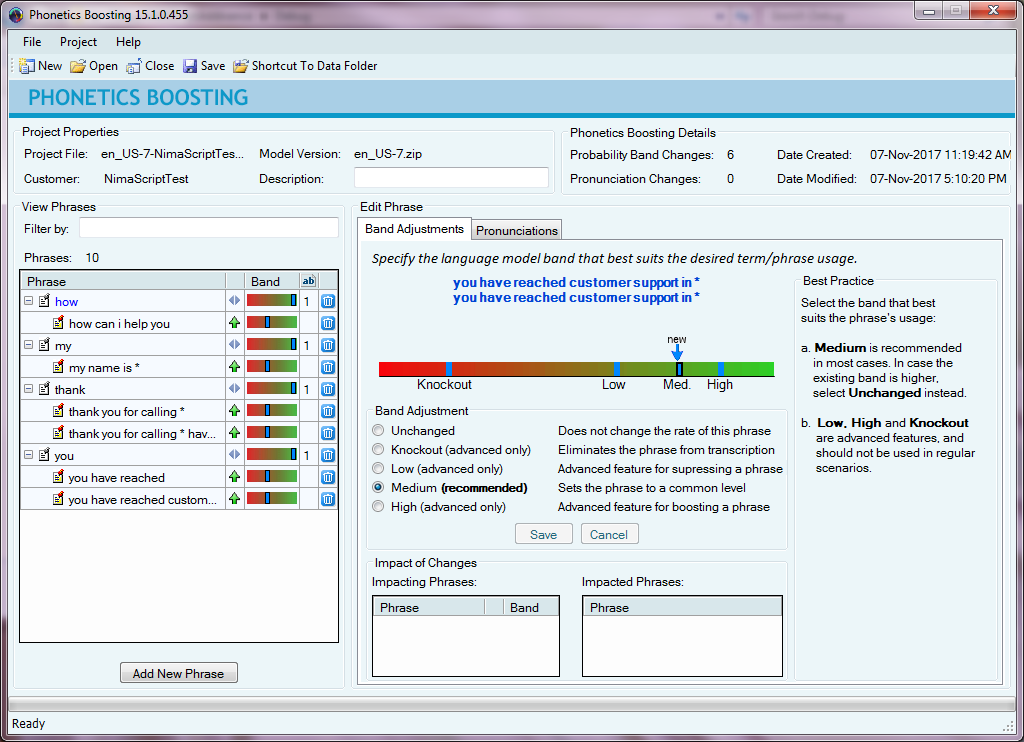
The Phonetics Boosting window reappears with the new terms and phrases in the Phrase list.
The terms and phrases are added in alphabetical order according to the first letter in the term or phrase. If you add multiple phrases, each term or phrase after the comma is grouped below the first term.
-
Do one of the following:
-
To close the project and save the changes, click Save and then Close.
-
To add more terms and phrases to the project, click Add New Phrase and then repeat step 2 to step 9.
The project file is saved with a PBP extension.
-
What to do next