Optional: Distribute RTSA language model
If required, distribute a language model for Real-Time Speech Analytics (RTSA) from the Recording Management application on the WFO Portal.
Before you begin
-
Verify that the language model for distribution is RTSA compatible. See the Real-Time Speech Analytics Set Up Guide, section “Obtain the Real-Time Speech Analytics language model”.
-
Copy the language model to distribute from %impact360datadir%\ SharedFolders\PhoneticBoosting\PBOnsiteModels locally or into a network location.
Procedure
-
Sign in to WFO.
-
Go to Recording Management. Under Recorder Analytics Rules, select Real Time Speech Analytics Models.
-
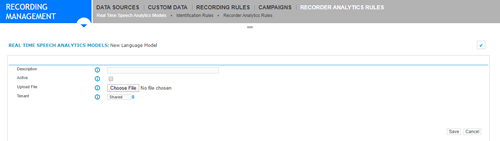
Select Create and do the following:
-
In the Description field, add a description that uniquely identifies this language model.
-
To make this language model the active version, select Active.
-
To upload the language model you copied, select Browse.
-
In a multi-tenant environment, from the Tenant list, select one of the following:
-
Tenant: Select the tenant to which you want to associate the Real time Speech Analytics model. When creating a Recorder Analytics Rule, if the rule is associated with the same tenant, the RTSA language model is available in the list of language models.
-
Shared: When creating a Recorder Analytics Rule, the language model is available for selection, irrespective of the tenant associated with the rule.
-
-
-
To distribute the selected language model, select Save. This distributes the new boosted language model from Speech Analytics to Real-Time Speech Analytics.
Optional: Roll back language model
(RTA) Framework Configuration and Administration Guide (Managing Real-time Speech Analytics Models)