Hide terms and phrases in Term Trends
Hide terms and phrases in the trend views of Terms & Phrases, and expose other trending terms that are more significant to your business issues. By default, the Term Cloud and the List View show up to 50 terms that are currently trending. If the trending terms and phrases include names of employees, days of the week, or words of greeting, for example, you can hide them from the trend view.
Before you begin
-
Make sure that you have Manage hidden terms for term trends privilege
Procedure
-
In the Discover Trends workspace, go to Terms & Phrases.
The
 icon appears on the toolbar indicating that there are no hidden terms. The tooltip describes how to hide a term or phrase from the trend view.
 -
Point to the term to hide, and from the tooltip select Hide from view.
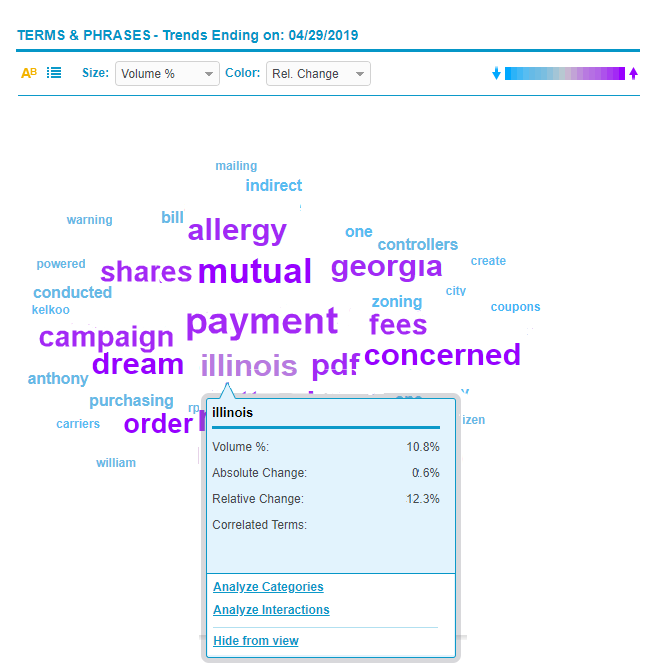
The term is no longer visible in the Term trend views.
The
 icon is displayed with a tooltip indicating that there are terms hidden from view.
 -
To view all hidden terms in the Term trend view, click
and then select Show Hidden Terms.The icon on the toolbar changes to
 , and all hidden terms are displayed with strikethroughs.
 -
To restore a hidden term to the Term trend views, point to the term and from the tooltip, select Unhide.
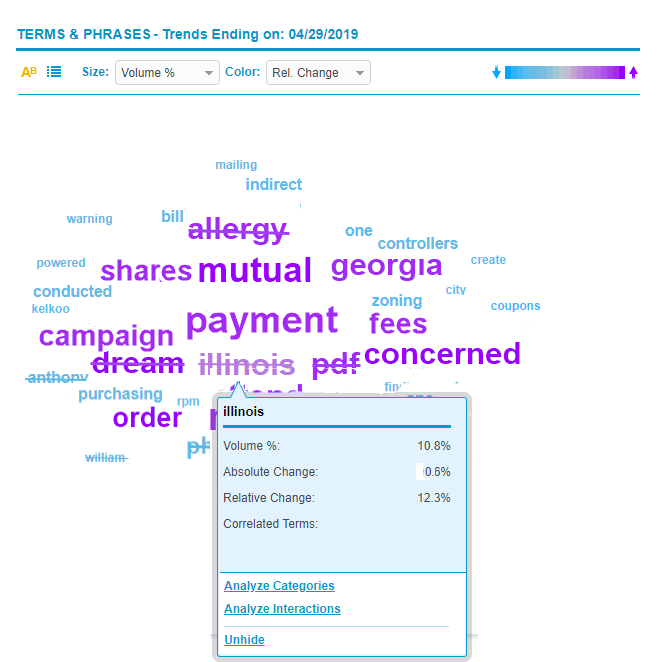
Manage hidden terms and phrases for Term trends