Manage hidden terms and phrases for Term trends
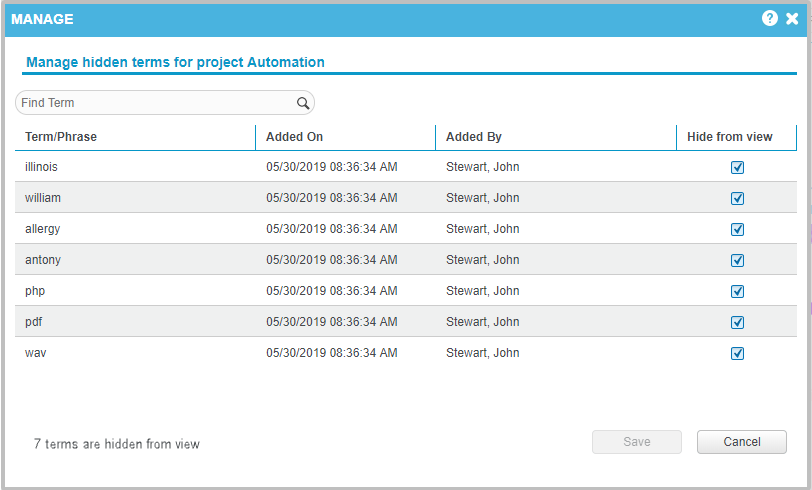
View terms currently hidden in the project, and unhide terms in bulk through the Manage Hidden Terms list. When a term or phrase is hidden from Terms & Phrases trend views, it is added to the Manage Hidden Terms list which stores the hidden terms for the project.
Before you begin
Make sure you have the Manage Hidden Terms for Term Trends privilege.
Procedure
-
In the Discover Trends workspace, go to Terms & Phrases.
-
On the toolbar, click
 or
or  , and then click Manage.
The Manage Hidden Terms list appears for the selected project. The counter at the bottom of the list indicates the total number of terms currently hidden from view for the project.
-
To locate a hidden term, type the first letters of the term in the search box.
-
Select the row with the term or phrase to unhide and in the Hidden from view column, clear the checkbox.
-
Repeat step 4 to unhide other terms.
-
To confirm changes, click Save.
The terms that were unhidden reappear in the Terms & Phrases trend views.