Generate Key page reference
The Generate Key page appears after you click the  icon on the API Keys page.
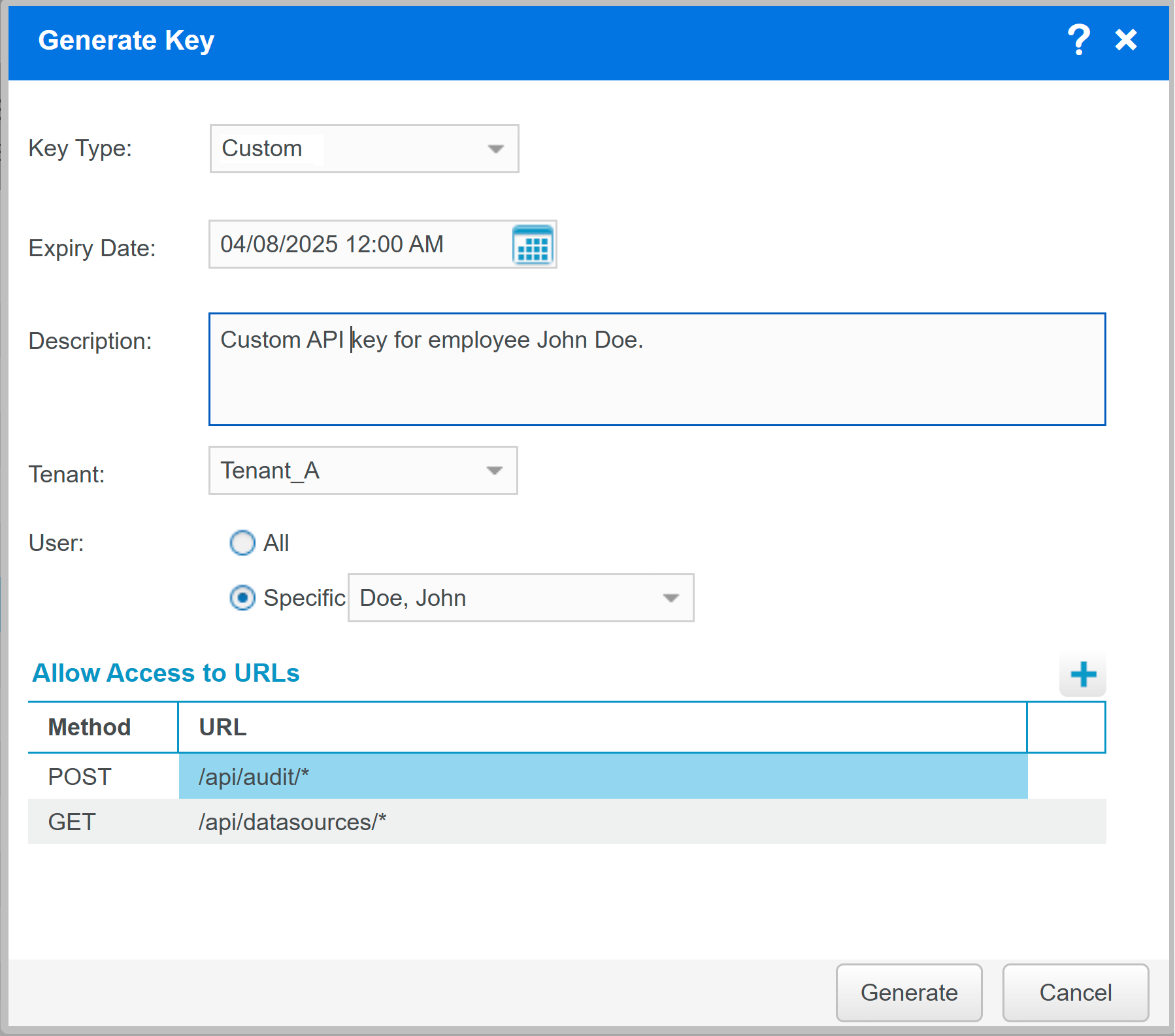
Fields on the Generate Key page
|
Field |
Description |
|---|---|
|
Key Type |
Desktop, External, Internal, or Custom. Choose the type that matches the integration. |
|
Expiry date |
Only applies to Custom, External, and Internal. This field is not shown for Desktop keys. The date and time when the system automatically disables the key; the key is deleted seven days after expiry. Leave empty for no expiry. |
|
Description |
Purpose of the key (free text). |
|
Enabled |
When selected, the key is active and available for use. Keys are enabled by default. |
|
Tenant |
For Custom API keys only. Choose the tenant on whose behalf you are creating the API key. The key can be used to access the specified tenant's data. |
|
User |
For External and Custom keys only. Choose All users or Specific user. All users
Specific user
|
|
Allow Access to URLs |
For Custom key only. Add allowed resources by specifying GET or POST and the API endpoints. Supports wildcard (*). Example: Properly formatted URLs:
To delete an entry, select the row you want to delete, and then select the Delete ( |
 ) icon.
 Tasks