Generate an API key
Generate an API key when an application vendor requests one. Each new key is automatically enabled and ready for use.
Before you begin
-
To create a custom key, your system administrator must enable the Scoped API feature flag.
-
For a scoped key that allows a single user access to URLs, the user must have the required privileges to access the APIs at those URLs.
Procedure
-
Go to System Management. Under License Management, select API Keys.
-
Select Add (
 ).
). -
Select a Key type.
-
In Expiry Date, do one of the following:
-
Select a date and time to disable the key.
Upon expiry, the system disables the key, and deletes it seven days later.
-
For a key that never expires, leave the date empty.
-
-
Type a description of the key. Example: "Created for Face-to-Face recording"
-
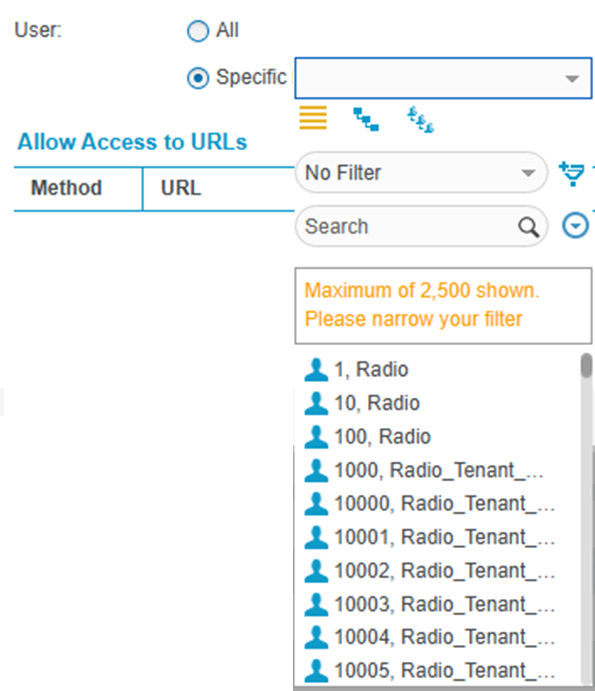
For a custom or external keys only, in User, select:
-
All — to make this key available to all features and APIs, select All.
-
Specific — to restrict access to the selected user's permissions at the time of use.
To locate a specific person, use any of these options:
-
 — Filter by organization.
 -
 — Filter by group.
 -
 — Use advanced filters.
 -
 — Search by keyword.
 -
 — Clear the filters.
-
-
-
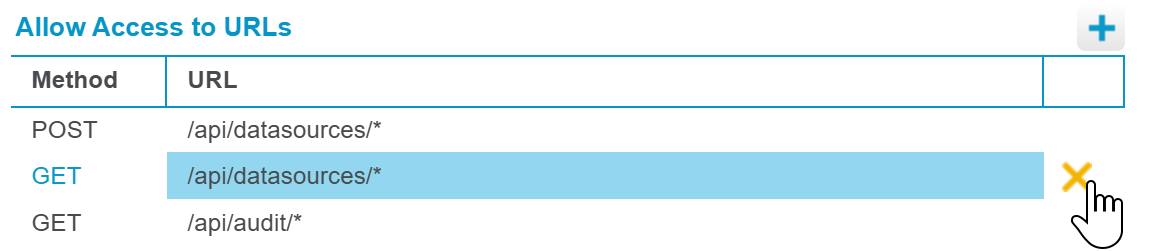
For a custom key, add at least one API endpoint:
-
In the Allow Access to URLs section, add a row by clicking
. -
In the URL field, specify the URL that you want to allow access to. You can use * as a wildcard to include multiple endpoints.
-
In the Method field, specify the request type as GET or POST.
-
To remove a row, select the row, then click X.
-
-
Click Generate.