API Keys page reference
To view the API Keys page, go to System Management. Under License Management, select API Keys.
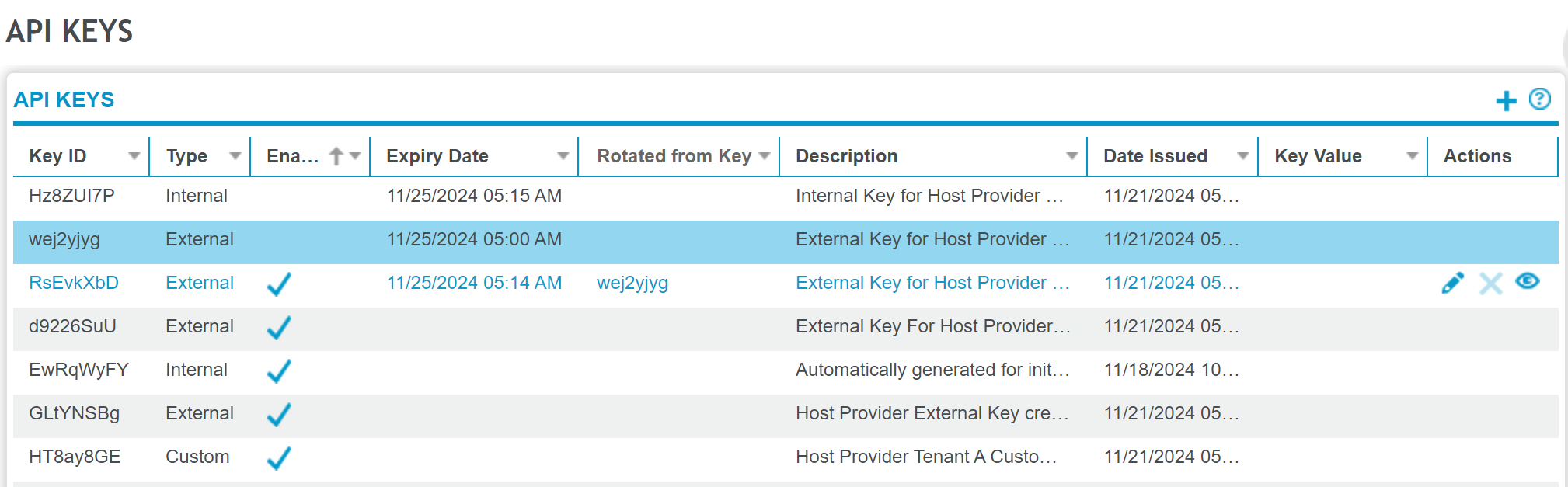
Fields on the API Keys page
|
Field |
Description |
|---|---|
|
Key ID |
Randomly generated unique alphanumeric identifier of the key. |
|
Type |
Desktop, External, Internal, or Custom. |
|
Enabled |
Indicates whether the key is enabled for use. When generated, keys are enabled by default. A key can only be enabled when the expiry date is in the future or empty (no expiry date is set). |
|
Expiry date |
Only applies to Custom, External, and Internal. This field is not shown for Desktop keys. The date and time when the system automatically disables the key; the key is deleted seven days after expiry. Leave empty for no expiry. |
|
Description |
A user-defined description of the purpose of the key. |
|
Date Issued |
The date and time the key was generated. The date and time format depends on the Regional Format a user selects in the User Preferences settings. |
|
Key Value |
Displays the alphanumeric value of the key. This field is blank by default. To display the key value, see Actions below. |
|
Actions |
Contains the icons for the available actions. You must move your mouse over the Actions column to display these icons. Show the key value icon Displays the alphanumeric value of the selected key in the Key Value column and enables the copy icon. Copy icon Copies the selected key value to the clipboard. (You must click the Show the key value icon before you can copy the key value.) Edit icon Opens the properties dialog box for the selected API key. Delete icon Deletes the selected API key. For a key to be deleted, it must not be enabled or be the only internal API key. |


