Migrate and validate existing forms
The Web Form Designer generates forms in JSON format and stores the forms in new database tables. To use existing forms in the Web Form Designer, validate that the forms can be converted from XML to JSON format, and then migrate the forms to the new database tables.
The following tools are used to migrate and validate existing forms:
-
Entity Migration tool: Validates existing forms for duplication and data corruption issues, and then copies the data (forms, shared data, shared components, and templates) in XML format to new database tables, while preserving existing entity assignments.
-
Form Designer Validation tool: Verifies the format and properties of existing forms in XML format to ensure they can be converted to JSON. The actual conversion only takes place when a user accesses the data in the Web Form Designer.
Before you begin
-
Capture the Search For Any Form assignments in the Assignment Manager. For more information, see Workflow: Enable the Web Form Designer .
Procedure
-
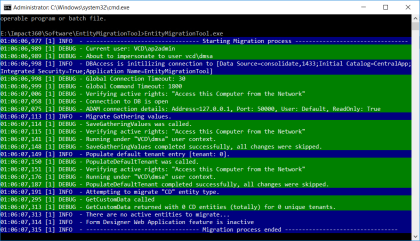
Run the Entity Migration tool on the Database Management Server (estimated duration: ~1 minute for 450 forms):
-
From a command line, go to:
Impact360\Software\EntityMigrationTool
-
Run EntityMigrationTool.exe /ForceFeature=FormDesignerWebApplication /AllowOverride
-
If the migration tool window shows an error, contact Support.
After the issue is resolved, run the migration tool again until it completes without errors.
-
-
Run the Form Designer Validation tool on the Application Servers (estimated duration: ~6-8 seconds per form):
-
From a command line, go to:
Impact360\Software\WebApplications\WebFormDesigner\ValidationTool
-
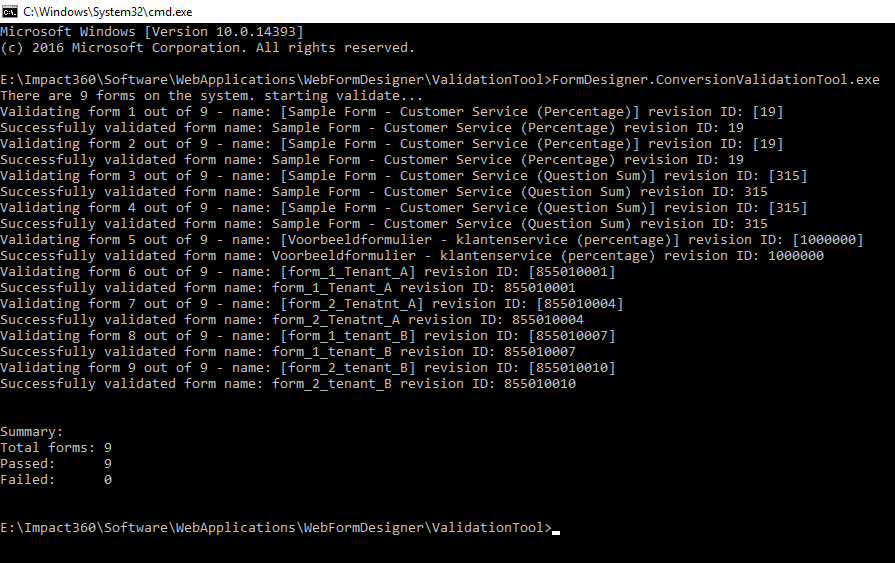
Run FormDesigner.ConversionValidationTool.exe
While the tool is running, the window displays progress information.
When the form validation is complete, the window displays the total number of forms that were processed, and the number of forms that passed or failed validation.
-
If the validation failed for one or more forms, verify the log and contact Support:
Impact360\Software\WebApplications\WebFormDesigner\ValidationTool\ConversionValidationTool.log
After the issue is resolved, run the validation tool again until it successfully validates all forms.
-
What to do next