Upgrade and configure SQL Server Reporting Services (SSRS 2017, 2019 or 2022)
If you upgraded to SQL Server 2017, 2019, or 2022, install and configure the corresponding SQL Server Reporting Services (SSRS), with the same edition as the previous SQL Server - Standard to Standard or Enterprise to Enterprise.
Procedure
-
To install SSRS 2017, SSRS 2019 or SSRS 2022, Follow Microsoft guidelines.
-
Open Windows Services, select the SQL Server Reporting Services and restart the service with the Management Service Account.
-
From the Start menu, open the Report Server Configuration Manager.
-
In the Report Server Connection dialog, do the following:
-
Verify that the Server Name is the SQL Server 2017, 2019 or 2022 host name.
-
Verify that the Report Server instance is SSRS.
-
Click Connect.
-
-
In the Report Server status screen, click Start. Then, verify that the report server is started successfully.
-
Select Service Account and select Use another account option. Set the Management Service Account and its password (the service account of the SQL Server Reporting Services). Then, click Apply.
-
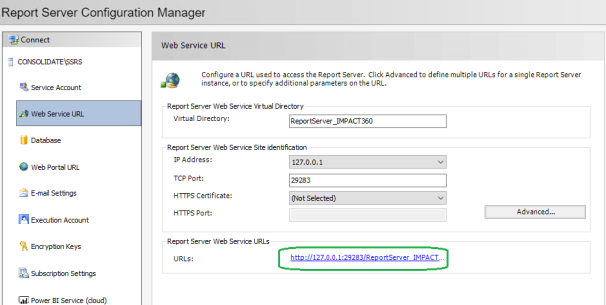
Select Web Service URL and do the following:
-
Set the Virtual Directory with same value as in the Report Server Virtual Directory, in Reporting Services role in the Enterprise Manager (usually: ReportServer_IMPACT360).
-
In the IP Address, set 127.0.0.1.
-
In the TCP port, set the port with same value as in the Reporting Services role in the Enterprise Manager (usually: 29283).
-
Click Apply.
-
-
Select Database and do the following:
-
-
Click Next.
-
Set the details of the Database Server and in the Authentication Type select Current User - Integrated Security. Then, click Test Connection.
-
Click Next.
-
In Database dialog, in the Report Server Database, select the ReportServer.
-
Click Next few times until the Progress succeeds and click Finish.
-
-
Select Web Portal URL and do the following:
-
Set the Virtual Directory with same value as in Report Manager Virtual Directory, in the Reporting Services role in the Enterprise Manager (usually: Reports_IMPACT360).
- Click Apply.
-
- In the Report Server status screen, click Stop.
- On the server hosting the SSRS, do the following:
Open SQL Server Management Studio (2017, 2019 or 2022).
Connect to the ReportServer Database.
Run the Post upgrade SSRS T-SQL script:
CopyDECLARE @sql NVARCHAR(MAX) = N'',@row_count INT;
SELECT @sql = REPLACE(REPLACE([definition],
'IIF( Catalog.LinkSourceID IS NULL, Catalog.Property, Linked.Property)',
'Catalog.Property'),
'CREATE PROCEDURE','ALTER PROCEDURE')
FROM
sys.sql_modules
WHERE [object_id] = OBJECT_ID(N'GetAllProperties', N'P');
EXEC (@sql);
UPDATE [dbo].[Keys]
SET
[SymmetricKey] = (SELECT [SymmetricKey] FROM [dbo].[Keys]
WHERE [InstanceName] <> 'SSRS') WHERE [InstanceName] = 'SSRS' AND [SymmetricKey] IS NULL; SET @row_count = @@ROWCOUNT;
IF CAST(SERVERPROPERTY('EngineEdition') AS INT) = 2 AND @row_count > 0 BEGIN DELETE [dbo].[Keys] WHERE [InstanceName] <> 'SSRS';
END;Run the following command against the ReportServer Database:
EXEC sp_recompile N'GetAllProperties';
- Open or return to the Report Server status screen, click Stop. Then, verify that the report server is stopped successfully.
- Go to %IMPACT360SOFTWAREDIR%\SSRS\Util using a command line, and run one of the following commands according to the installed SSRS version:
SSRS 2017:
ReportingServicesUtils.Shell.exe /ssrspostupgrade ssrsinstancename:SSRS version:2017
SSRS 2019 or higher:
ReportingServicesUtils.Shell.exe /ssrspostupgrade ssrsinstancename:SSRS version:2019
-
Open or return to Report Server Configuration Manager. In the Report Server status screen, click Start. Then, verify that the report server is started successfully.
-
Test the Report Server configuration as follows:
-
Open the Report Server Configuration Manager.
-
Select Web Service URL.
-
Click the link in the Report Server Web Service URLs section.
-
In the Open URL screen, set the Management Service Account and password. Then, click Logon.
-
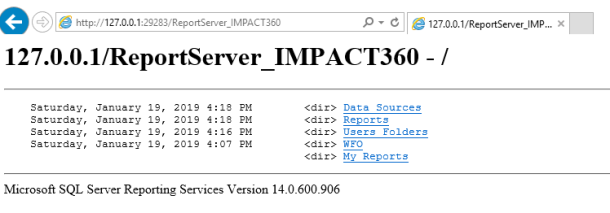
Verify that the screen that appears does not display any error and looks similar to the following example:
-
If there is any error, repeat the configuration steps until the step Test the Report Server configuration.
-
-
Open WFO portal verify that all reports are migrated as follows:
-
Select Reports > Parameters.
-
In the Report Selection, verify all migrated reports appear.
-