Monitor disk drives
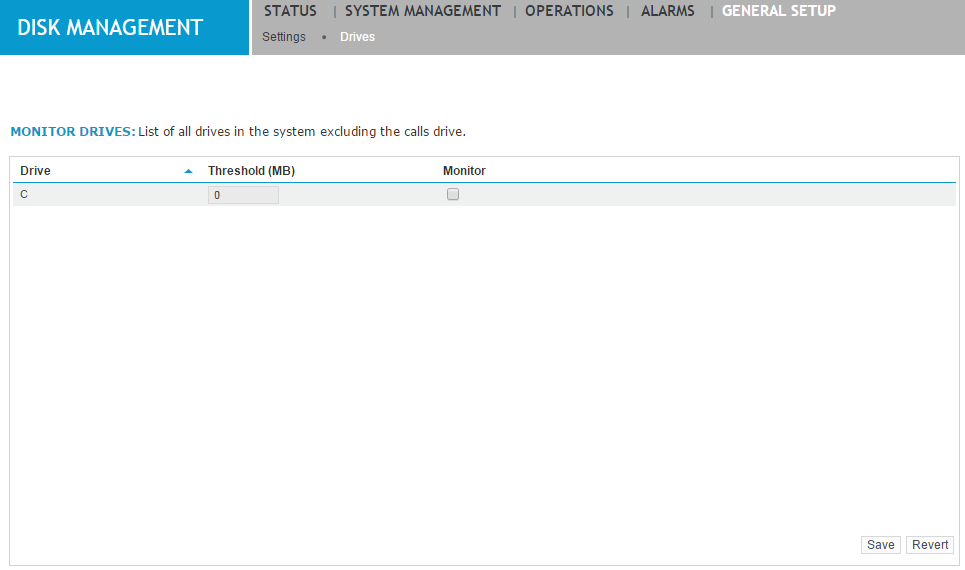
The Drives screen lists drives managed by disk manager. You can also view thresholds for any alarms (to be triggered, for example, if a drive is running low on space).
Procedure
-
Click General Setup > Disk Management > Drives.
-
To monitor a drive, select the Monitor check box. An alarm is raised when the threshold is reached (enter a value for the Threshold as well).
-
Type a threshold (in megabytes) for each drive. When disk space on the drive reaches the threshold size, it triggers an alarm. (Optional.) To edit this field, you must enable the Monitor option.
-
Click Save.