Configure Recorder settings
Procedure
-
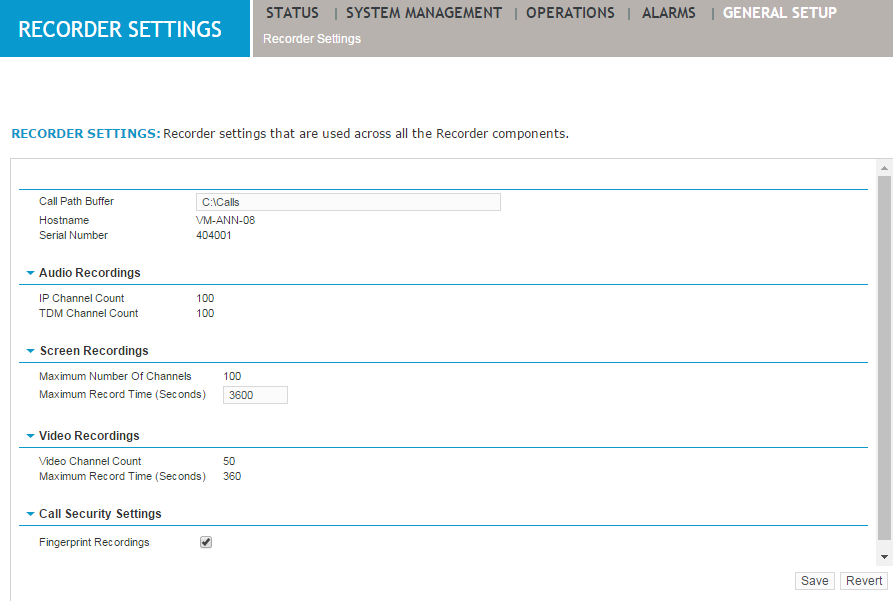
Under General Setup > Recorder Settings, specify a Call Path Buffer. The call buffer is the disk storage area (also known as the calls cache) where contacts are saved when first recorded. As the call buffer fills up, contacts are copied automatically to more permanent storage, depending on your threshold and archive settings. The Disk Manager begins deleting the oldest contacts from the call buffer once a specified disk threshold is reached.
If you are setting up a Centralized Analytics Server, you must still configure a Call Path Buffer, even though no Recorder roles will be enabled. This buffer will store files produced when Analytics is run against a campaign,which are used to update the database records of calls that have been processed.
-
View the Audio Recordings settings as noted below:
-
IP Channel Count - Displays the number of configured voice channels allocated to the IP Recorder server role on the server. This field displays only if an IP Recorder server role is activated on the server. If this field specifies zero, the IP Recorder does not record any calls.
-
TDM Channel Count - Displays the number of configured voice channels allocated to the TDM Recorder server role on the server. This field displays only if a TDM Recorder server role is activated on the server. If this field specifies zero, the TDM Recorder does not record any calls.
You allocate configured voice channels to the IP Recorder and TDM Recorder server roles from the System Management > License Management > Recording Channels screen of the enterprise portal.
-
-
View or change the Screen Recordings settings as noted below:
-
Maximum Number of Channels - Displays the number of configured screen channels allocated to the Screen recorder server role on the server. This field displays only if the Screen Recorder server role is activated on the server. If this field specifies zero, the Screen Recorder does not record any screen activity.
You allocate configured screen channels to the Screen Recorder server role from the System Management > License Management > Recording Channels screen of the enterprise portal.
-
Maximum Record Time (Seconds) - Specify the maximum amount of time allowed for the recording of screens. The setting limits the duration of a single screen Segment/INUM. The default and maximum setting is 3600 seconds. The minimum setting is 300 seconds.
-
-
View the Video Recording settings, as noted below:
-
Video Channel Count - Displays the number of configured video channels allocated to the IP Recorder Video server role on the server. This field displays only if the IP Recorder Video server role is activated on the server. If this field specifies zero, the IP Recorder Video does not record any video calls.
You allocate configured video channels to the IP Recorder Video server role from the System Management > License Management > Recording Channels screen of the enterprise portal.
-
Maximum Record Time (Seconds) - Displays the maximum amount of time allowed for a single video recording. If a video recording for an interaction reaches the time limit then recording continues as a new interaction. This value is configured in the enterprise portal from the System Management > Enterprise > Settings screen for the IP Recorder Video server role. The default setting is 180 seconds. The minimum setting is 60 seconds and the maximum setting is 3600 seconds.
-
-
Configure the Call Security Settings as noted below:
-
Fingerprint Recordings - Select this check box to have a checksum string inserted into .wav (for voice), .scn (for screen), or .mp4 (for video) files, allowing the detection and reporting of mismatched files.
-
-
Click Save.