Disable rotation and remove high-availability on CipherTrust Manager
Before upgrading a CipherTrust Manager cluster, ensure the nodes are synchronized, disable key rotation, and break the high-availability (HA) configuration to remove the cluster from HA mode.
Before you begin
Back up all CipherTrust Manager nodes before proceeding.
Procedure
-
On the primary node, open a web browser and navigate to the CipherTrust Manager Web Interface (Web UI).
Example: https://ciphertrustPrimaryHostname
-
Confirm that the cluster is connected and synchronized.
-
Sign in to Web UI using a root domain account.
-
Go to Admin Settings > Cluster.
-
From the list of nodes, ensure that the primary and secondary nodes show as green and have the Ready status.
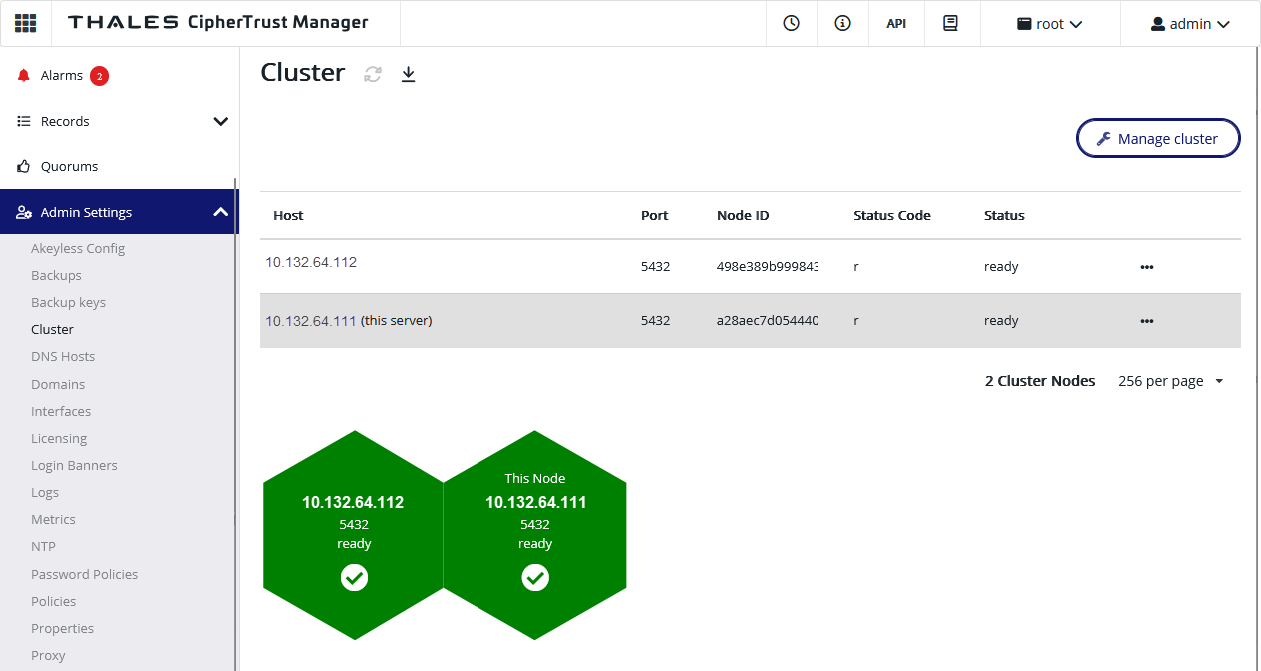
-
-
Disable key rotation on the primary KMS node:
-
Sign in to Web UI using a WFO domain account.
-
Go to Admin Settings > Schedules.
-
Find the schedule named Auto_Schedule.
-
Select the ... menu and choose Disable Schedule.
-
Confirm that the key rotation schedule is disabled on both nodes.
Disabling key rotation on the primary node also disables it on its high-availability pair, but it is important to verify that the change was applied before proceeding.
-
-
Remove high availability:
-
Sign in to Web UI using a root domain account.
-
Go to Admin Settings > Cluster.
-
Select the secondary node, select the ... menu, and then choose Remove Node.
-
Select the Manage cluster button, then select Delete Cluster Configuration.
-
What to do next