Configure the Amazon Connect Adapter
The Amazon Connect Adapter connects the Interaction Capture Service to Amazon S3 storage (to receive audio and chats) and the CTR stream (to receive events and metadata).
Before you begin
Create an Application data source for real-time audio recording
Procedure
-
In Recorder Manager, go to General Setup. Under Integration Service, click Settings.
-
Click Create, then select Amazon Connect Adapter.
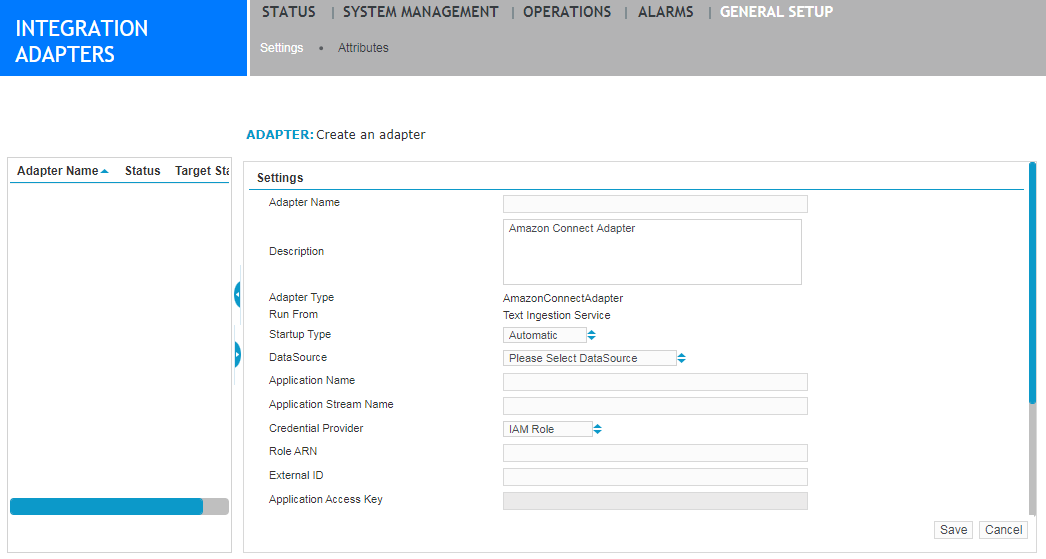
-
Complete the following settings:
Field
Description
Adapter Name
Type a unique name for this adapter.
Do not use the following special characters, which are reserved for XML tagging: < > $ & ' ".
Description
Type a description of the adapter (optional).
Adapter Type
A read-only field that lists the adapter selected previously.
Startup Type
Select how the adapter behaves after the host server restarts.
-
Automatic: (Default) The adapter starts automatically when the host server starts.
-
Manual. The adapter starts only when a user clicks the Start button.
-
Disabled. The adapter does not run when the host server starts.
DataSource
Select the Amazon Connect Application data source. Use the same data source for both the Amazon Connect Adapter and the Amazon Agent Event Stream Adapter.
Application Name
To identify this integration within records generated on the Amazon side, enter the name of the DynamoDB table.
For redundancy, for load balancing and failover to work:
-
For real-time recording, adapters on primary and secondary Interaction Capture nodes must have different Application Names (that is, each pointing to a different DynamoBD table).
-
For post-call recording, adapters on different Interaction Capture nodes must use the same Application Name. However, the application names for the Amazon Connect adapter and Agent Event Stream adapter must not be the same as each other.
If the customer has a WFM integration with Amazon, this application name must also be different from the application name used for the WFM integration.
Timespan for purging (hours)
Specify a timespan, in hours, for purging. The system purges data older than the specified time. The default is 8 hours.
Example:
If you set the Timespan for purging to 4, data older than 4 hours is purged when the Time interval for triggering purging setting is triggered.
Time interval for triggering purging (minutes)
This setting defines how often to check for data to be purged. The default is 60 minutes.
Record unknown Agents
To record the agents not configured as Employees in the data source, select this check box.
Enable Auto Reconciliation
Select Enable Auto Reconciliation to automatically run call recovery daily at midnight and after the Amazon Connect adapter restarts.
Pre-requisite: Post-call audio recording must be configured on the associated IP Recorder, and Pause/Resume Recording must be enabled on the associated Amazon Connect data source.
-
-
Configure the following parameters under Advanced Settings only when required for your deployment or when instructed by Verint Support or Field Engineering. The key names are case-sensitive and must be entered exactly as shown.
Key
Description
RecoveryMaxRecords
Specifies the maximum number of calls processed during a recovery operation.
Enter a value from 1 to 1000.
Default: 100.
EnableDuplicateCTRDetection
Controls whether redelivered CTRs are checked for existing recordings.
True: Prevents duplicate recordings by validating redelivered CTRs against previously recorded interactions.
False: Records redelivered CTRs without checking for previously recorded interactions
RecoveryStatusRetentionPeriod
Specifies the number of days that recovery request history is retained and displayed in the Interaction Recovery section of the Interaction Capture Status report.
Enter a value from 10 (default) to 90.
-
Click Save.
-
If prompted, restart the Recorder Interaction Capture service using the Windows Services console.
What to do next
Configure the Amazon Agent Event Stream Adapter
Create adapters for Amazon Connect integrations
Recorder Configuration and Administration Guide