Create a data source for Audio from Microsoft Teams using SIPREC
Create a phone data source to specify the connection details that Verint Recorders use to connect to an external system.
Procedure
-
In Enterprise Manager, click Recording Management.
-
Under Data Sources, click Settings.
-
Click Create Data Source.
-
From the Type list, select Phone.
-
From the Switch/Sub Type list, select Generic Switch.
-
Click Select.
-
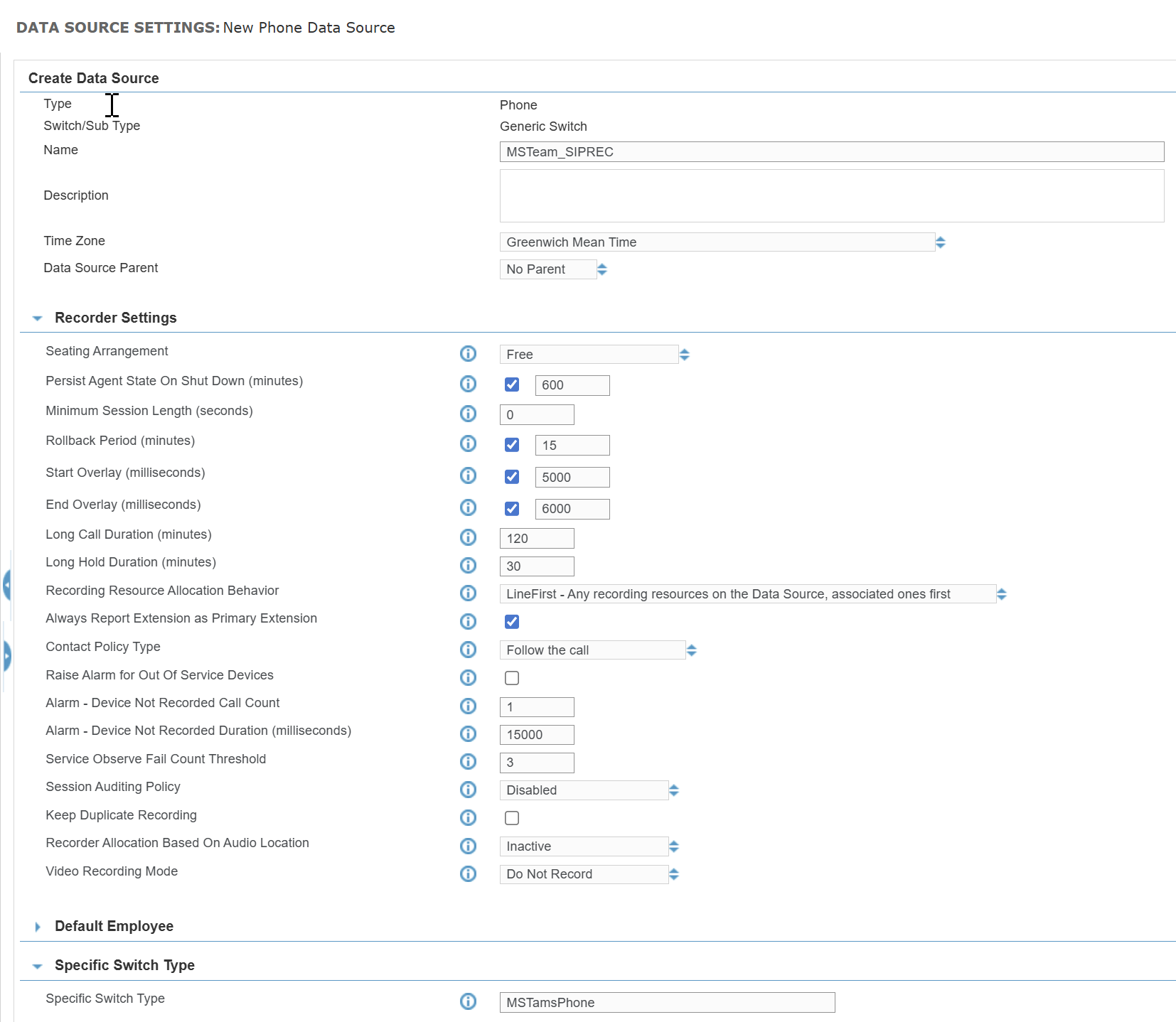
Under the Create Data Source area, do the following:
-
In the Name box, enter a descriptive name for the Data Source.
-
(Optional) In the Description box, enter a description for the Data Source.
-
From the Time zone list, select the time zone location of the switch.
-
-
In the Specific Switch Type box, enter MSTeamsPhone.
-
Under SIP Call Tracking area, do the following:
-
Select Track Signaling Calls.
-
From the Signaling Recording Mode list, select Record.
-
-
Under Associated Interaction Capture Installations, select the Interaction Capture role.
-
Under Associated Integration Service Installation area, select a Recorder Integration Service.
-
Optional. Under Advanced Settings, enter the Key
SIPREC.StationCountryCodeand set its Value to the desired code, such as 44 for the UK. For more information on Country Code setting, see Limitations for MS Teams using SIPREC. -
Click Save.
Configure roles for Audio in Microsoft Teams using SIPREC
Recorder Configuration and Administration Guide