Create a data source for Audio, Video, and VbSS
Create an Application data source for audio, video, and VbSS. Associate the data source with Interaction Capture and the Recorder Integration Service.
Procedure
-
In Enterprise Manager, click Recording Management.
-
Under Data Sources, click Settings.
-
Click Create Data Source.
-
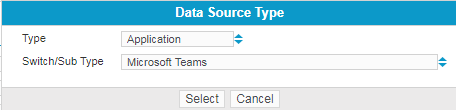
Select Application as the Type, and Microsoft Teams as the Switch Sub/Type, then click Select.
-
Type a Name for the data source.
-
Under Data Source Parent, whether in a Single- or Multi-Tenant environment, select No Parent. Every Microsoft tenant requires a separate Parent Data Source.
-
Complete the Application data source Recorder Settings.
-
Under Microsoft Teams Tenant, type the Tenant ID for the Microsoft Azure instance where Microsoft Teams is configured.
-
Under Recording BOT Settings - Authentication, enter the following:
-
Bot Tenant ID - the ID of the Tenant on which the BOT is registered.
-
BOT Application ID - the Application ID created during BOT Channel registration.
-
BOT Application Secret - the password created during BOT permission configuration.
-
-
Under Recording BOT Settings - Media, enter the following:
-
Media Control Internal Port - the internal Microsoft media SDK control port. 8445 is the default.
-
Media Control Public Port - the public Microsoft media SDK control port. 8445 is the default.
-
Media Port Range Begin - the starting port in the range of ports used for Media.
-
Media Port Range End - the end port in the range of ports used for Media. There must be a minimum of 1000 ports in the defined range.
-
Unmixed Audio - To have Microsoft Teams deliver four dominant speakers audio as unmixed streams, select the Unmixed Audio check box. The Recorder records them into a stereo file. To have Microsoft Teams deliver audio as a mixed mono stream for all participants, clear this check box.
If you select Unmixed Audio, by default, the Recorder receives four streams but must mix them into two channels in the stereo file. The Recorder writes customer audio into one channel and mixes all other audio into another channel.
-
-
Under Recording BOT Settings - Signaling, enter the following:
-
Default End Point Internal Port - the BOT channel's registered internal port for incoming call alerts. 9440 is the default.
-
Default End Point Public Port - the BOT channel's registered public port for incoming call alerts. 9440 is the default.
-
Call Control End Point Internal Port - the internal port to use for Microsoft Teams-to-BOT signaling for individual call session management. 10100 is the default.
-
Call Control End Point Public Port - the public port to use for Microsoft Teams-to-BOT signaling for individual call session management. 10100 is the default.
-
Service Base URL - the URL used to connect to the MicrosoftGraph API. use the default unless otherwise advised.
-
-
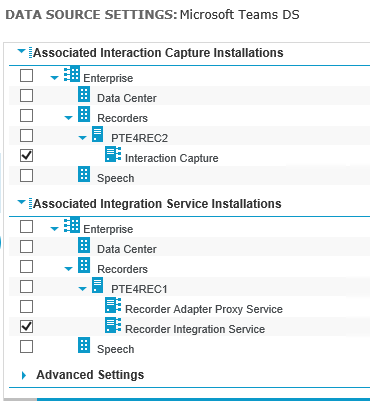
Under Associated Interaction Capture Installations, select the Interaction Capture role.
-
Under Associated Integration Service Installations, select a Recorder Integration Service Role.
The example shows the Associated Integration Service Installations configuration when the Recorder Adapter Proxy Service and the Recorder Integration Service are co-located.
-
Optional. Under Advanced Settings, in the Key and Value fields, enter the proprietary pairs that are in use in your system.
For a list of available key-value pairs, see the Advanced Settings.
-
Click Save.
-
Restart the Recorder Integration Service (RIS) on the main and standby servers.
What to do next
Complete the Microsoft Teams Application Data Source Settings
Recorder Configuration and Administration Guide