Enable automatic call recovery for Twilio Flex
For call recovery to run, you must configure your Twilio Flex data source to include your Twilio Flex Account SID and enable pause and resume
Best practices
-
Enable call recovery on your main and standby
-
Configure call recovery to run automatically.
What you should know
-
Automatic call recovery runs daily at midnight on the active (main)
Procedure
-
Enable pause and resume capture on your Twilio Flex data source:
-
From Enterprise Manager, select Recording Management, under Data Sources, select Settings.
-
In the Data Source Name pane, select Twilio Flex data source used for post-call capture.
-
In Twilio Flex Settings section, enable Pause/Resume Recording and enter Twilio Flex Account SID contact center.
-
Save your changes.
-
-
Enable call recovery to run automatically on your Twilio Flex adapter.
-
Select System Management, under Enterprise, select Settings.
-
In the Installations pane, select your
-
Select General Setup, under Integration Adapters, select Settings.
-
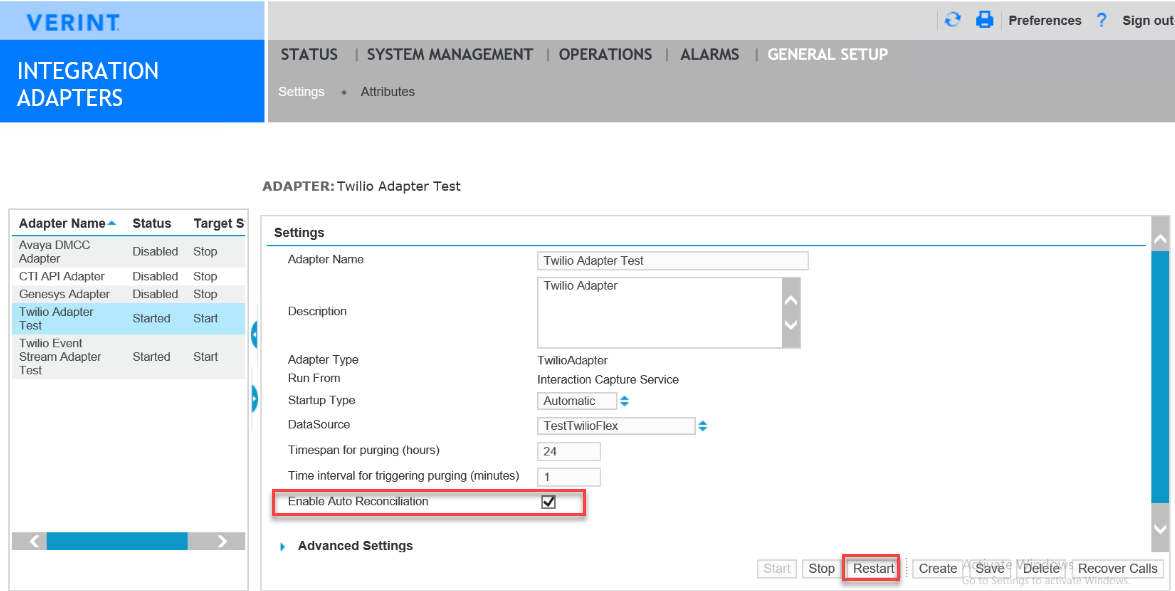
Confirm that Twilio Flex Adapter is Started.
-
Select Twilio Flex Adapter.
-
Select Enable Auto Reconciliation.
-
Save your changes.
-
Restart the adapter.
-
-
Repeat this procedure on the standby
What to do next
After automatic recovery finishes running at midnight, Verify call recovery status for Twilio Flex